 vs
vs
Looking for an OBS alternative?
OBS is a broadcast desk, and a demo is not a broadcast. Prequel records a display, a window or a region with no setup, then opens the editor with the zooms placed, the camera framed and a background behind the window. 4K at 120 fps, $9 a month or $29 once.
No credit card required
OBS Studio
Free and open source software for video recording and live streaming.
- Price
- Free, open source
- Free
- All of it, with no account
- Platforms
- macOS 13+, Windows, Linux
Prequel
Cinematic screen recorder for Mac
- Price
- $9 a month, or $29 once
- Free
- 7-day trial, then paid
- Platforms
- macOS 14+, Apple Silicon
Checked on 22 October 2026 against OBS Studio, OBS Studio download, OBS Studio 32.2.2 installer, OBS Studio on GitHub.
What is OBS Studio, and what is it good at?
OBS Studio is the free, open-source broadcast desk the whole streaming world runs on. You build scenes out of sources (a display, a window, a camera, a browser, an image, text), switch between them with transitions and hotkeys, mix every audio source with filters like noise suppression and a gate, and send the result to a file or to Twitch, YouTube and about thirty other destinations.
It runs on Windows, macOS 13 or later and Linux, it is GPL-licensed, and it has a plugin API with years of work built on top of it. For anything live, anything with multiple cameras, or anything that has to be free and inspectable, OBS is the answer and nothing here changes that.
Why do people look for an OBS alternative?
Because a recorded demo is not a broadcast, and OBS asks you to set up a broadcast either way.
Everything is manual, before and after. Canvas size, output resolution, encoder, bitrate, keyframe interval, audio tracks: all of it is yours to choose before the first take. The file that comes out is exactly what was on screen, at one distance, with a system cursor in the middle of it. Zooms, framing and cuts happen in a video editor afterwards.
It is a lot of app for a two-minute walkthrough. The Apple Silicon build is 188 MB, the window is four docks of controls, and the common path for a demo is record in OBS, then open the file in something else to make it watchable.
Is Prequel a good OBS alternative?
For recording your own screen, yes. For streaming, no.
Prequel captures the screen, the camera, the microphone and system audio as separate tracks and opens the editor with the pass already made: zooms on every click and every burst of typing, tilted, with focus falling away from the subject, the camera framed over a background, the cursor smoothed. There is nothing to configure before recording and nothing to import afterwards.
It exports one file at up to 4K and 120 frames a second through the Mac's own media engine, at $9 a month or $29 once, with a seven-day trial.
What do you give up by switching?
Live streaming, entirely. No RTMP, no scenes, no transitions, no multiview, no plugin API, no virtual camera. If you go live, OBS stays on your Mac and that is the right outcome.
Also free, open source and cross-platform. OBS costs nothing, the source is there to read, and it runs on Windows and Linux as well as macOS 13 and Intel Macs. Prequel is a paid app on Apple Silicon and macOS 14 or later.
How do the features compare?
| Feature | Prequel | OBS Studio |
|---|---|---|
| Automatic zoom on clicks | Included | Not included |
| Zoom on what you type | Included | Not included |
| Cursor smoothing and resizing | Included | Not included |
| Camera overlay, shaped and placed after | Included | Included |
| Backgrounds, padding and shadow | Included | Anything you compose into the scene |
| Layouts for the screen and camera | Fourteen, per clip | Scenes you build yourself |
| Camera cut out of its background | Included | Chroma key, or a plugin |
| Perspective tilt and focus falloff on zooms | Included | Not included |
| Captions transcribed on your Mac | Included | Not included |
| Timeline editing | Included | Not included |
| Separate audio tracks | Included | Included |
| System audio without a virtual driver | Included | Yes, on macOS 13 or later |
| Reframe to vertical without cropping | Included | Set the canvas to a vertical size yourself |
| Magnifying-glass loupe over the work | Included | Not included |
| Colour looks and filters | Included | A LUT filter on a source |
| Microphone noise reduction | Included | Included |
| Import a video you already have | Included | As a media source in a scene |
| Records and exports without uploading | Included | Included |
| Shareable links | Included | Not included |
| Team workspace | Included | Not included |
| Records an iPhone or iPad | Not included | Not included |
| Maximum export | 4K, 120 fps | Whatever you configure |
| Download size | 104 MB | 188 MB |
| Platforms | macOS 14+, Apple Silicon | macOS 13+, Windows, Linux |
| Licence | $9/month or $29 once, 7-day trial | Free, GPLv2 |
What OBS Studio is good at
It is the broadcast desk the streaming world runs on: scenes, sources, transitions, hotkeys, a real audio mixer and a plugin API, free, open source and on every platform.
What does each one cost?
OBS Studio
- OBS Studio$0 free software, GPLv2
Prequel
- Lifetime$29 once
- Pro$9 a month
Checked on 22 October 2026 against OBS Studio, OBS Studio download, OBS Studio 32.2.2 installer, OBS Studio on GitHub.
- Record your screen and cameraPick a display, a window or an area you drag out, with your camera, microphone and system audio each on their own track.
- Zooms and layout are applied automaticallyPrequel reads where you clicked and typed, then places the zooms, frames your camera and sets a background behind it.
- Edit, export and shareMove a zoom, trim a clip or fix a caption, then export one MP4 at up to 4K or send a link that plays anywhere.
Zoom and pan
Zooms that follow the action
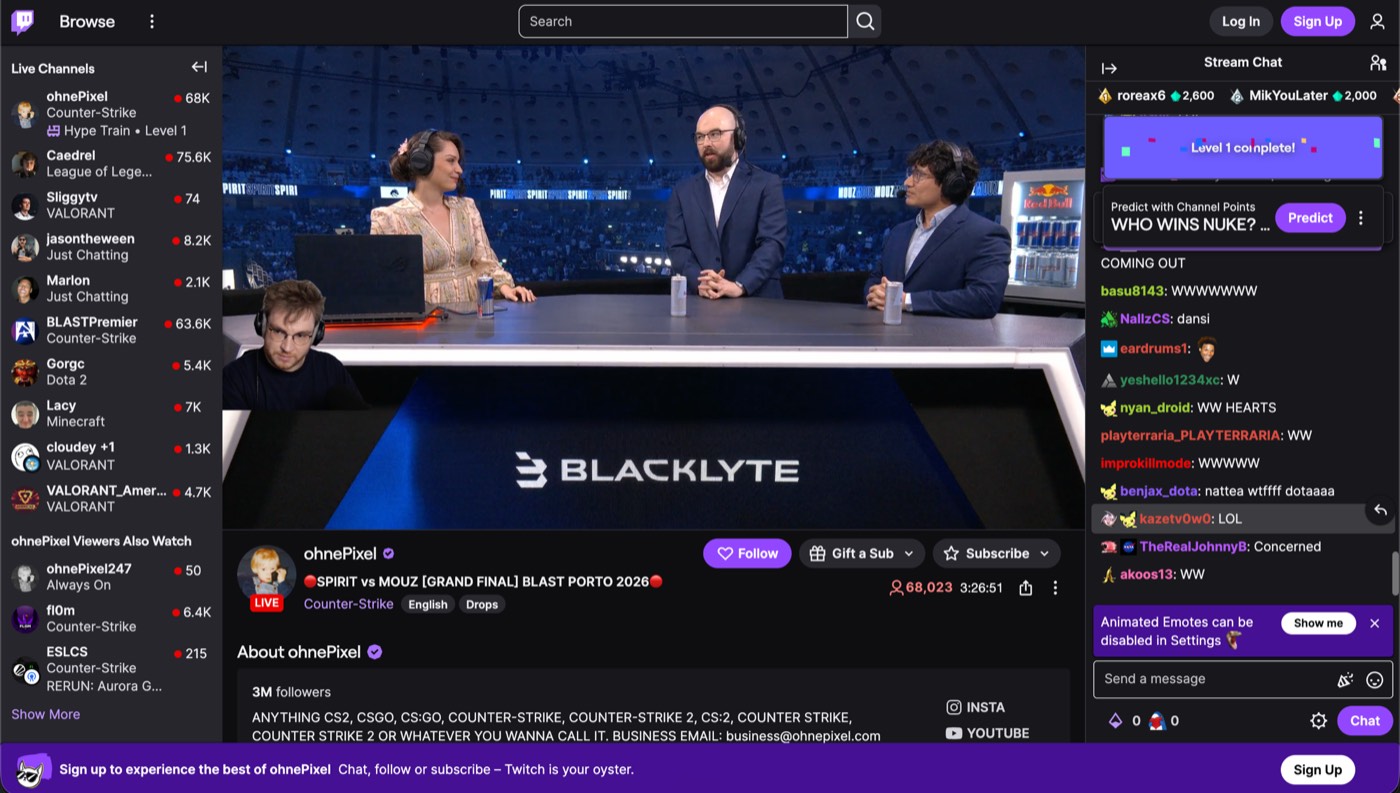
Prequel automatically zooms in when you click or type, then softens the rest of the window so viewers know where to look. Every zoom is added to the timeline, so you can move, retime or delete it at any time.
Layouts
Switch layouts clip by clip
Choose from fourteen layouts for the same take: camera in the corner, beside the screen, split with it or hidden entirely. Use one layout for the whole video, or change it clip by clip.
Subtitles
Subtitles you can edit like text
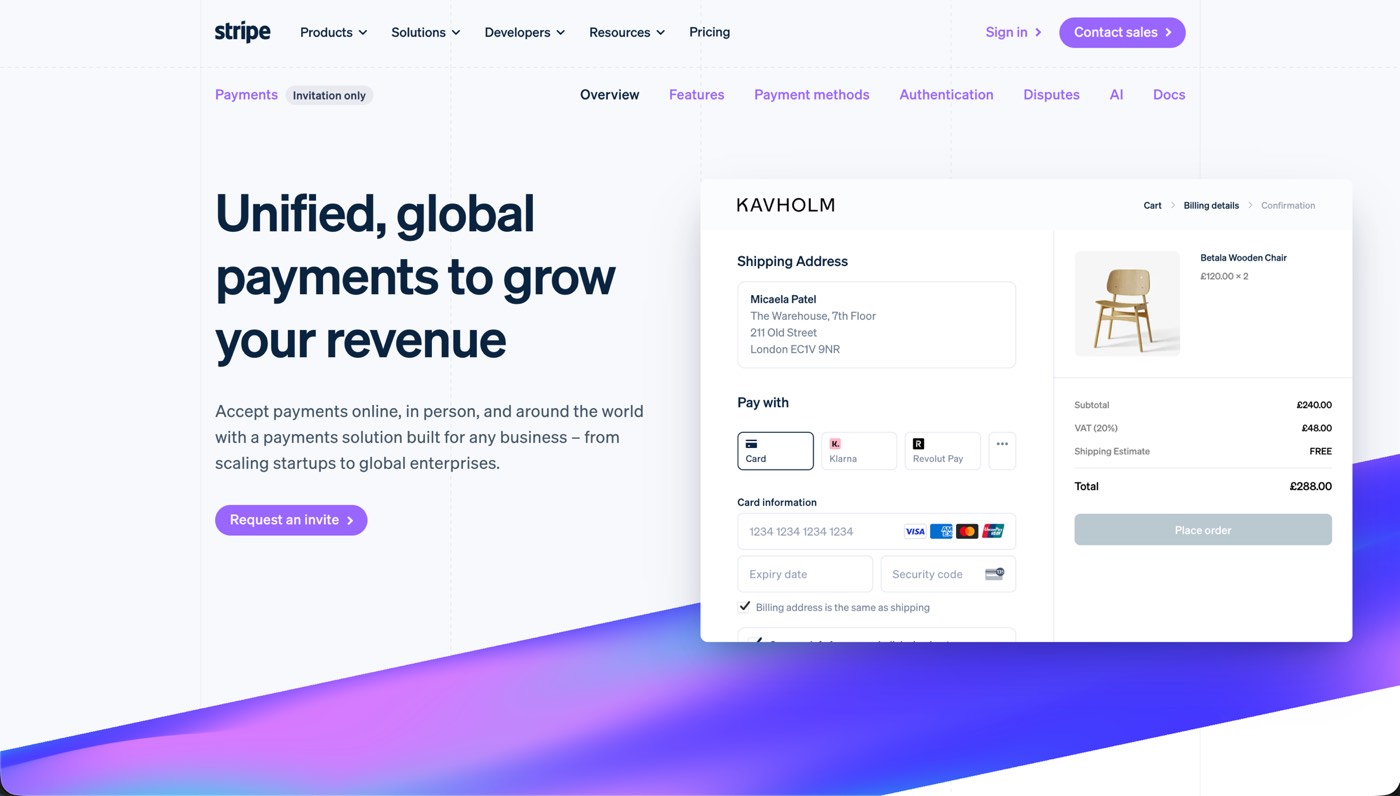
Prequel transcribes every word on your Mac when the editor opens. Fix captions by typing in the transcript, choose a subtitle style or delete a sentence to remove it from the video.
Thisisthecheckoutweshippedlastweek
Thisisthecheckoutweshippedlastweek
Thisisthecheckoutweshippedlastweek
Thisisthecheckoutweshippedlastweek
Thisisthecheckoutweshippedlastweek
Thisisthecheckoutweshippedlastweek
Thanks so much for jumping on this call
Iwanttoshowyousomethingcool
[pause here]
we’ve been building for the past few months
Teleprompter
A teleprompter that follows your voice
Prequel hangs your script from the notch, just under the camera, and follows your voice — the word you're saying lights up as you say it. Wander off script and it waits for you; skip ahead or fall behind and it catches up within a couple of words.
Apple Silicon · macOS 14+
Native
Built for your Mac
Prequel is a native app for Apple Silicon. It records with the system’s own capture, encodes on the video hardware and draws every frame in Metal. Your recordings stay on your disk.
The editor
Everything you would have done by hand
It opens by itself when you stop recording, on the take you just made. Nothing to import, nothing to line up.
Guide attention automatically
Prequel zooms into the part of the screen that matters: the cursor, a region you draw, or whatever you are typing into. Set the level, the speed and how much the rest of the frame blurs.
Look present without taking over the video
Your camera stays framed and out of the way: circle, squircle, rounded, wide or portrait, in any corner and any size. It is never burned into the recording, so none of it is decided while you record.
Make recordings look designed
Add a background, padding and a shadow without editing any of it by hand. Your own wallpaper by default, seven bundled presets, gradients and solids.
Cut the parts nobody needs to see
Trim the pauses yourself, slice by slice, with a waveform under every clip. Layout, background and audio can all change mid-take.
Keep the pointer out of the way
Fifteen pointer styles, resized so the cursor survives a zoom. Smoothed while it travels, and hidden after a few seconds of stillness.
Export the frame you approved
The preview and the exporter draw the same plan, so the file matches what you signed off in the editor.
Quality
Videos stay sharp at 4K
Capture and export run on your Mac's own media engine. 1080p at 60 fps records without dropping frames, and 4K is a setting you pick.
- Resolution
- Up to 4K
- Frame rate
- Up to 120 fps
- Codecs
- H.264 · HEVC
- Encoding
- Hardware, VideoToolbox
- Compositing
- Metal
- Output
- Constant frame rate MP4
Formats
Export in any frame
Turn one recording into different formats without manually reframing every element. Switch from landscape to vertical and the layout stays intact.
- Landscape 16:9
- 4K
- Vertical 9:16
- Square 1:1
- Portrait 4:5
- YouTube
- Shorts
- TikTok
- Reels
- X
Record demos worth sharing
Free for 7 days. No watermark on anything you export.
No credit card required
Curious about the internals? Read the blog
FAQ
Zooms, exports and the rest
What is the best OBS alternative for recording a Mac screen?
Prequel, if the recording is a demo or a tutorial rather than a stream. OBS asks you to choose a canvas, an encoder, a bitrate and an audio layout before the first take and hands back exactly what was on screen; Prequel records with no setup and opens the editor with zooms placed on every click and every burst of typing, the camera framed over a background and the cursor smoothed. If you are going live, keep OBS: nothing here replaces it.
Is OBS free?
Yes. OBS Studio is free and open source under the GPL, with no account, no tier and no watermark, on macOS 13 or later, Windows and Linux. Prequel is $9 a month or $29 once after a seven-day trial, and what it sells is the finished video rather than the capture.
Can OBS zoom in on clicks automatically?
Not on its own. Zoom in OBS is a scene transform you animate yourself, or a community plugin, and neither reads where you clicked. Prequel places a zoom on every click and every burst of typing while it writes the recording, tilts the push-in, and lets focus fall away from whatever it is aimed at.
Is OBS better for anything?
Live streaming, multiple cameras, capture cards, a virtual camera for calls, and total control over the encoder. It is also free, open source and cross-platform, and it runs on Intel Macs and macOS 13. Prequel needs an Apple Silicon Mac on macOS 14 or later and does not stream at all.