Sales
Send the demo instead of booking the call
Record the walkthrough once, at the quality you would want on a call, and let it answer the question while you are asleep.


 +1kLiked by 1000s of creators
No credit card required
The live demo is expensive. It costs a calendar slot on both sides, it happens at the speed of whoever is talking, and half of it is the same six minutes you gave the last three prospects.
A recorded demo is not a replacement for the call that closes. It is a replacement for the call that qualifies — the one where someone wants to see whether the product does the thing before they commit an hour to you.
It has to hold up without you
A live demo survives a rough recording because you are there to narrate around it. A sent one does not. If the text is too small to read, nobody asks you to zoom in; they close the tab.
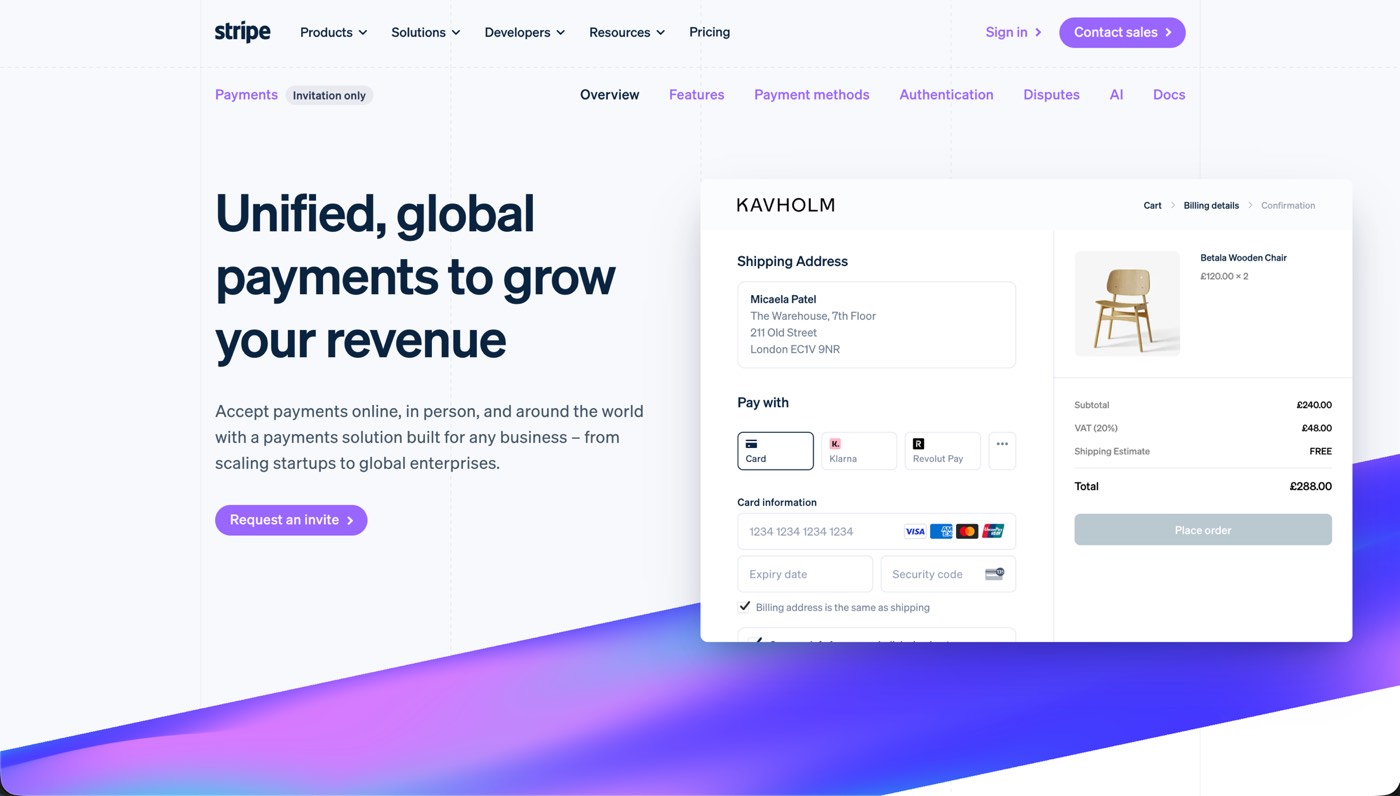
Prequel places the zooms while you record, from where you click and type, so the part you are talking about is the part filling the frame. Capture runs at your display's native resolution, which means a push lands on real detail rather than an upscale of it.
Record long, send short
Record the full walkthrough once. What you send is a trim of it.
Cuts are slices on a real timeline, with a waveform under every clip and a playhead that scrubs, so pulling a two-minute version out of a nine-minute take is a few blade cuts. Layout, background and audio can all change mid-take, which means the short version does not have to inherit the framing decisions the long one made.
Your face is optional, and reversible
The webcam is written as its own track and is never burned into the screen recording. A take recorded with the camera on can ship without it, or with it in a different corner, a different shape or a different size. That decision is not one you have to get right before you press record.
Export is one MP4 in H.264 or HEVC, at up to 4K, made entirely on your own machine.
- Record your screen and cameraPick a display, a window or an area you drag out, with your camera, microphone and system audio each on their own track.
- Zooms and layout are applied automaticallyPrequel reads where you clicked and typed, then places the zooms, frames your camera and sets a background behind it.
- Edit, export and shareMove a zoom, trim a clip or fix a caption, then export one MP4 at up to 4K or send a link that plays anywhere.
Zoom and pan
Zooms that follow the action
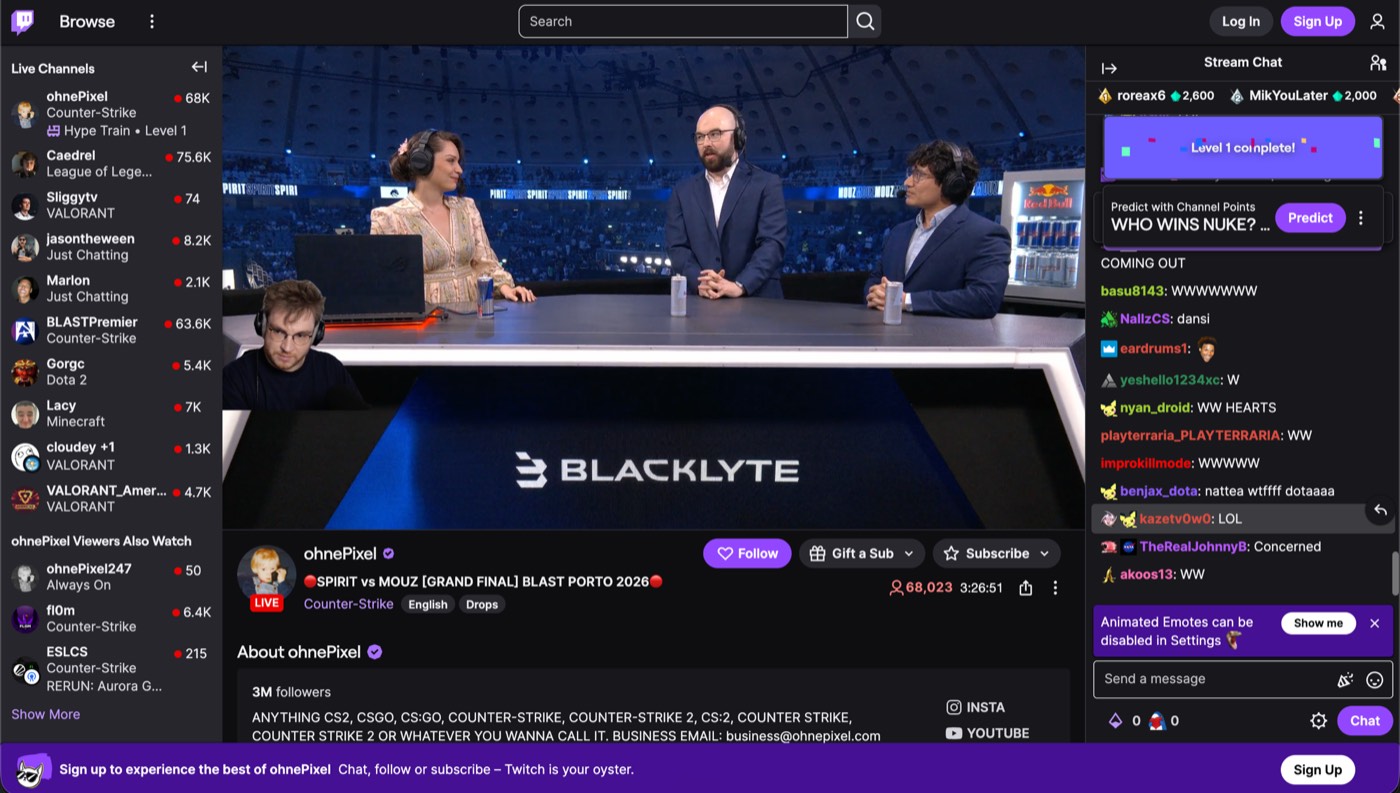
Prequel automatically zooms in when you click or type, then softens the rest of the window so viewers know where to look. Every zoom is added to the timeline, so you can move, retime or delete it at any time.
Layouts
Switch layouts clip by clip
Choose from fourteen layouts for the same take: camera in the corner, beside the screen, split with it or hidden entirely. Use one layout for the whole video, or change it clip by clip.
Subtitles
Subtitles you can edit like text
Prequel transcribes every word on your Mac when the editor opens. Fix captions by typing in the transcript, choose a subtitle style or delete a sentence to remove it from the video.
Thisisthecheckoutweshippedlastweek
Thisisthecheckoutweshippedlastweek
Thisisthecheckoutweshippedlastweek
Thisisthecheckoutweshippedlastweek
Thisisthecheckoutweshippedlastweek
Thisisthecheckoutweshippedlastweek
Thanks so much for jumping on this call
Iwanttoshowyousomethingcool
[pause here]
we’ve been building for the past few months
Teleprompter
A teleprompter that follows your voice
Prequel hangs your script from the notch, just under the camera, and follows your voice — the word you're saying lights up as you say it. Wander off script and it waits for you; skip ahead or fall behind and it catches up within a couple of words.
Instant edit
Start with the edit already done
Prequel records where you click and type, then opens the editor with zooms already placed, a framed camera and a polished background. Spend less time building the first cut and more time fine-tuning.
- Zooms placedOn every click and every burst of typing
- Camera framedShaped, sized and set in a corner
- Background appliedPadding, radius, border and shadow
- Audio balancedMicrophone and system on separate gains
- Cursor cleaned upSmoothed, resized, hidden when it idles
The editor
Everything you would have done by hand
It opens by itself when you stop recording, on the take you just made. Nothing to import, nothing to line up.
Guide attention automatically
Prequel zooms into the part of the screen that matters: the cursor, a region you draw, or whatever you are typing into. Set the level, the speed and how much the rest of the frame blurs.
Look present without taking over the video
Your camera stays framed and out of the way: circle, squircle, rounded, wide or portrait, in any corner and any size. It is never burned into the recording, so none of it is decided while you record.
Make recordings look designed
Add a background, padding and a shadow without editing any of it by hand. Your own wallpaper by default, seven bundled presets, gradients and solids.
Cut the parts nobody needs to see
Trim the pauses yourself, slice by slice, with a waveform under every clip. Layout, background and audio can all change mid-take.
Keep the pointer out of the way
Fifteen pointer styles, resized so the cursor survives a zoom. Smoothed while it travels, and hidden after a few seconds of stillness.
Export the frame you approved
The preview and the exporter draw the same plan, so the file matches what you signed off in the editor.
Quality
Videos stay sharp at 4K
Capture and export run on your Mac's own media engine. 1080p at 60 fps records without dropping frames, and 4K is a setting you pick.
- Resolution
- Up to 4K
- Frame rate
- Up to 120 fps
- Codecs
- H.264 · HEVC
- Encoding
- Hardware, VideoToolbox
- Compositing
- Metal
- Output
- Constant frame rate MP4
Formats
Export in any frame
Turn one recording into different formats without manually reframing every element. Switch from landscape to vertical and the layout stays intact.
- Landscape 16:9
- 4K
- Vertical 9:16
- Square 1:1
- Portrait 4:5
- YouTube
- Shorts
- TikTok
- Reels
- X
Record demos worth sharing
Free for 7 days. No watermark on anything you export.
No credit card required
Curious about the internals? Read the blog
FAQ
Zooms, exports and the rest
Does my face have to be in it?
No, and you can decide after recording. The webcam is written as its own track rather than burned into the screen, so a take recorded with the camera on can ship without it — and its shape, size and corner are all still yours if you keep it.
How long should a sales demo video be?
Shorter than the call it replaces. Three to five minutes covers a product properly when the prospect asked for it; a video attached to a cold email has under a minute to earn the rest. Record the full walkthrough and cut down — the timeline makes several lengths out of one take.
Can I make one demo and cut it for different prospects?
Yes. Cuts are slices on a timeline, so a long walkthrough is the source for several shorter ones. Nothing is baked in until you export, and each export is an ordinary MP4.
Can I talk over the demo while I record it?
Yes. Your microphone and the system audio are captured alongside the screen as separate tracks, so the narration is recorded in the same pass as the walkthrough and the two are still independent afterwards.
Will the prospect see a watermark?
No. The export is your video, at whatever resolution you chose, with nothing added to it.
Is the customer data in my demo safe?
It never leaves your Mac to become a video. Recording, editing and export are all local, so a demo recorded against a real account is not uploaded anywhere as part of making it. What you do with the finished MP4 is then an ordinary file decision.
What do I need to record a sales demo on a Mac?
An Apple Silicon Mac on macOS 14 or later, and the Screen Recording permission. Recording your microphone alongside it asks for the Microphone permission the first time.