Bug reports
Show the bug instead of describing it
A recording that pushes in on the thing that went wrong saves the round trip that starts with which button did you press.


 +1kLiked by 1000s of creators
No credit card required
Written bug reports lose a round trip to the same question every time: what exactly did you click. A recording answers it before it is asked, which is why every issue template has a line asking for one.
The reason people skip it is that the recording is usually worse than the description. It is four minutes long, most of which is finding the thing, and the moment that matters is six pixels wide.
The moment that matters, at a readable size
Prequel records where you click and type while it captures, and turns those moments into zooms. The click that triggered the bug is a click it noticed, so it is a push in the finished video without you placing one.
If the interesting thing is text rather than a pointer — an error message, a stack trace, a value in a config panel — draw a region zoom. It holds still on the area you drew rather than following the cursor around while somebody tries to read it.
Trim to the reproduction
The take is a real timeline, with a playhead that scrubs and a waveform under every clip. Cutting the ninety seconds where you were finding the right screen is a blade and a delete.
That is worth doing for its own sake, and it is also how the file gets small enough to attach. Export is hardware H.264 at a constant frame rate, which is dramatically smaller than the MOV a plain screen recording produces for the same seconds — and at 1080p rather than 4K, a thirty-second reproduction is an ordinary attachment.
What gets captured
Screen, microphone, system audio and webcam, as separate tracks. The system audio track is occasionally the whole report on its own, when the bug is something making a sound it should not. Narration is optional, and its gain is independent of everything else.
Nothing is uploaded to make any of this.
- Record your screen and cameraPick a display, a window or an area you drag out, with your camera, microphone and system audio each on their own track.
- Zooms and layout are applied automaticallyPrequel reads where you clicked and typed, then places the zooms, frames your camera and sets a background behind it.
- Edit, export and shareMove a zoom, trim a clip or fix a caption, then export one MP4 at up to 4K or send a link that plays anywhere.
Zoom and pan
Zooms that follow the action
Prequel automatically zooms in when you click or type, then softens the rest of the window so viewers know where to look. Every zoom is added to the timeline, so you can move, retime or delete it at any time.
Layouts
Switch layouts clip by clip
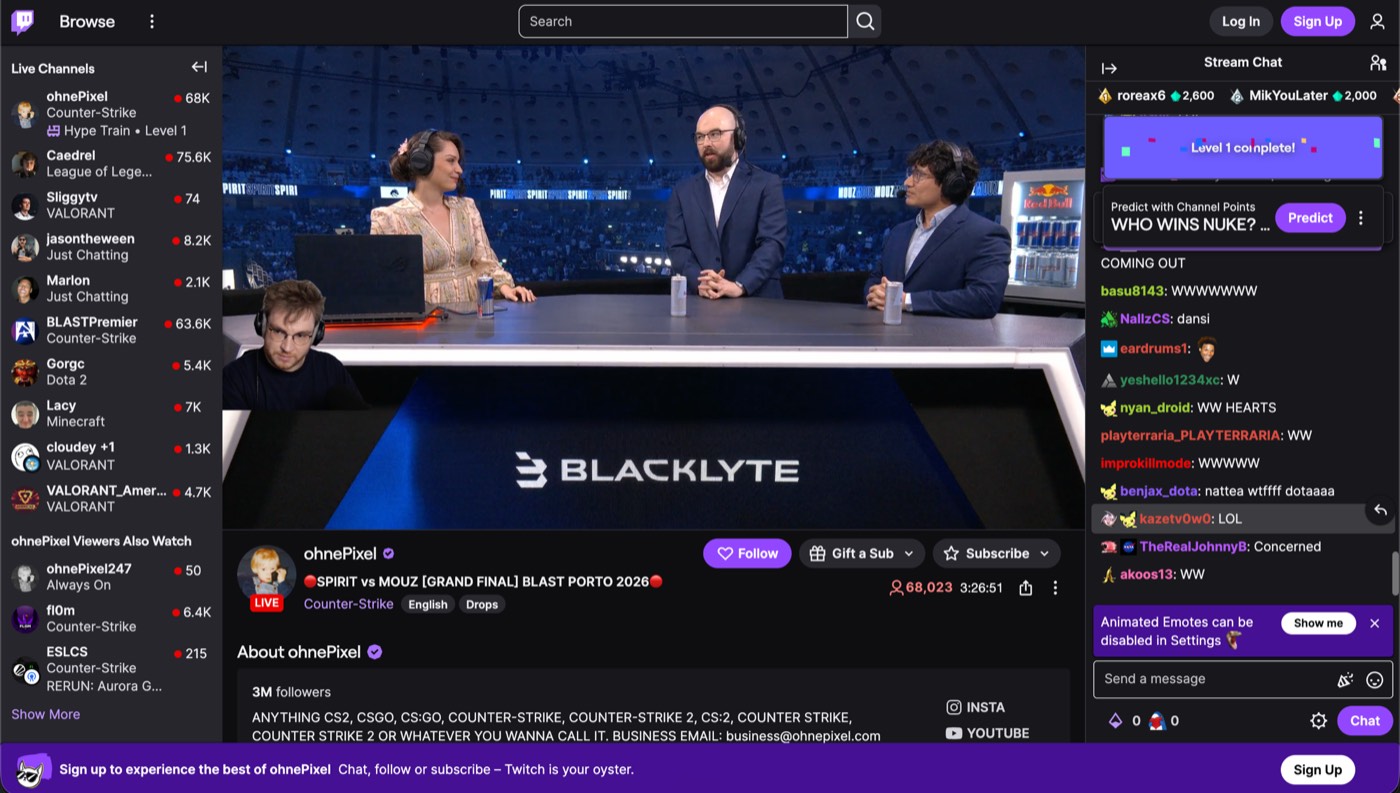
Choose from fourteen layouts for the same take: camera in the corner, beside the screen, split with it or hidden entirely. Use one layout for the whole video, or change it clip by clip.
Subtitles
Subtitles you can edit like text
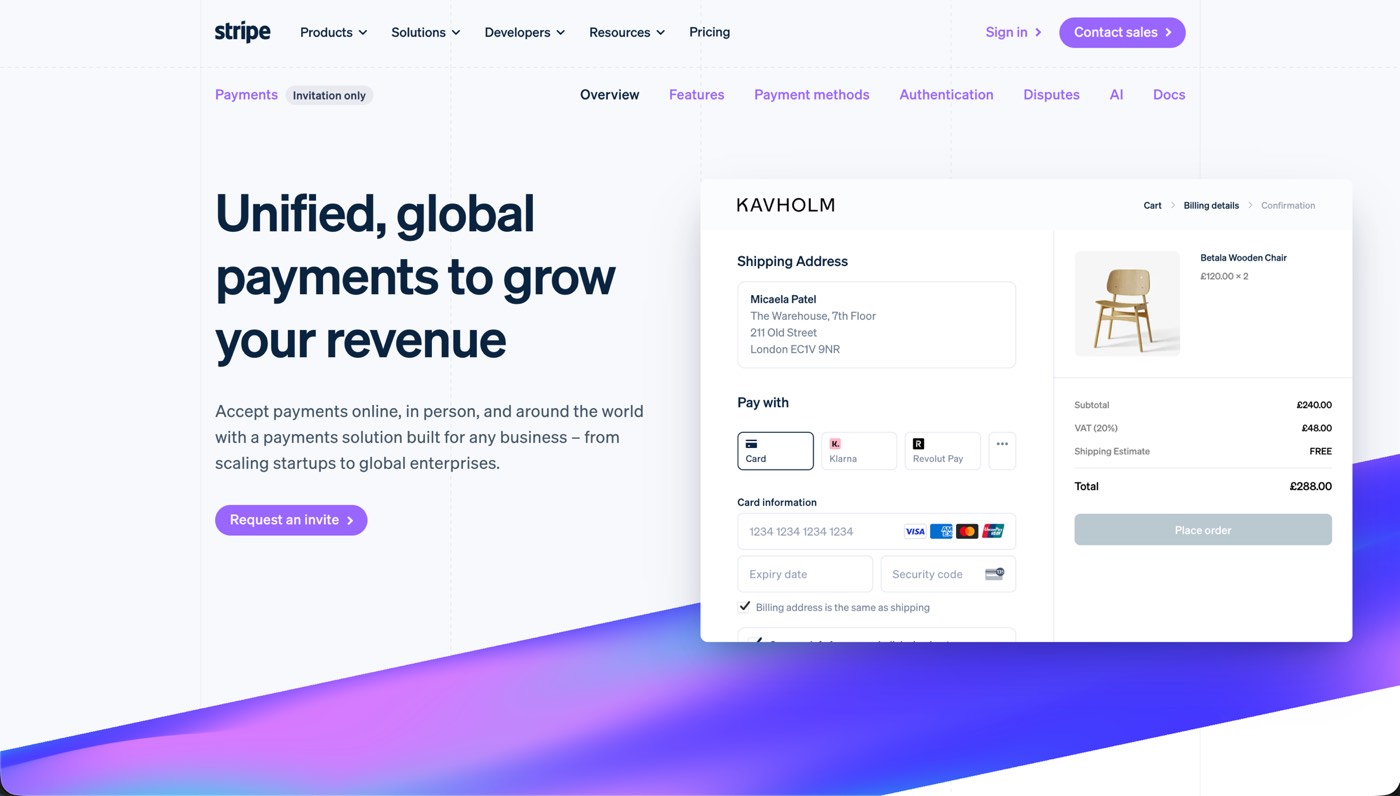
Prequel transcribes every word on your Mac when the editor opens. Fix captions by typing in the transcript, choose a subtitle style or delete a sentence to remove it from the video.
Thisisthecheckoutweshippedlastweek
Thisisthecheckoutweshippedlastweek
Thisisthecheckoutweshippedlastweek
Thisisthecheckoutweshippedlastweek
Thisisthecheckoutweshippedlastweek
Thisisthecheckoutweshippedlastweek
Thanks so much for jumping on this call
Iwanttoshowyousomethingcool
[pause here]
we’ve been building for the past few months
Teleprompter
A teleprompter that follows your voice
Prequel hangs your script from the notch, just under the camera, and follows your voice — the word you're saying lights up as you say it. Wander off script and it waits for you; skip ahead or fall behind and it catches up within a couple of words.
Instant edit
Start with the edit already done
Prequel records where you click and type, then opens the editor with zooms already placed, a framed camera and a polished background. Spend less time building the first cut and more time fine-tuning.
- Zooms placedOn every click and every burst of typing
- Camera framedShaped, sized and set in a corner
- Background appliedPadding, radius, border and shadow
- Audio balancedMicrophone and system on separate gains
- Cursor cleaned upSmoothed, resized, hidden when it idles
The editor
Everything you would have done by hand
It opens by itself when you stop recording, on the take you just made. Nothing to import, nothing to line up.
Guide attention automatically
Prequel zooms into the part of the screen that matters: the cursor, a region you draw, or whatever you are typing into. Set the level, the speed and how much the rest of the frame blurs.
Look present without taking over the video
Your camera stays framed and out of the way: circle, squircle, rounded, wide or portrait, in any corner and any size. It is never burned into the recording, so none of it is decided while you record.
Make recordings look designed
Add a background, padding and a shadow without editing any of it by hand. Your own wallpaper by default, seven bundled presets, gradients and solids.
Cut the parts nobody needs to see
Trim the pauses yourself, slice by slice, with a waveform under every clip. Layout, background and audio can all change mid-take.
Keep the pointer out of the way
Fifteen pointer styles, resized so the cursor survives a zoom. Smoothed while it travels, and hidden after a few seconds of stillness.
Export the frame you approved
The preview and the exporter draw the same plan, so the file matches what you signed off in the editor.
Quality
Videos stay sharp at 4K
Capture and export run on your Mac's own media engine. 1080p at 60 fps records without dropping frames, and 4K is a setting you pick.
- Resolution
- Up to 4K
- Frame rate
- Up to 120 fps
- Codecs
- H.264 · HEVC
- Encoding
- Hardware, VideoToolbox
- Compositing
- Metal
- Output
- Constant frame rate MP4
Formats
Export in any frame
Turn one recording into different formats without manually reframing every element. Switch from landscape to vertical and the layout stays intact.
- Landscape 16:9
- 4K
- Vertical 9:16
- Square 1:1
- Portrait 4:5
- YouTube
- Shorts
- TikTok
- Reels
- X
Record demos worth sharing
Free for 7 days. No watermark on anything you export.
No credit card required
Curious about the internals? Read the blog
FAQ
Zooms, exports and the rest
How do I keep the file small enough to attach?
Trim to the reproduction and export at 1080p rather than 4K. Export is hardware H.264 at a constant frame rate, which is dramatically smaller than the MOV a plain screen recording produces for the same seconds.
Can I export a bug report as a GIF?
Yes. GIF is one of the export formats, which is often the right one for an issue tracker — it plays inline in GitHub and Linear instead of asking someone to download a file. It carries no audio, so keep the MP4 if the narration matters.
Can I cut out the part where I fumbled the setup?
Yes. The take is a timeline with a playhead that scrubs and a waveform under every clip, so cutting the first ninety seconds is a blade and a delete.
Does the recording show what I actually clicked?
Yes, and more clearly than a raw capture does. Prequel records where the pointer went and where you pressed, then pushes in on those moments — so the answer to which button did you press is in the video rather than in the reply.
How do I record the console and the interface together?
Record the whole display rather than a single window. Cursor zooms follow the pointer across it, so moving from the app to the console and back keeps whoever is watching with you.
Can I record system audio so an error sound is captured?
Yes. System audio is recorded alongside your microphone as its own track, with no virtual audio driver to install first.
My recording came out black. What happened?
The Screen Recording permission, nearly always. macOS hands back empty frames instead of an error when it has not been granted, so the app looks broken rather than blocked. Grant it under Privacy & Security in System Settings and record the reproduction again.