Features
Everything Prequel does to a recording
Nothing about the look is fixed while you record. Here is the whole list: what Prequel captures, what it does on its own, and what comes out.
No credit card required
Capture
Records your screen, camera, microphone and system audio
Four separate files, nothing mixed while you record. The framing, the volume and the layout are still open when you stop.
Screen, window or region
Record a whole display, a single window, or an area you drag out. Every display your Mac has gets its own picker.
Camera recorded as its own track
The webcam is never burned into the screen recording. Whether it appears, what shape it is and where it sits are all decided afterwards.
Countdown, global shortcut, pause and resume
A countdown of 3, 5 or 10 seconds, and a global shortcut you can rebind. Pause and resume part way through, or discard a take without leaving a file behind.
Microphone and system audio on separate tracks
Your microphone and the sound coming out of your Mac, each with a gain of its own. System audio arrives through ScreenCaptureKit, so there is no virtual driver to install.
Prequel's own windows are excluded
The dock, the picker and every other Prequel window are left out by id. Recording your whole screen does not record Prequel recording it.
Captured at native resolution
Recording runs at your display's own pixel size. A Retina Mac exporting at 1080p has roughly three times the pixels it needs, and a zoom spends that headroom.
Zoom and pan
Places the zooms for you, from your clicks and typing
Prequel watches where you click and type while it records. The editor opens with the zooms already placed, and every one of them is yours to change.
Clicks and typing clustered into shots
Clicks and bursts of typing, clustered into shots with a lead-in and a lead-out. A push lands on the thing you did, at the moment you did it.
Level, speed, and an ease you drag as a curve
How far in, how fast, and the shape of the move between. The ease is a curve with two handles, and a fresh zoom starts on the smooth one.

Every generated zoom is editable
A generated zoom is identical to one you add yourself. Move it, retime it, point it somewhere else, delete it.
Add zoom and pan again at any time
Add zooms fills the stretches that are not already covered. A take you have cut about in gets topped up, and what you placed by hand stays where it is.
Zooms that follow the cursor, a region or a field
Follow the cursor, hold still on a region you draw, or track the field you are typing into. One choice per zoom, and a different one for the next.
Perspective tilt and focus falloff
A tilt and a yaw on the push-in, so the frame has a direction. Focus falls away from the subject, with its own sharp area and strength.
Layout and camera
Fourteen ways to arrange the screen and the camera
The two pictures are separate tracks, so how they share the frame is a choice you make in the editor. Pick an arrangement, then drag either picture where you want it.
Fourteen layouts in three groups
The screen and camera together, the camera alone, or the screen alone. Camera over the screen, beside it, stacked, or split down the middle.
Five camera shapes, sized and mirrored
Circle, squircle, rounded, wide or portrait, each with a roundness, size and border of its own. Mirror it, and zoom into its picture to tighten the shot.
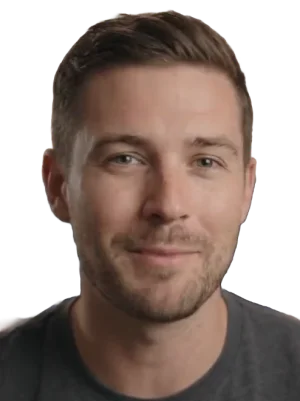
Remove the background and keep only you
The camera's background is cut away while you record, so switching it off in the editor is instant. What is left is you, on the wallpaper, with no bubble, border or shadow round it. Switch it back on and the bubble returns.
The camera shrinks while a zoom is in
A push-in brings the picture closer and the bubble would cover more of it. Set a size for while a zoom is in and the camera steps out of the way on its own.
One layout for the video, or one per clip
With nothing selected the arrangement is the whole video's. Select a clip and pick another, and that clip keeps it while the rest stay put.

Drag either picture anywhere in the frame
Take hold of the camera or the screen in the preview and move it. Positions are stored as fractions of the frame, so nothing slides off when you switch shape.
Background and frame
A background behind the recording, and a frame round it
Your desktop picture is the default, so a take looks finished before you touch anything. Then padding, corners, a border, a shadow and your logo.
Your wallpaper, a catalogue, gradients or solids
Your desktop picture, a hosted catalogue in four groups, gradients, solids, or an image you pick. Every one of these cards stands on one of them.
Padding, corner radius, border and shadow
Four sliders that shape the frame. Every one is a fraction of the frame's shorter edge, so the same look holds from landscape to vertical.
Blur the background behind the recording
Soften the wallpaper and the recording stays sharp on top of it. A busy desktop picture stops competing with the thing you recorded.
Your own logo anywhere in the frame
Any image, anywhere in the frame, sized by its corner and set to an opacity. An SVG stays sharp at whatever size you export.
Cursor
A pointer that is drawn, so it can be redrawn
Prequel records where the pointer went and draws it back over the take. That is what lets it be a different shape, a different size, smoother than your hand, and gone when it stops.














Fifteen pointer styles, sized to survive a zoom
Black, white, the classic pair, a circle, a hand, and nine more for a take that is allowed some fun. Each sized so the pointer survives a zoom.
Smoothed while it travels
The recorded path steps from sample to sample. The drawn one runs through a curve, so a pointer moves the way a hand does and not the way a mouse reports.
Motion blur as it moves
A pointer flung across the screen smears along its own travel, the way anything moving that fast does on film. Standing still, it is as sharp as ever.
Hidden when it goes still, and while you type
A pointer parked over a paragraph fades out after a pause you set, and comes back the moment it moves. Hide it while you type, so the words are what the viewer watches.
Captions
Captions transcribed on your Mac, and edited as text
Turn captions on and the take is transcribed where it was recorded, with nothing uploaded. Fix a word in the transcript and the caption follows. Delete a sentence and the footage goes with it.
Transcribed on your Mac, with nothing uploaded
The transcript is made by the speech engine your Mac already has. It never leaves the machine, and there is no account to make before you can have it.
Six looks
Blur in, Subtitle, Highlight, Pop, Outline and Band. Two of them light the word being spoken, one arrives a word at a time, and the band runs the width of the frame.
A colour for the word being spoken
The lit looks colour the current word as it is said. Pick the colour, and it is the same in the preview and the export.
Edit the transcript to edit the video
Open the transcript and correct what it heard. Delete a sentence there and that stretch of footage leaves the video with it.
Top, middle or bottom, at the size you want
Three positions, a size, a distance from the edge and how many lines a cue may run to. All fractions of the frame, so the captions sit the same in every export size.
Any of nine faces your Mac already has
System, Helvetica Neue, Avenir Next, Futura, Optima, Georgia, Times, Courier and Menlo. Nothing to install, and the export is drawn with the same face as the preview.
Timeline, audio and presets
A timeline with the cut, the sound and the look on it
One strip under the preview, with the footage on it. Cut where you want, balance the two audio tracks, and save the whole look for the next recording.
Filmstrip and waveform under every clip
Frames from the take along each clip, and its audio drawn over them. You can see a pause before you play it and find a click without scrubbing for it.
Split, trim, delete and duplicate
Split at the playhead, trim from either end, delete a clip you do not need, duplicate a zoom you like.
Change one clip or the whole project
With nothing selected you edit the defaults. Select a clip and every change becomes that clip's own, with a dot beside the control saying so.
Save a look as a reusable preset
Save a look and put it on the next recording. A preset carries the arrangement, the background, the captions, the camera and the frame.
A gain for the microphone and one for the Mac
The two tracks were recorded apart, so they are balanced apart. Turn the system sound down under your voice, or mute either one for a stretch.
Export
Exports MP4, HEVC or GIF on your own Mac
Capture and export run on your Mac's own media engine: hardware H.264 or HEVC through VideoToolbox, composited in Metal. There is no upload step and no cloud render.
MP4, HEVC or GIF, at four sizes and two rates
H.264 for a file that plays everywhere, HEVC for a smaller one, GIF for a silent loop. Full size, 1080p, 720p or 480p, at 60 or 30 frames per second.
Encoded in hardware, on your Mac
VideoToolbox does the encoding and Metal does the compositing, on the Mac in front of you. Nothing is sent anywhere to be rendered.
The file is the frame you approved
The preview and the exporter draw the same plan, so what you signed off in the editor is what comes out. There is no render to check afterwards.
Any frame: landscape, vertical, square, or a size you type
16:9, 4K, 9:16, 1:1, 4:5, and presets for YouTube, Shorts, TikTok, Reels, Instagram, X and LinkedIn. Every setting is a fraction of the frame, so a look survives 16:9 to 9:16.
- Mac
- Apple Silicon, macOS 14 or later
- Screen Recording
- Granted once, then quit and reopen Prequel
- Accessibility
- Optional. It is what lets zooms follow your typing
Try the whole thing for 7 days
Every feature on this page, and no watermark on anything you export.
No credit card required