Free screen recorders for Mac that record your camera too
macOS cannot record your screen and webcam at once, so we went through the free tools that can. Here is what each one costs you in setup time, recording length, or a camera you cannot move afterwards.

TL;DR
| # | Tool | Cost | Camera |
|---|---|---|---|
| ★ | Prequel Free for 7 days, then $29 once | 7 days free, $29 once | Recorded separately, framed after the take |
| 1 | OBS Studio | Free, open source | Yes, once you build the scene |
| 2 | Cap | Free up to five minutes | Yes, several layouts |
| 3 | Loom | Free up to five minutes | Yes, a bubble in the corner |
| 4 | QuickTime Player | Free with macOS | No, not at the same time as the screen |
Checked on 2 September 2026.
macOS has no built-in way to record your screen and your webcam together. QuickTime does one or the other, so every option below is either a third-party app or a workaround.
Prequel sits at the top because it is what we would use, and it is worth being straightforward: Prequel is not free. It is free for seven days and then $29 once, or $9 a month. The four below are free in the ordinary sense, with the limits named. If free-forever is the requirement, start at number one.
Can a Mac record the screen and camera at once?
Not on its own. QuickTime Player and the Cmd+Shift+5 toolbar each record a screen capture or a camera movie, never both into a single file, so a picture-in -picture recording always needs a third-party app on macOS.
The free apps that can do it differ in one way that matters later: whether the camera is composited into the screen while recording, which makes its position permanent, or kept as a separate track you can move afterwards.
★ Prequel
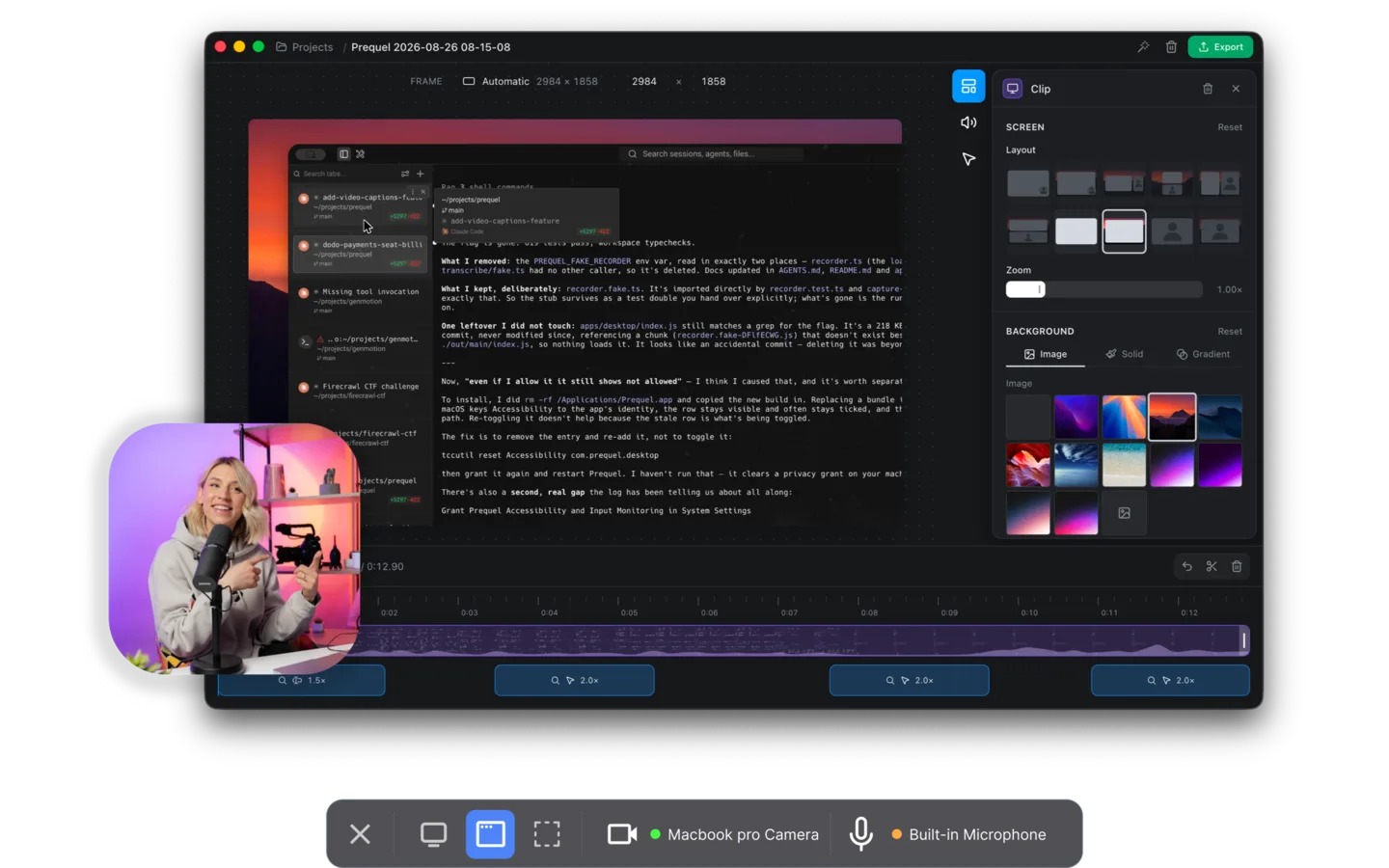
Every other tool here composites your camera into the screen while it records. The bubble is in the corner, already round, already the size it will always be, and that decision is permanent the moment you press stop.
Prequel records the screen, the camera, the microphone and system audio as four separate files. The camera is kept at full resolution, so when the recording opens in the editor you can move it, resize it, change its shape, put a shadow under it or take it out entirely, with none of the quality loss that cropping a burned-in bubble would cost you.
The rest of the pass is already made too: zooms that push in on what you clicked and typed, a perspective tilt, and focus falling away from whatever the zoom is aimed at. Export is 4K at up to 120 fps, no watermark, no limit on the length of a take, rendered on your own Mac with nothing uploaded.
Cost. Seven days free with the whole app in it, then $29 once or $9 a month. Requires. An Apple Silicon Mac on macOS 14 or later.
1. OBS Studio
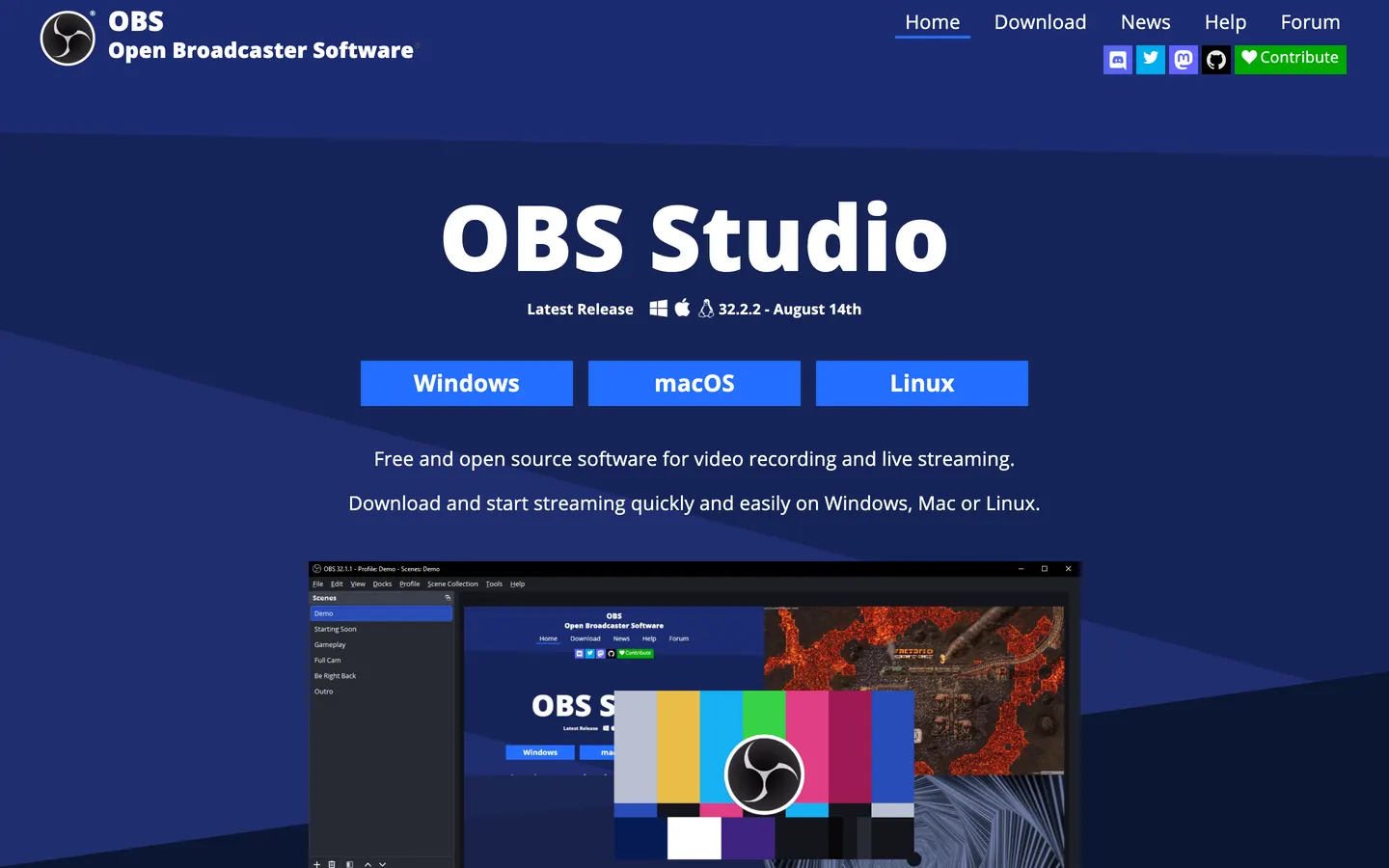
Free, open source, no watermark, no time limit, and it will record your screen and webcam together at whatever quality your Mac can manage. It captures system audio natively on Ventura and later, with no virtual driver.
The cost is setup. You build a scene, add a display capture source, add a video capture device for the camera, position and crop it by hand, then set your encoder and bitrate. Budget half an hour the first time. And once you have recorded, the camera position is baked into the file, so moving it later means recording again, which is the thing Prequel's separate files exist to avoid.
Cost. Free.
2. Cap
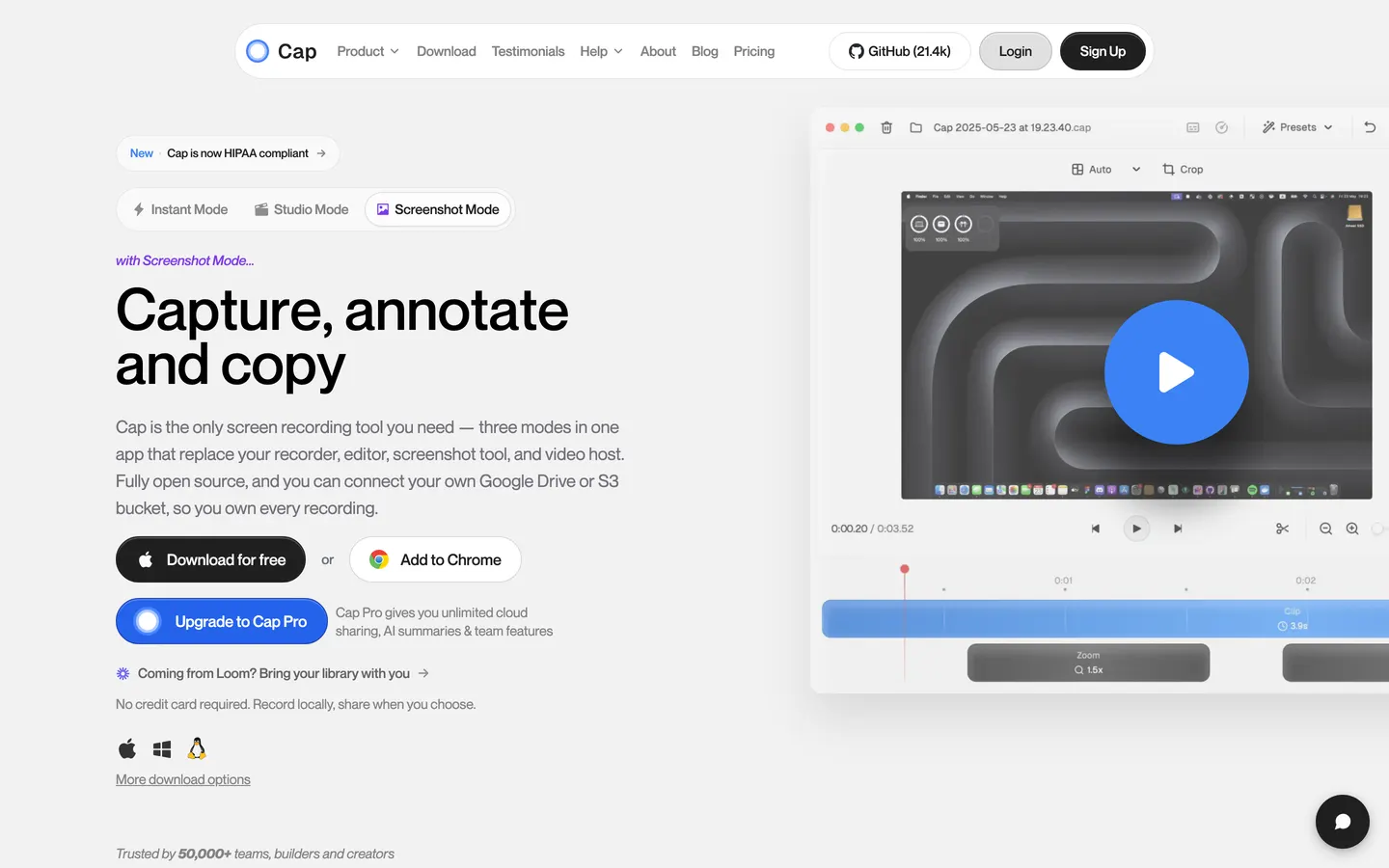
The friendliest free option. Cap has proper camera layouts rather than a scene you assemble yourself, an editor with automatic zoom and backgrounds, and it is open source with the option to point it at your own storage.
The free tier stops at five minutes a recording, which is fine for a bug report and not enough for a tutorial. Past that it is $29 a year for a commercial desktop licence, which is worth reading carefully next to Prequel's $29: Cap's buys twelve months and Prequel's buys the app.
Cost. Free for personal use, capped at five minutes. $29/year commercial, or $12 per user per month for Cap Pro.
3. Loom
Loom puts your camera in a bubble in the corner and gives you a link the moment you stop. For sending a colleague a two-minute explanation it is still the fastest thing here, and the free plan includes the camera.
The free plan also caps videos at five minutes, and the recording is the one you performed: un-zoomed, uncut, camera wherever it was. Business is $18 per user per month, twice Prequel's monthly rate, and the video lives on their page rather than in your Downloads folder.
Cost. Free plan capped at five minutes, then $18–$24 per user per month.
4. QuickTime Player
Already installed, and worth naming precisely because so many guides get it wrong: QuickTime records a screen recording or a movie recording from your camera. Not both at once, and not in the same file.
The usual workaround is two recordings lined up in an editor afterwards, which is more work than any other option here. It also cannot capture system audio without a virtual driver.
Cost. Free with macOS.
So which one
If free-forever is genuinely the requirement, take OBS Studio and spend the half hour, or Cap if your recordings fit inside five minutes.
If what you want is a video with your face in it that looks like somebody made it on purpose, the seven days cost nothing and the app is $29 after that:
Tutorials and how-tos. The camera is reframed after the take, so you are not stuck with whatever corner you picked before you started.
Product tours and demos. Zooms, tilt and depth of field already applied, no cap on the length of a recording, and the camera sized to suit each section.
Social clips. Every frame preset is included, so a landscape recording with a camera in it reframes vertical without cropping your face out of the shot.
YouTube. 4K at up to 120 fps, no watermark on any plan or during the trial, rendered on your own Mac.
In the changelog
Frequently asked questions
- Can QuickTime record the screen and webcam at the same time?
- No. QuickTime Player does a screen recording or a movie recording from your camera, but not both at once and not into the same file. The usual workaround is two separate recordings lined up in an editor afterwards. QuickTime also cannot capture system audio without installing a virtual audio driver.
- What is the best free screen recorder for Mac with a webcam?
- OBS Studio, if you are willing to spend half an hour building the scene. It is free, open source, has no watermark or time limit, and records screen and webcam together at whatever quality your Mac can encode. Cap is friendlier and has ready-made camera layouts, but its free tier caps recordings at five minutes.
- Can I move the webcam overlay after recording?
- Only if the recorder kept the camera as a separate file. OBS, Loom and most free tools composite the camera into the screen while they record, so its position, size and shape are permanent. Prequel writes the screen, camera, microphone and system audio as four separate files, so the camera can be moved, resized, reshaped or removed afterwards at full quality.
- Do free screen recorders add a watermark?
- OBS Studio, QuickTime, Cap and Loom's free plans do not watermark. What they limit instead is length: Cap and Loom both stop free recordings at five minutes. Other tools do watermark their free tiers, including Descript, whose free plan also caps exports at 720p, and FocuSee's trial.
- How do I record system audio on a Mac?
- OBS Studio captures system audio natively on macOS Ventura and later, and Prequel records it as its own track. QuickTime cannot, and needs a virtual audio driver such as BlackHole installed to route sound back into it.