Screen recorders for Mac with no watermark
A watermark is the one limitation you cannot edit around. We checked which Mac screen recorders stamp your exports and which never do, including on their free tiers and trials.

Part of Screen recording for YouTube: settings that survive the upload
TL;DR
| # | Tool | Watermark | Cost |
|---|---|---|---|
| 1 | Prequel $29 once, or $9/mo | Never, including the trial | $29 once, or $9/mo |
| 2 | OBS Studio | Never | Free |
| 3 | QuickTime Player | Never | Free with macOS |
| 4 | Cap | Never, but five-minute free cap | Free, then $29/yr |
| 5 | Descript | Yes on the free tier | Free, then $16+/mo |
| 6 | Camtasia | Yes on the cheapest tier | Annual only |
| 7 | FocuSee | Yes during the trial | $49.99/yr+ |
Checked on 2 September 2026.
A watermark is the one limitation you cannot edit around. Length caps you can work with, resolution caps you can live with, but a logo burned into the corner means the recording is a draft no matter how good it is.
The good news is that plenty of Mac recorders never watermark anything. The catch is that several of the best-known ones do, and they do it on exactly the tier you would try first.
What is a watermark on a screen recording?
A watermark is a logo or piece of text that recording software burns into your exported video, usually to mark it as made on a free plan or during a trial. Because it is part of the pixels rather than an overlay, it cannot be removed afterwards without re-recording.
It is the one limitation you cannot work around. A length cap you can plan for and a resolution cap you can live with, but a logo in the corner makes the recording a draft no matter how good the rest of it is.
1. Prequel
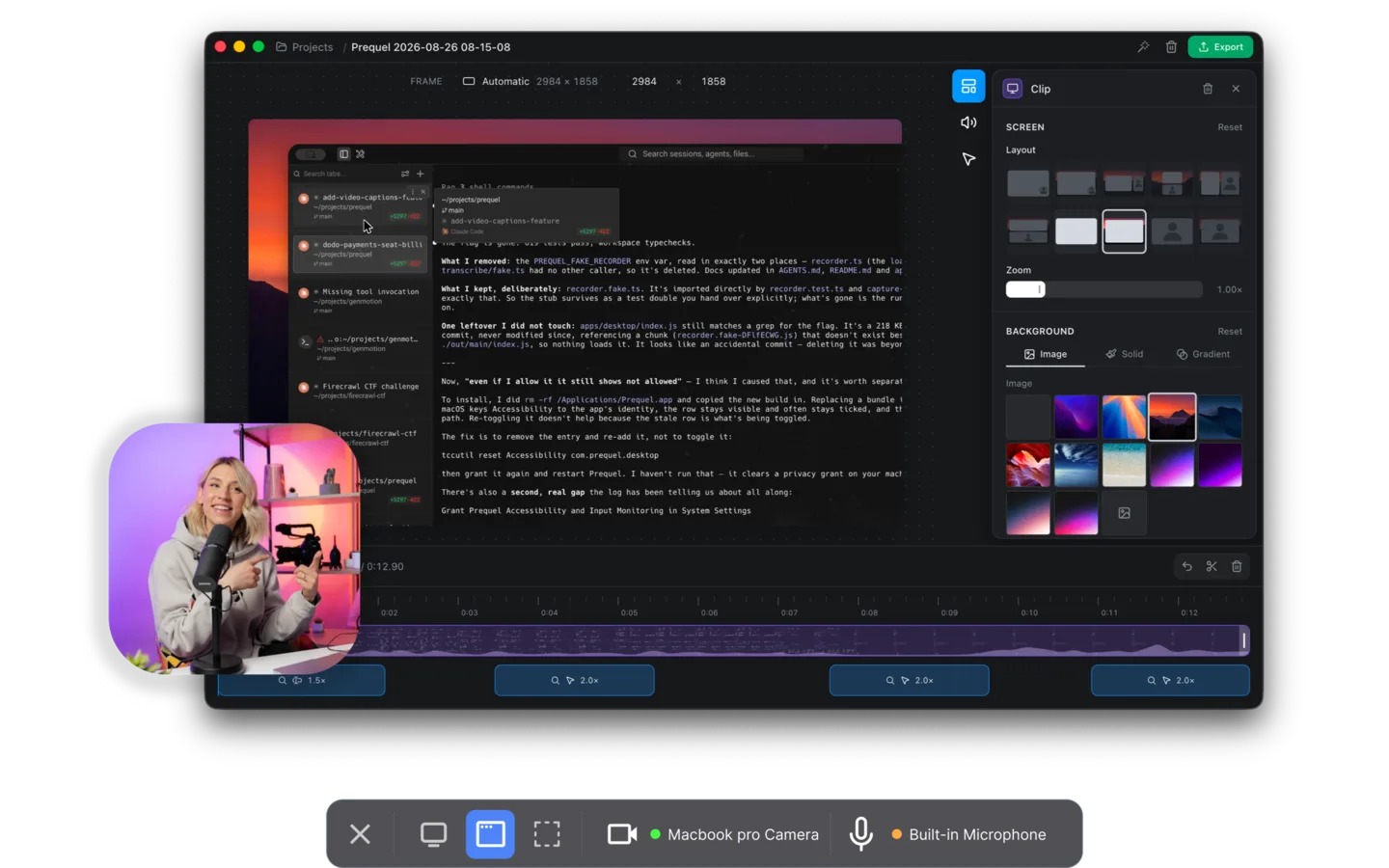
Nothing Prequel exports is ever watermarked. Not on the $9 monthly plan, not on the $29 one-off, and not during the seven-day trial. A video you export while you are still deciding whether to pay is a finished file you can publish, and it keeps working afterwards whether or not you buy.
There is no resolution cap on the trial either, and no limit on the length of a take. Export runs to 4K at up to 120 fps, rendered on your own Mac.
What you get on top of a clean file is a video that is already directed: zooms that push in on what you clicked and typed, a perspective tilt, focus falling away from the subject, and a camera you frame after the take rather than before it.
Watermark. Never, on any plan or the trial. Price. $29 once, or $9 a month. Requires. An Apple Silicon Mac on macOS 14 or later.
2. OBS Studio
Free, open source, and it has never watermarked anything. No time limit either, and no account. If a clean file at no cost is the entire requirement, this is the answer and nothing below it competes.
What it does not give you is the edit. There is no editor at all, so the zooms, the cuts and the framing are a separate job in another app, which is the work Prequel has already done by the time it opens.
Watermark. Never. Price. Free.
3. QuickTime Player
Already installed, never watermarks, and produces a clean MP4 in about four clicks. For a quick clip where the video only has to be legible, this is a perfectly good answer.
It records the screen or the camera, not both together, and it cannot capture system audio without a virtual driver. There is no zoom, no editor beyond a trim, and no way to make the recording look like anything other than what your screen looked like.
Watermark. Never. Price. Free with macOS.
4. Cap
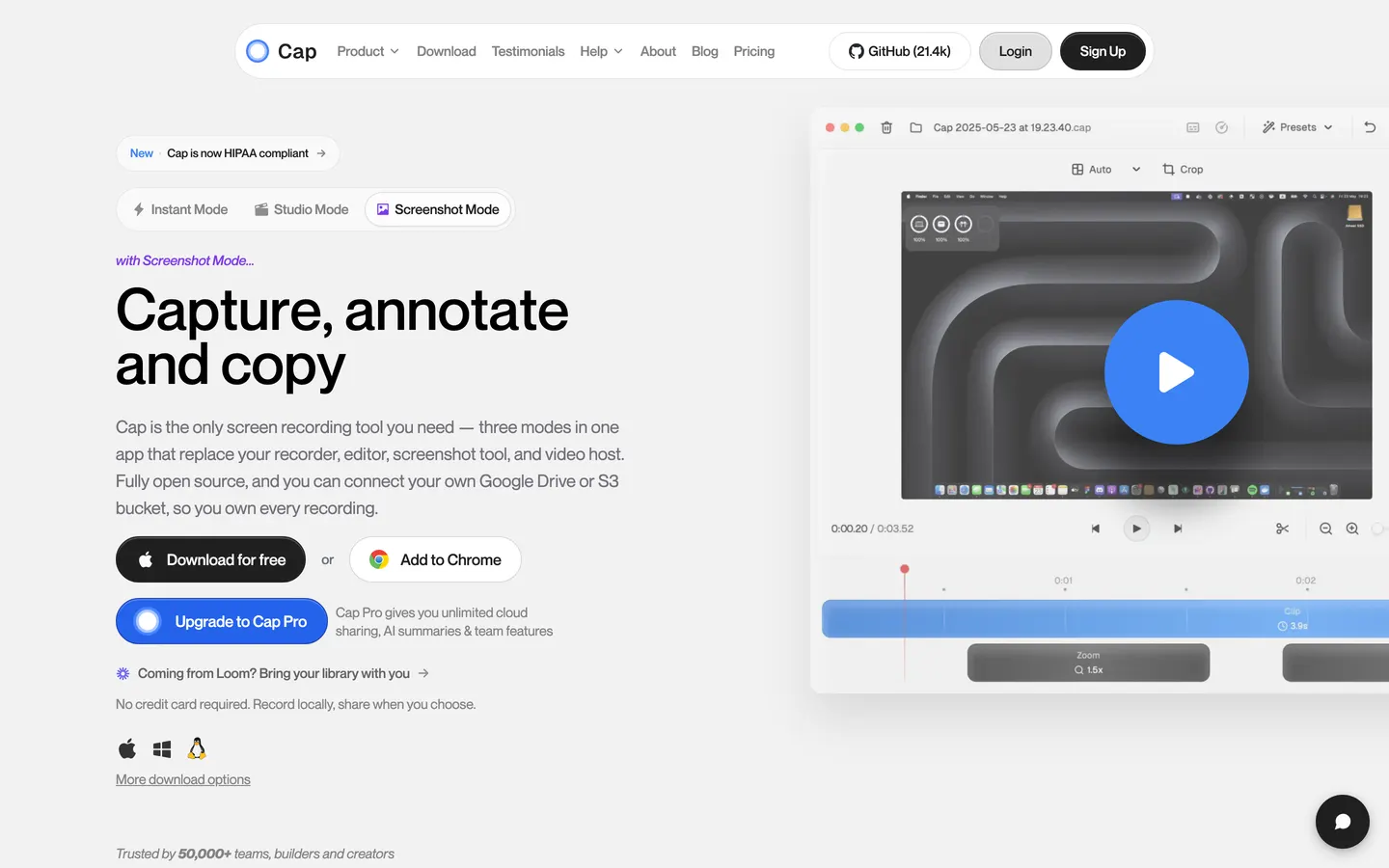
Cap does not watermark, which makes it one of the better free options. It limits you on length instead: the free tier stops recordings at five minutes, which is fine for a bug report and not enough for a tutorial.
Past that it is $29 a year for a commercial desktop licence, worth reading carefully next to Prequel's $29, since Cap's buys twelve months and Prequel's buys the app outright with no cap on a take at any point.
Watermark. Never, but the free tier caps recordings at five minutes. Price. Free, then $29/year.
5. Descript
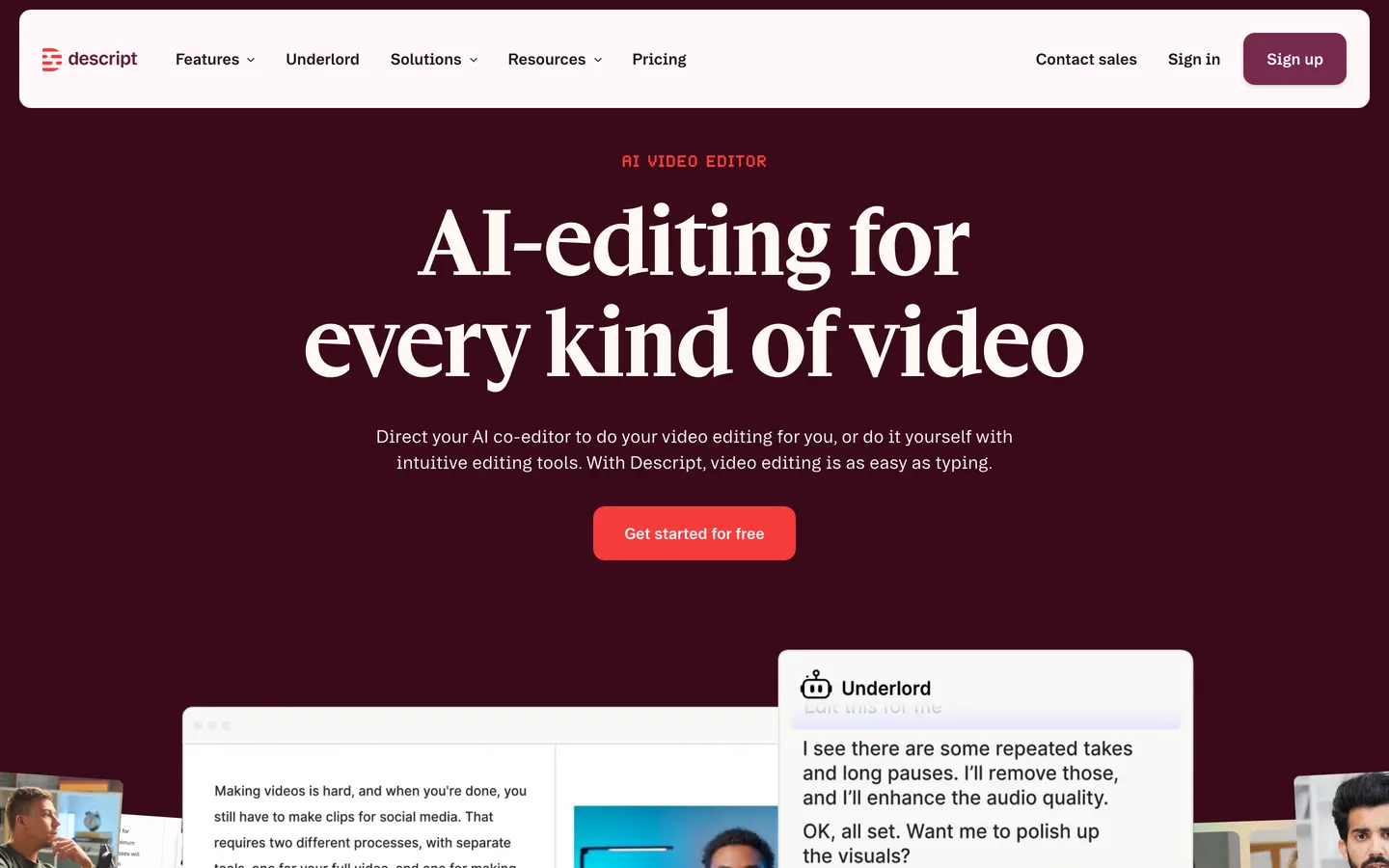
This is where it starts to bite. Descript's free tier watermarks your exports and caps them at 720p, so anything you make while evaluating it is unusable for publication. Editing video by editing the transcript is genuinely clever and nothing else does it as well, but the free tier is a demo rather than a usable plan.
Paid plans start around $16 a month billed annually, above Prequel's monthly rate and well above its one-off, and your media lives on their servers as a condition of the product working at all.
Watermark. Yes, on the free tier, along with a 720p cap. Price. Free tier, then roughly $16 to $50 a month.
6. Camtasia
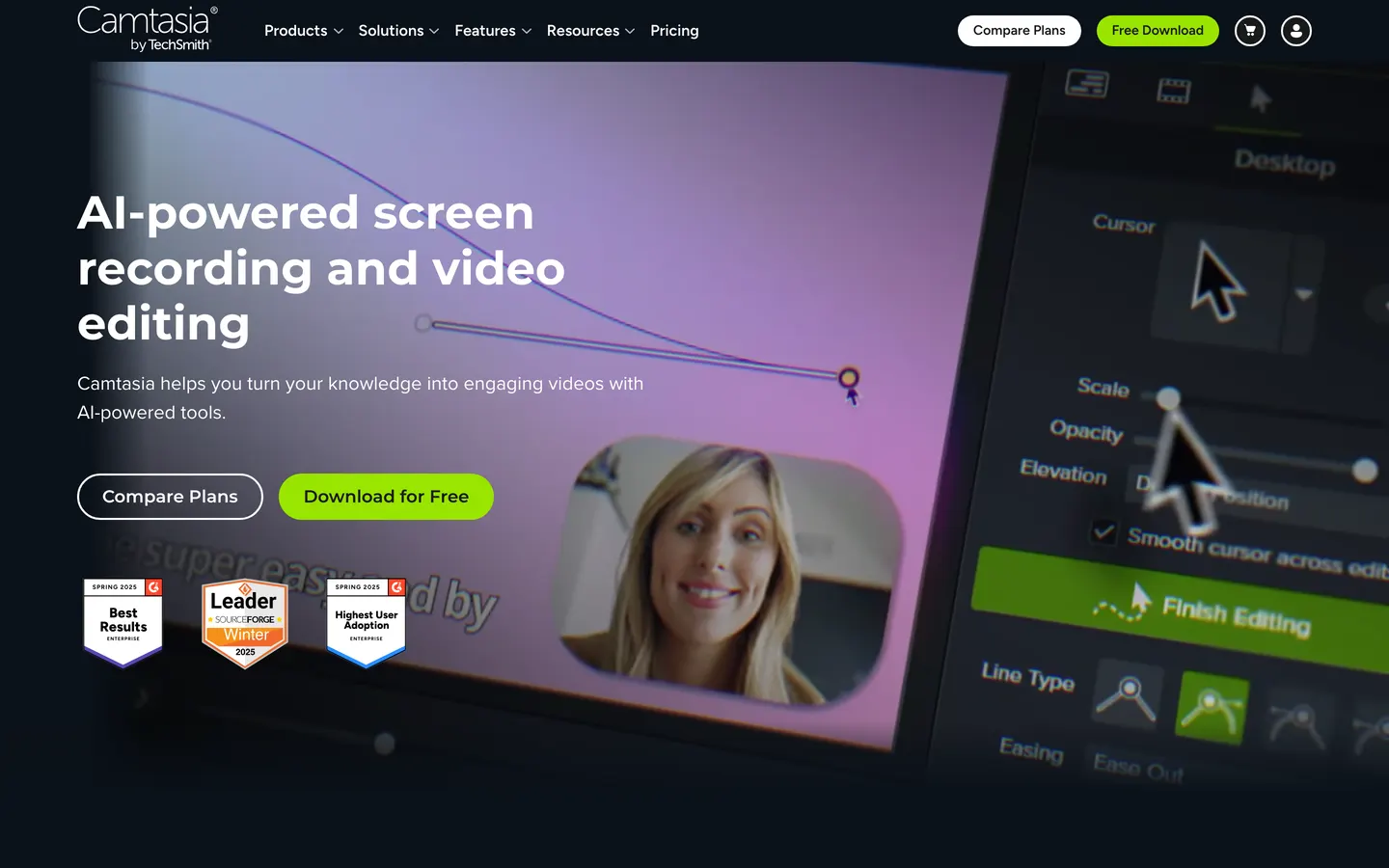
Camtasia's cheapest tier stamps a watermark on exported video until you move up a tier. For a tool aimed at corporate training, where the whole point is publishing finished material, that is a real constraint on the entry plan.
It is also subscription only now, billed annually: TechSmith stopped selling perpetual licences in early 2025. Prequel still sells one at $29 and has never watermarked anything.
Watermark. Yes, on the cheapest tier. Price. Subscription, billed annually.
7. FocuSee
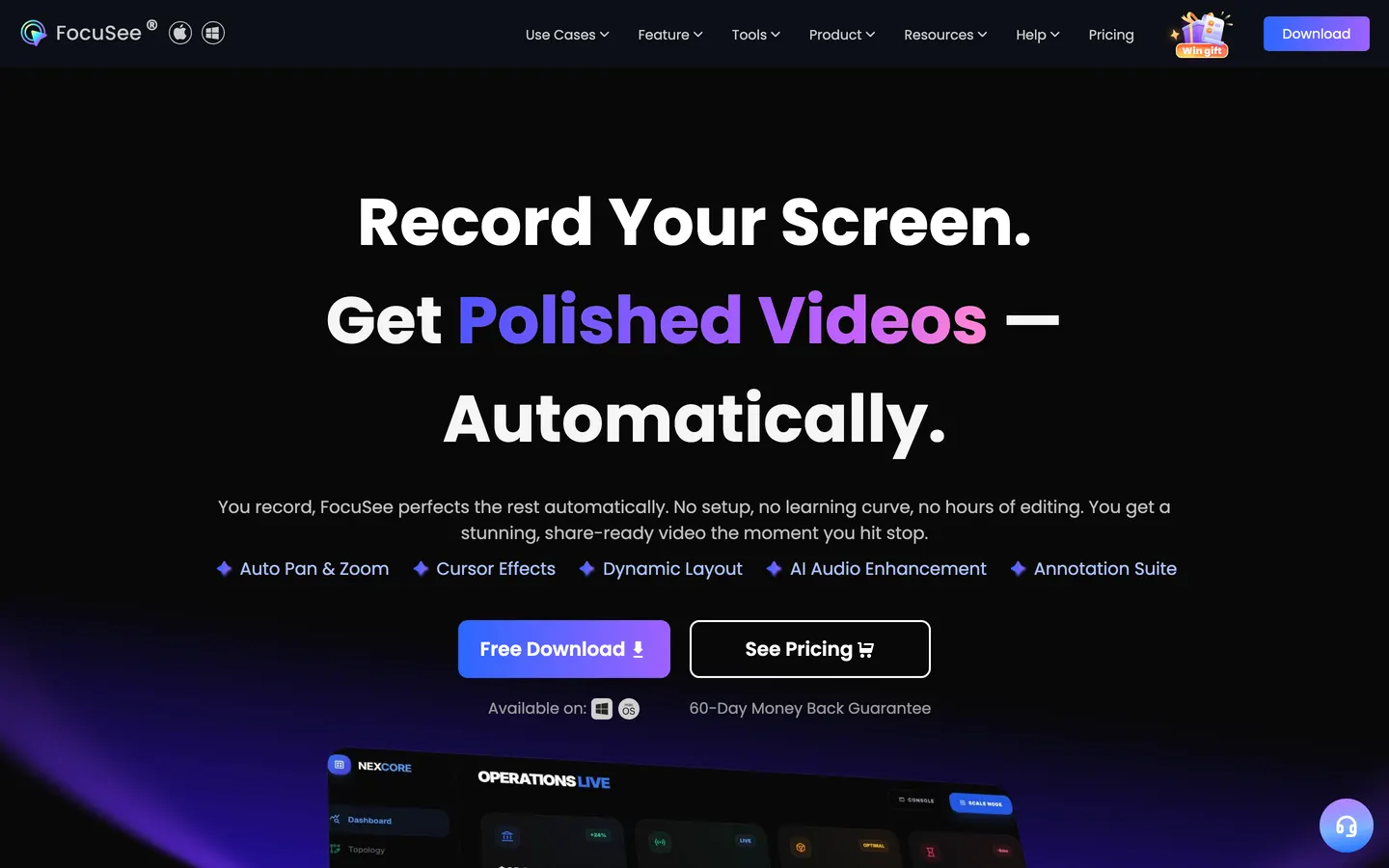
FocuSee's automatic zoom is good and it runs on Windows as well as macOS, but its free trial watermarks what it exports, so you cannot evaluate it on real work.
The lifetime comparison is the one worth doing: FocuSee's one-off licence is $199.99 against Prequel's $29, and Prequel's seven-day trial produces clean, publishable files rather than watermarked ones.
Watermark. Yes, during the trial. Price. $49.99/yr to $199.99 once.
So which one
If free and clean is the whole requirement, OBS Studio, or QuickTime for something quick. If you want a hosted link and your recordings are short, Cap.
If the recording is going in front of people, you want it clean and edited, and that is Prequel:
Social clips. Every frame preset is included, so a landscape recording reframes vertical, with no logo in the corner of either.
Tutorials and how-tos. No cap on the length of a take and nothing stamped on it, so a twenty-minute walkthrough exports as one clean file.
Product tours and demos. Zooms, tilt and depth of field already applied, and a camera framed after the take.
YouTube. 4K at up to 120 fps, never watermarked, rendered on your own Mac.
Seven days free, exporting clean files the whole time, then $29 once.
In the changelog
Frequently asked questions
- Which Mac screen recorders have no watermark?
- Prequel, OBS Studio, QuickTime Player and Cap never watermark exports. Prequel does not watermark on any plan or during its seven-day trial and costs $29 once. OBS Studio and QuickTime are free with no watermark and no time limit. Cap does not watermark but caps free recordings at five minutes.
- Does Camtasia put a watermark on videos?
- Yes, on its cheapest tier. Camtasia's entry plan stamps a watermark on exported video until you move up a tier. Camtasia is also subscription only and billed annually, since TechSmith stopped selling perpetual licences in early 2025.
- Does Descript watermark the free plan?
- Yes. Descript's free tier watermarks exports and caps them at 720p, so anything made while evaluating it cannot be published. Paid plans start at roughly $16 a month billed annually and remove both limits.
- How do I record my Mac screen without a watermark for free?
- Use OBS Studio or QuickTime Player. Both are free, neither watermarks, and neither imposes a time limit. OBS also records your webcam and system audio, though it takes about half an hour to set up the first time. QuickTime is instant but cannot record the screen and camera together or capture system audio without a virtual driver.
- Does a free trial usually watermark exports?
- It varies, and it is worth checking before you record anything real. FocuSee's trial watermarks its exports. Prequel's seven-day trial does not: it is the whole app at 4K up to 120 fps with no watermark, and a video exported during the trial stays yours whether or not you buy.