Screen recorders for Mac with a webcam overlay
macOS cannot put your face on a screen recording, so we went through the apps that can. The real difference is not whether they show your camera, but whether you can still move it after you stop.

TL;DR
| # | Tool | Camera overlay | Cost |
|---|---|---|---|
| 1 | Prequel $29 once, or $9/mo | Separate file, framed after the take | $29 once, or $9/mo |
| 2 | Screen Studio | Yes, positioned before you record | $29/mo, or $9/mo yearly |
| 3 | Loom | Bubble in the corner | Free up to five minutes |
| 4 | Cap | Several layouts, open source | Free up to five minutes |
| 5 | OBS Studio | Yes, once you build the scene | Free |
| 6 | QuickTime Player | No, not at the same time as the screen | Free with macOS |
Checked on 2 September 2026.
macOS has no built-in picture-in-picture for screen recordings. QuickTime and the Cmd+Shift+5 toolbar record your screen or your camera, never both into one file, so every option here is a third-party app.
The thing that separates them is not whether they can put your face on screen. They all can, except QuickTime. It is whether that decision is still yours after you stop recording.
What is a webcam overlay?
A webcam overlay is your camera shown on top of a screen recording, usually as a circle or rounded rectangle in a corner. It is what makes a tutorial feel like a person explaining something rather than a disembodied cursor, and it measurably increases how far people watch.
macOS cannot produce one on its own, so this is always a third-party app. The apps differ in whether the camera is burned into the video while recording or kept as a separate layer you can move, resize and reshape afterwards.
1. Prequel
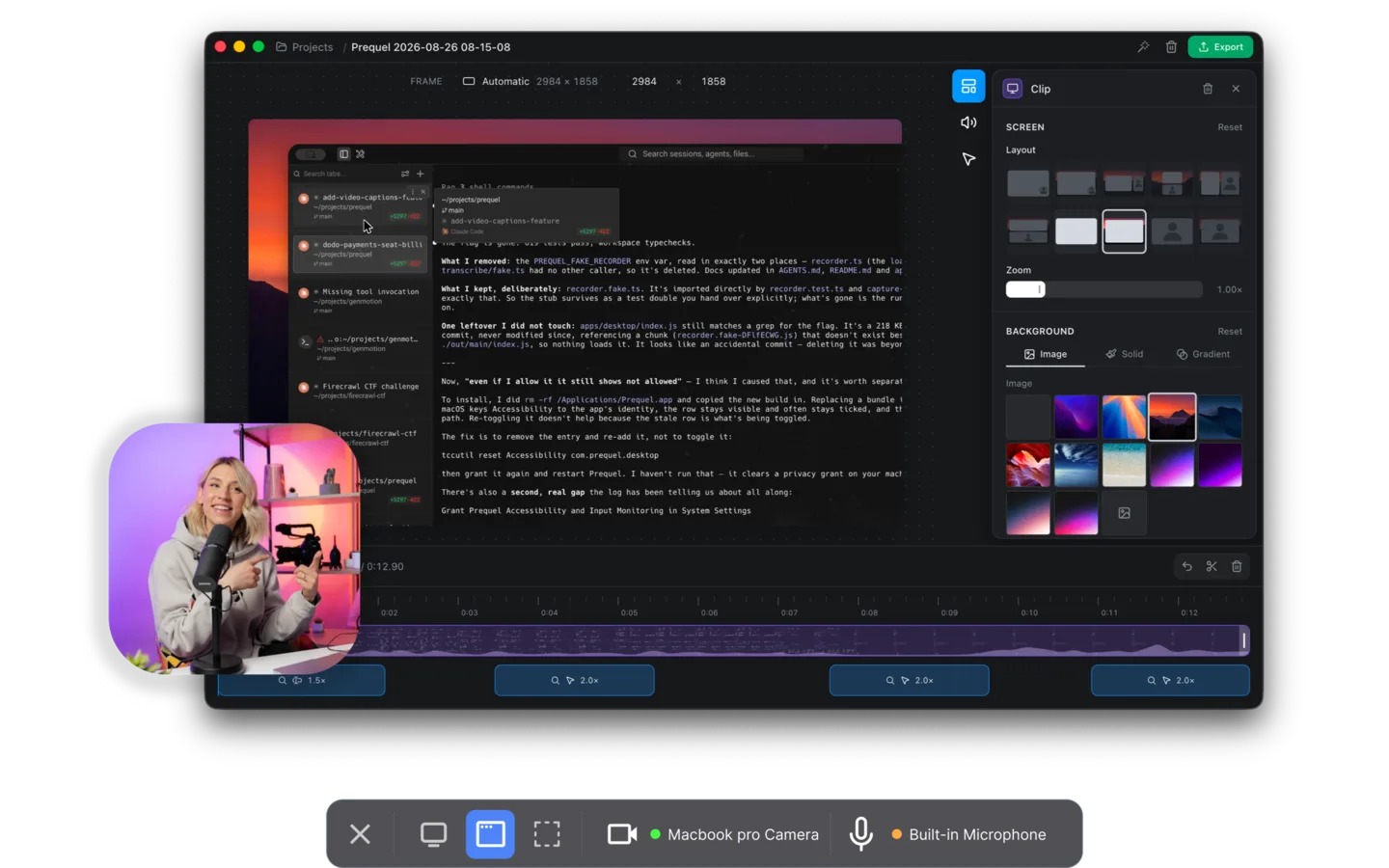
Every other recorder here composites your camera into the screen while it captures. The bubble is in the corner, already round, already the size it will always be, and that is permanent the moment you press stop. If it covers something important in the third minute, you record again.
Prequel writes the screen, the camera, the microphone and system audio as four separate files with a manifest. The camera is kept at full resolution, so when the editor opens you can move it, resize it, change its shape, put a shadow under it, shrink it for the dense part of the demo and grow it for the piece to camera, or take it out entirely. None of that costs quality, because nothing was ever burned in.
The rest of the pass is already made: zooms that push in on what you clicked and typed, a perspective tilt, and focus falling away from whatever the zoom is aimed at while the camera stays sharp. Export runs to 4K at up to 120 fps with no watermark and no cap on the length of a take, rendered on your own Mac.
Camera. Recorded separately, framed, shaped and sized afterwards. Price. $29 once, or $9 a month, with seven days free. Requires. An Apple Silicon Mac on macOS 14 or later.
2. Screen Studio
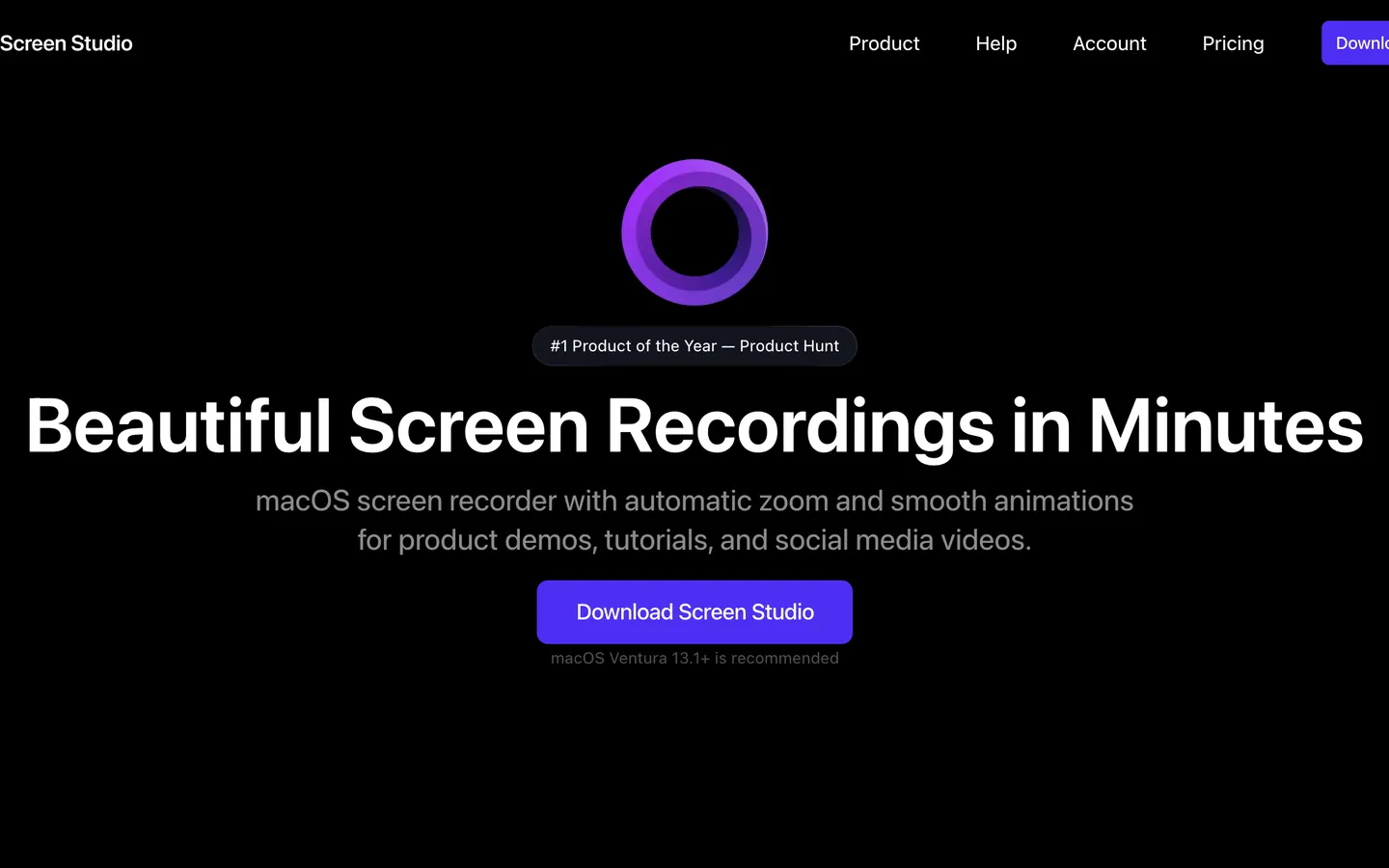
Screen Studio's camera handling is good and its automatic zoom is the best-known version of the effect. You pick a shape and a corner, and the result looks deliberate.
The framing is a decision you make before you record, and it exports at 4K 60 where Prequel runs to 4K 120. On price, note that $29 is the monthly rate and their yearly one works out at $9 a month, which is Prequel's monthly rate.
Price. $29/mo, or $9/mo billed yearly.
3. Loom
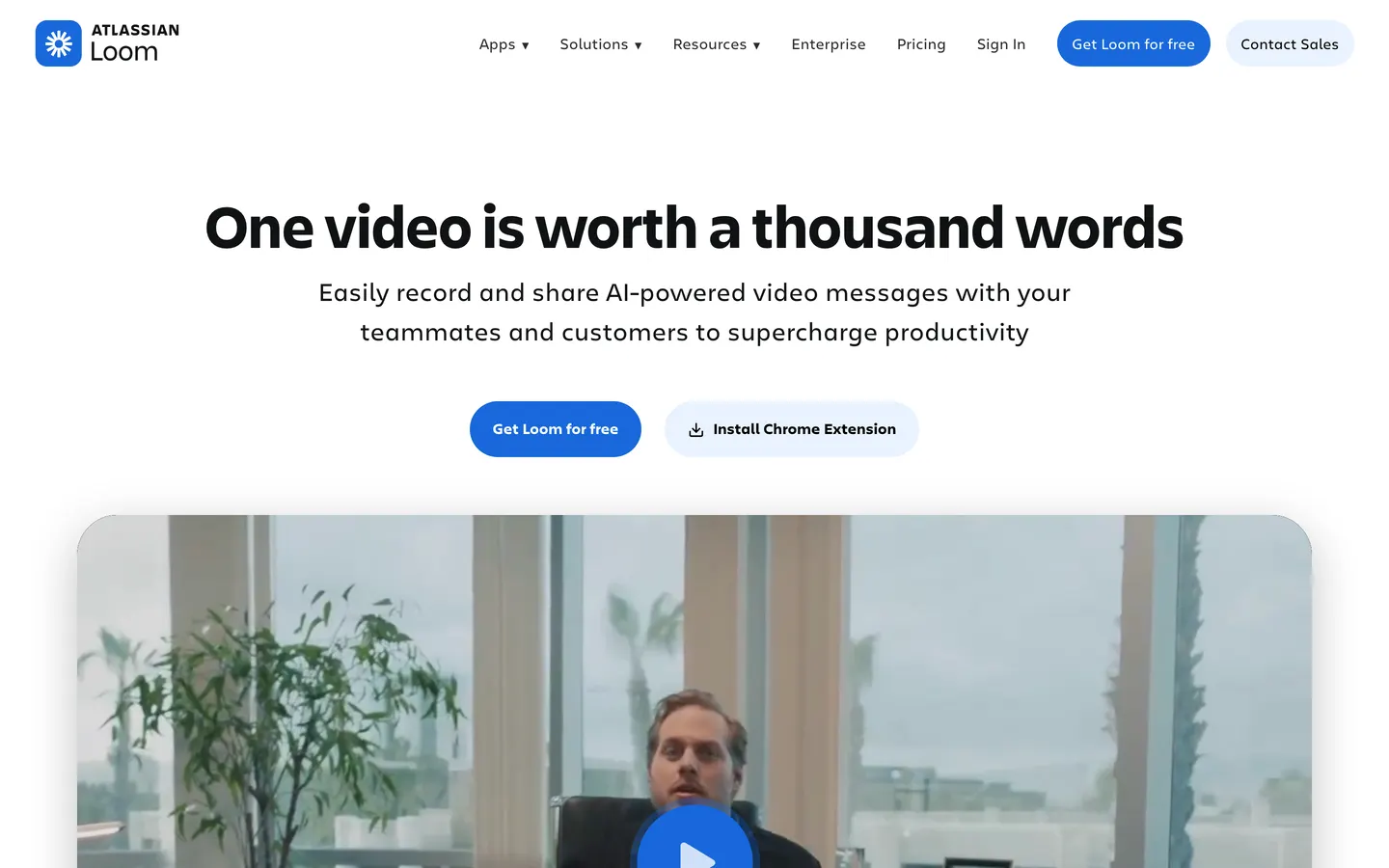
Loom's camera bubble is the format most people picture when they think of a screen recording with a face on it, and the free plan includes it. Record, stop, paste a link.
The free plan caps videos at five minutes, the bubble stays where it started, and the recording is the one you performed: un-zoomed and uncut. Business is $18 per user per month, twice Prequel's monthly rate, and the video lives on Loom's page rather than as a file you own.
Price. Free up to five minutes, then $18–$24 per user per month.
4. Cap
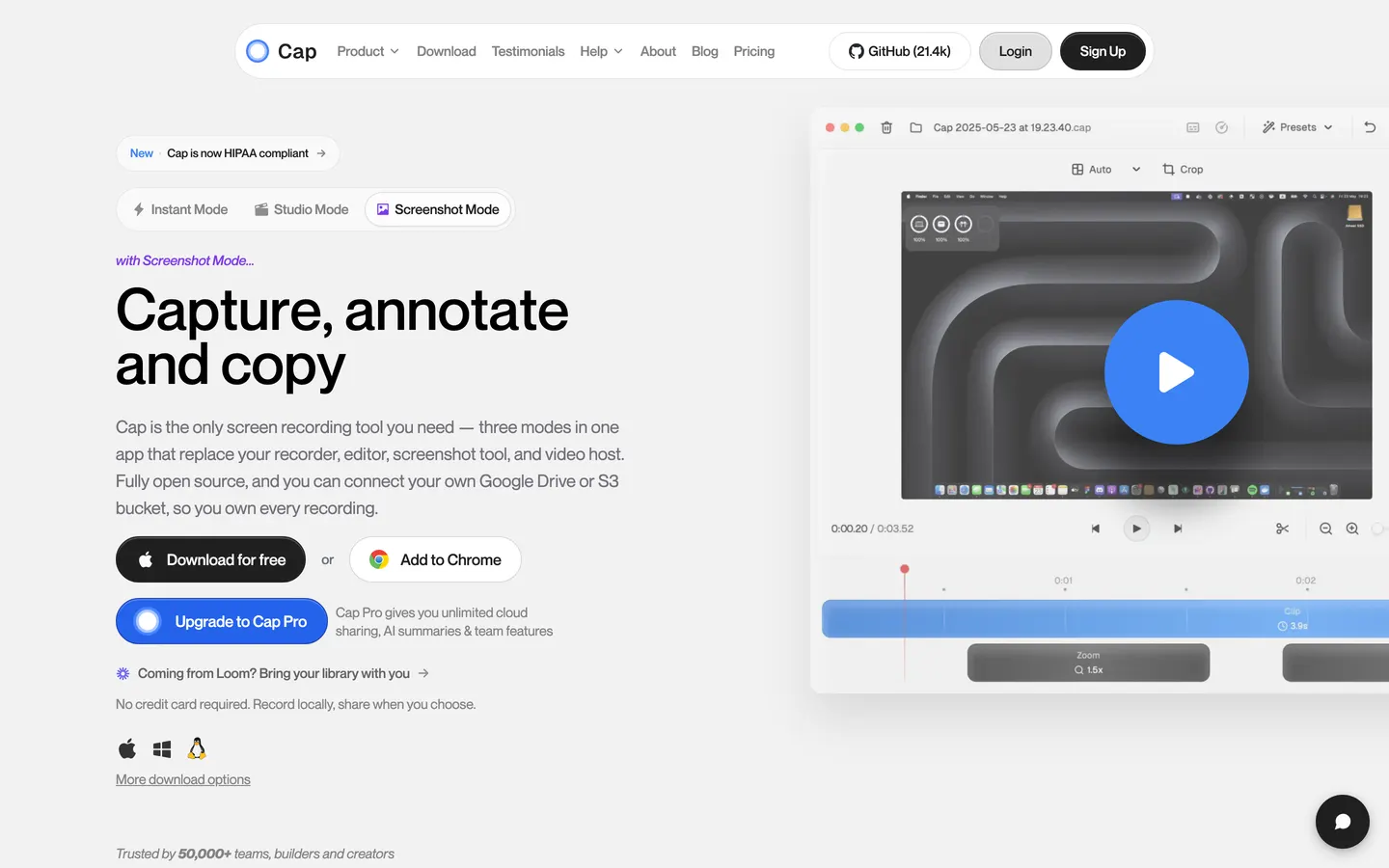
Cap gives you real camera layouts rather than a scene you assemble, plus an editor with automatic zoom and backgrounds, and it is open source with the option to use your own storage.
The free tier stops recordings at five minutes. A commercial desktop licence is $29 a year, which is the same number as Prequel's one-off and a different thing: Cap's buys twelve months, Prequel's buys the app. The camera layout is also chosen up front rather than adjusted afterwards.
Price. Free up to five minutes, then $29/year or $12 per user per month.
5. OBS Studio
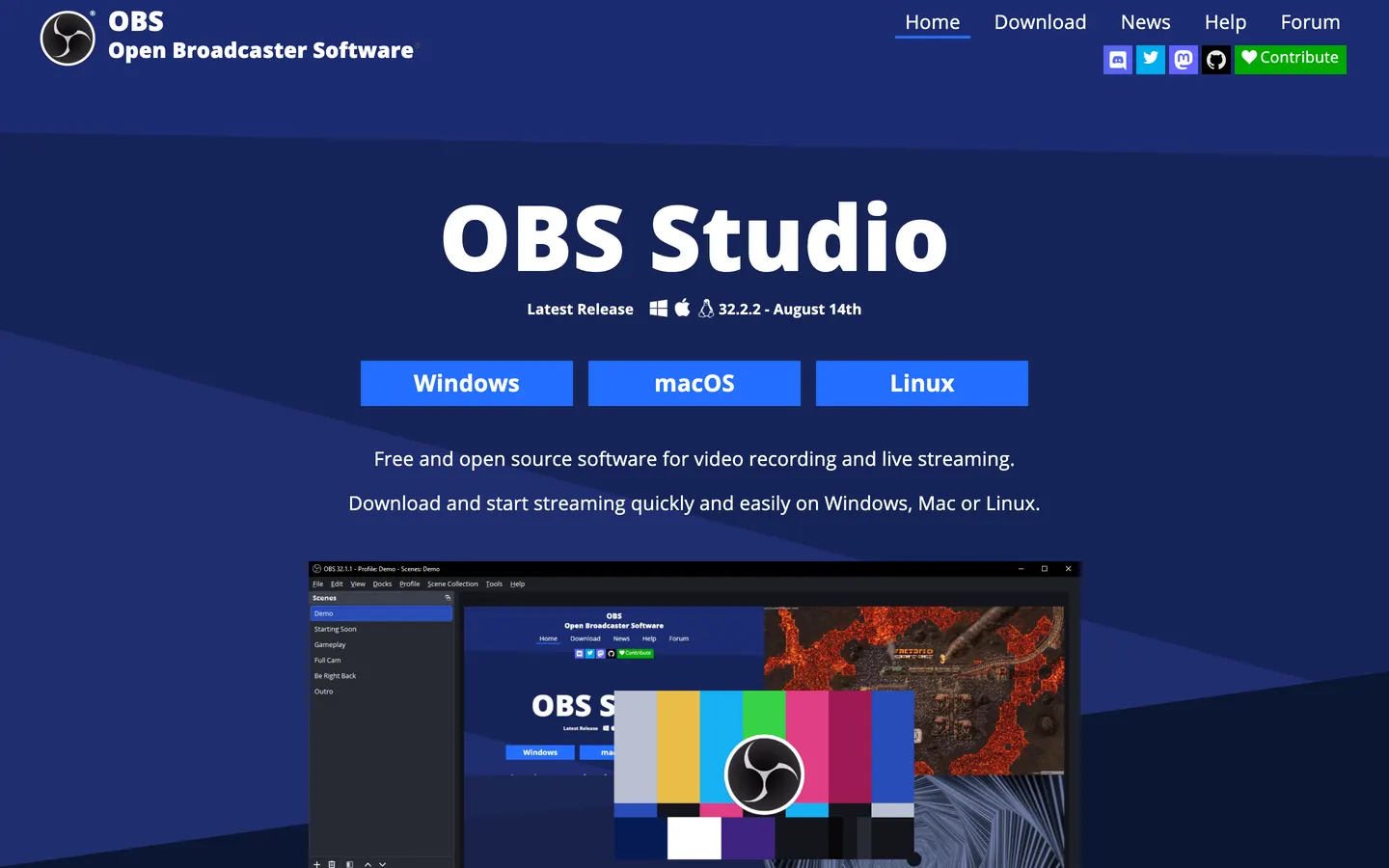
OBS will absolutely put your webcam over your screen, at whatever size, shape and position you like, for free and with no watermark or time limit. It captures system audio natively on Ventura and later.
The cost is half an hour of setup the first time: a display capture source, a video capture device, cropping and positioning by hand, then encoder settings. And once recorded, the camera is baked into the file, so a bubble that covers the wrong thing means recording again.
Price. Free.
6. QuickTime Player
Worth naming precisely, because a lot of guides are vague about it: QuickTime does a screen recording or a movie recording from your camera. Not both at once, and not into one file.
The workaround is recording twice and lining them up in an editor afterwards, which is more work than any other option here, and it still cannot capture system audio without a virtual driver.
Price. Free with macOS.
So which one
If free is the requirement and your recordings are short, Cap. If you want a link in ten seconds for a colleague, Loom. If you want free with no limits and will spend the setup time, OBS Studio.
If the video is going in front of customers, the camera being editable after the fact is worth more than it sounds, and that is Prequel:
Tutorials and how-tos. Shrink the camera for the dense parts and grow it for the piece to camera, decided while you watch it back rather than before you start.
Product tours and demos. Zooms, tilt and depth of field already applied, with the camera sharp while the screen behind it falls out of focus, and no cap on the length of a take.
Social clips. Every frame preset is included, so a landscape recording with a camera in it reframes vertical without cropping your face out of the shot.
YouTube. 4K at up to 120 fps, no watermark on any plan or during the trial, rendered on your own Mac.
Seven days free, then $29 once.
In the changelog
Frequently asked questions
- Can macOS record the screen and webcam at the same time?
- Not on its own. QuickTime Player and the Cmd+Shift+5 toolbar record a screen capture or a camera movie, but never both into one file. Recording your screen with a webcam overlay needs a third-party app such as Prequel, Screen Studio, Loom, Cap or OBS Studio.
- What is the best screen recorder with a facecam for Mac?
- Prequel, if the video is going in front of people. It records the camera as a separate file at full resolution, so its position, size and shape are decided after the take rather than before it, and it applies zooms, a perspective tilt and depth of field automatically. It is $29 once or $9 a month with seven days free.
- Can I move the webcam overlay after recording?
- Only if the recorder kept the camera separate. Loom, OBS, Cap and Screen Studio composite the camera into the screen while recording, so its position and size are permanent once you stop. Prequel writes the screen, camera, microphone and system audio as four separate files, so the camera can be moved, resized, reshaped or removed afterwards with no loss of quality.
- What is the best free screen recorder with a webcam?
- OBS Studio, if you will spend about half an hour building the scene: it is free, open source, unlimited and never watermarks. Cap is much easier and has ready-made camera layouts, but its free tier stops recordings at five minutes, as does Loom's.
- Can I change the shape of the webcam bubble?
- In most tools you pick a shape before recording and keep it. Prequel treats the camera as its own layer in the editor, so the shape, size, position and shadow are all adjustable after the take, and can change between sections of the same video.