How to reduce the size of a screen recording on a Mac
An hour from the built-in Mac recorder is about 13 GB, according to the people asking. We measured a real take at every size and codec Prequel exports: the raw file was 61 MB a minute and the 1080p export was 2. Four settings and a chart.

An hour of screen recording from the recorder built into macOS is about 13 gigabytes. That number comes from a thread on r/screenrecorders, and the Apple Community has a run of threads saying the same thing in different units: 15 GB for a two and a half hour Zoom call, lectures at 8 to 51 GB each, a MacBook with no space left.
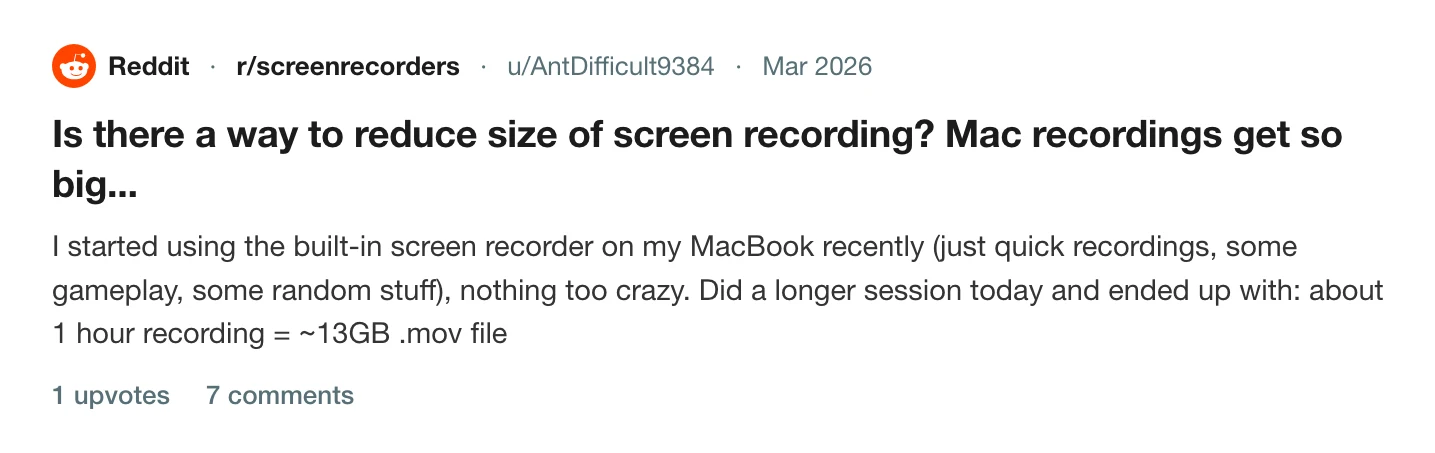
The thread on r/screenrecorders →
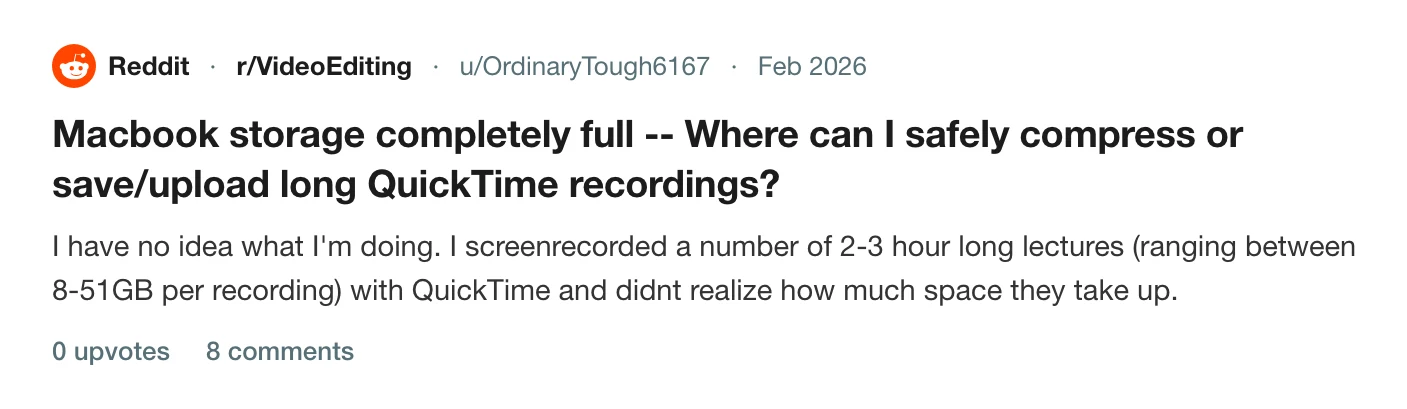
The thread on r/VideoEditing →
None of those files needed to be that size. This is why they are, what a sensible size is, and the four settings that get you there.
Why the raw file is huge
A recorder has to write frames as fast as the screen produces them, and it cannot spend long thinking about each one. So it encodes at a high, fixed quality with a fast encoder and leaves the compression for later. That is the right trade at record time: a dropped frame is gone for good, a large file is not.
The result is a file with a very high bitrate. 13 GB an hour is about 29 megabits a second, roughly double the 15 Mbps Netflix asks for a 4K stream. Here is how that compares with what a recorder that keeps a lighter first copy writes, measured on a real take.
| Source | MB per minute |
|---|---|
| macOS recorder, 13 GB an hour, r/screenrecorders | 217 |
| QuickTime, 15 GB for 2.5 hours, Apple Community | 100 |
| Prequel take, full 3024 × 1964 display, measured | 61 |
The first two rows are the figures those readers reported, converted to a rate. The third is a Prequel take of a 14-inch MacBook Pro's whole display, read off the file. All three are before any export, and all three are far larger than the file you should send.
What the export should weigh
The same minute, exported. This is 60 seconds of that take, re-encoded with ffmpeg 8 on 17 September 2026 at the sizes Prequel's export dialog offers, in both codecs it offers, at each encoder's default quality.
| Export | H.264, MB per minute | HEVC, MB per minute |
|---|---|---|
| Full size, 3024 × 1964 | 4.1 | 3.3 |
| 1080p | 2.0 | 1.6 |
| 720p | 1.2 | 0.9 |
Two things to read off it. Each step down in size roughly halves the file. And HEVC is about a fifth smaller than H.264 at every size, for the same picture. A screen recording compresses this well because most of each frame is identical to the frame before; a take with a video playing in it will come out larger, and the proportions hold.
The raw take was 61 MB a minute and the 1080p export is 2 MB. That is the whole story of this article: the file that is too big is the raw one, and the fix is to export.
1. Export a copy and send that
The recorder's file is the negative. Export a copy at the size the viewer needs, send that, and keep or delete the original as you like. QuickTime can do this with File, Export As, at 1080p or 720p, though it re-encodes the whole file at a fixed quality, with HEVC as a tick box and no frame rate choice.
In Prequel, every recording opens in the editor and leaves it through the export dialog, so there is no raw file to send by accident.
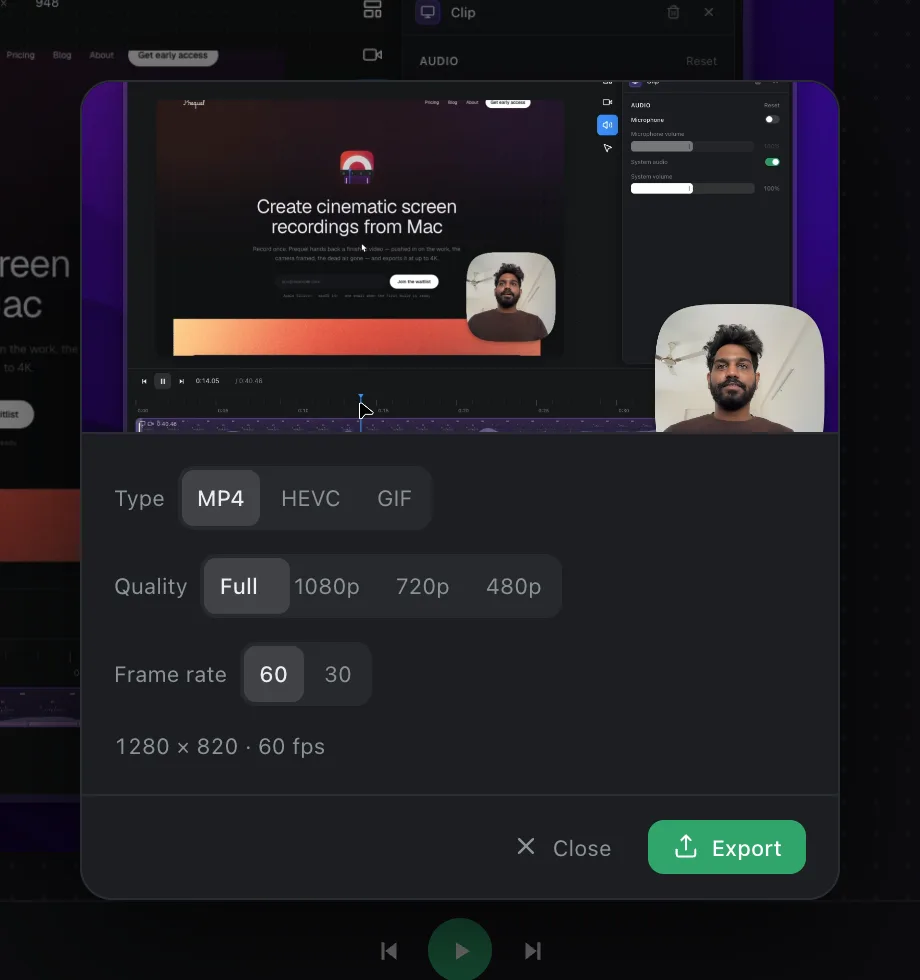
2. Pick 1080p unless the file is going to a platform
Video quality in the dialog scales the frame so its shorter edge is 1080, 720 or 480 pixels. 1080p keeps text readable and is a quarter of the full-size file on a Retina display. Full size is for YouTube and anywhere else that re-encodes uploads, because those platforms serve a cleaner file from a larger one. 720p is for a GIF or a thumbnail-sized preview. The resolution entry has the reasoning.
3. Use HEVC when you know where it will play
Video format offers MP4, which is H.264, and HEVC. HEVC saved a fifth in the test above and does so on most content. The cost is playback: every Apple device plays it, most browsers now do, and some Windows machines need an extension. For a file going to a Mac or iPhone user, or one you are keeping, choose HEVC. For a file going to a mixed audience, MP4. The codec entry has the compatibility detail.
4. Drop to 30 fps when nothing moves
Frame rate is 60 or 30. For a demo of forms, menus and text, 30 fps looks the same and the file is about 35 percent smaller. Keep 60 for a camera, a scroll or an animation. The high quality article has the measurement.
If the file still has to be smaller
Send a link. A share link uploads the export once and plays it in the browser, so the size stops mattering to the person receiving it. Prequel's Share video button is in the export dialog, and the share link entry covers what travels with it.
Cut it. A three-minute recording that should have been ninety seconds is twice the file. Cuts are made on the timeline before export; see timeline and cuts.
Compress it again with HandBrake. Free, and the usual answer in those threads. It re-encodes an existing file, so it is the tool for the 51 GB lectures already on the disk. For new recordings, export properly the first time and there is nothing to run it on.
The short version
The raw recording is 60 to 200 MB a minute and should never be the file you send. Export at 1080p in MP4 and it is about 2 MB a minute. Use HEVC to take a fifth off that, 30 fps to take a third off, and a share link when the size should not be the viewer's problem at all.
Frequently asked questions
- Why is my Mac screen recording so large?
- A recorder writes frames as fast as the screen produces them and cannot spend long compressing each one, so it records at a high fixed quality and leaves the compression for the export. Readers report about 13 GB an hour from the macOS recorder, which is roughly 29 Mbps. Export a copy and send that.
- How big should a 1080p screen recording be?
- About 2 MB a minute in H.264 for a recording of an app being used, or 1.6 MB in HEVC, measured on a real take with x264 and x265 at their default quality. A take with video playing in it comes out larger.
- Is HEVC smaller than H.264 for screen recordings?
- Yes, by about a fifth at the same picture quality in our test at every size. HEVC plays on every Apple device and most browsers; some Windows machines need an extension, so use H.264 for a mixed audience.
- How do I compress a QuickTime screen recording?
- File, Export As in QuickTime re-encodes it at 1080p or 720p with HEVC as an option. HandBrake, which is free, gives control over the bitrate. For new recordings, export at 1080p from the recorder and there is nothing to compress afterwards.