How to make a screen recording look high quality
The most upvoted screen recording question we found on Reddit this year is why a 4K capture still looks soft. Six settings decide it, settled before the edit: pixel size, window size, zooms, frame rate, a frame, and the export.

The most upvoted screen recording question we found on Reddit this year has nothing to do with which app to use. It is somebody with a 4K monitor asking why their recordings never look as clean as the ones they see on YouTube, even after they zoom in.
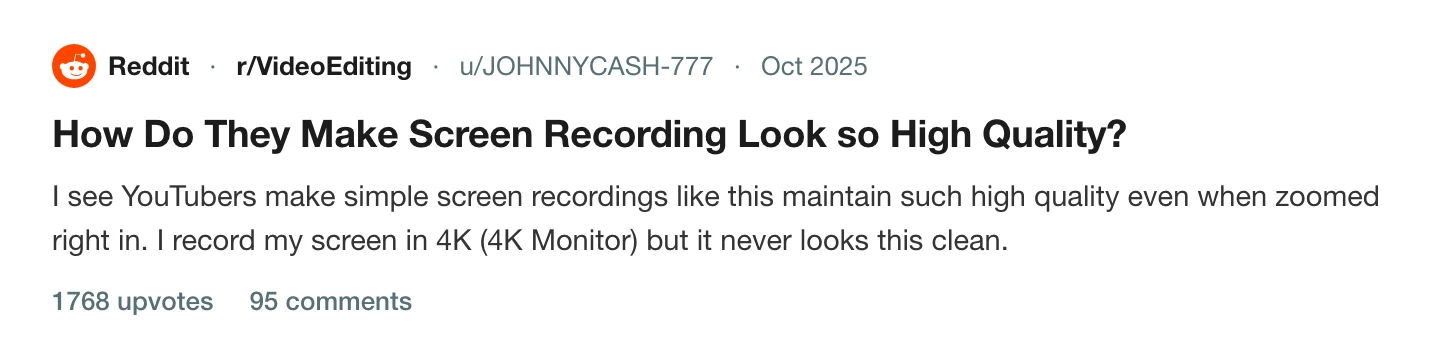
The thread on r/VideoEditing →
The top answer, with 782 upvotes, is a trick: print the web page to a vector file, import it into After Effects, and animate the vector. That works, and it is why the recordings in question look the way they do. It is also a day's work per video, and it only works for a web page that holds still.
The rest of this is how to get most of the way there with a recording. Six things decide whether a screen recording looks clean, and they are settled before the edit.
1. Capture every pixel the display has
This is the one that catches people with a 4K monitor. A Retina or HiDPI display draws the interface at two pixels per point, so a display that reads as 1440 by 900 in System Settings has 2880 by 1800 pixels in it. A recorder that captures at the point size records one pixel where the screen drew four, and every letter comes out soft.
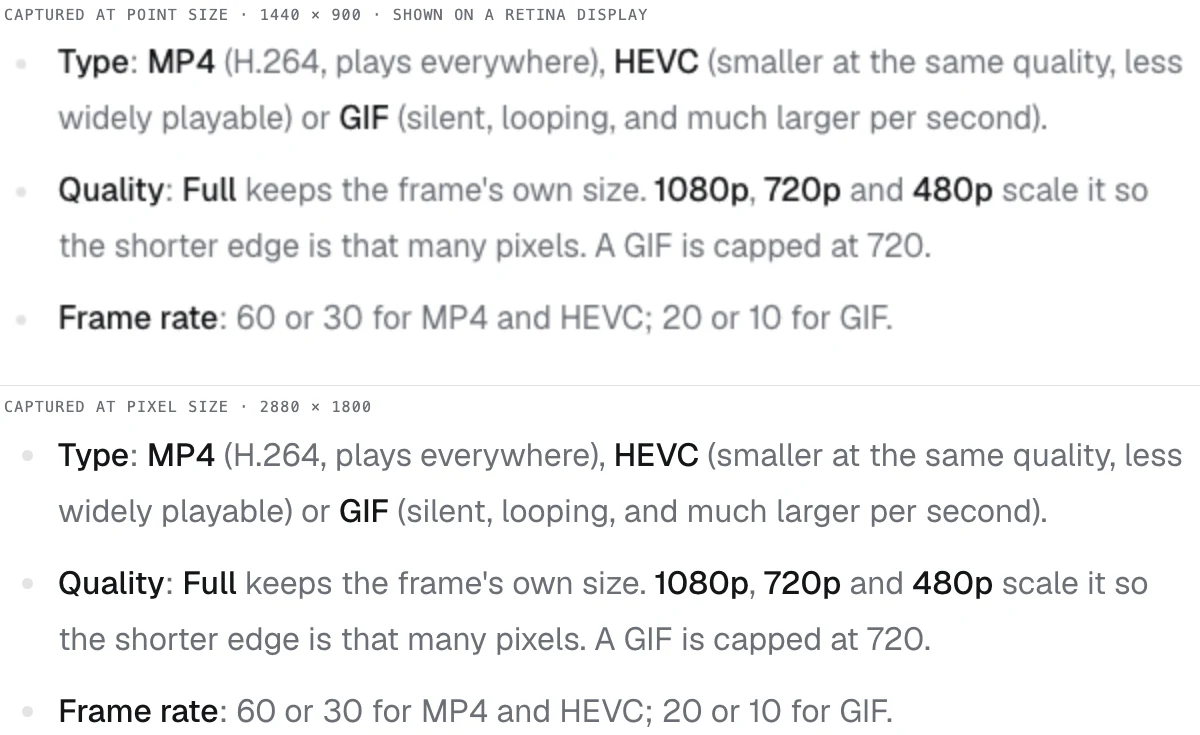
The figure above is the same text captured both ways from the same page and shown at the same size. Check your own file: select it in Finder, press Cmd+I, and compare the dimensions with your display's pixel size. If the file is the point size, nothing downstream will fix it. The Retina and HiDPI entry has the numbers for each Mac.
A 4K monitor at its native 3840 by 2160 with no scaling is a different case: it is one pixel per point, and the text is small on screen and small in the recording. The fix there is to scale the display up in System Settings before recording, so the interface is drawn larger and the recording has more pixels per letter.
2. Record the window, at a sensible size
A recording of a whole 3024 by 1964 display, played in a 700 pixel wide box, shows every control at a few pixels tall. That is most of what "never looks clean" means. The interface was captured perfectly and then shrunk five times.
Record the one window that matters, and size it before you start. A browser at around 1400 by 900 fills a 16:9 frame with the text large enough to read after the player scales it. If the app needs to be bigger than that, that is what the zooms are for.
3. Zoom to the work
The YouTube recordings in that thread are zoomed in on whatever is being clicked, and pulled back out when the presenter moves on. That is the move that makes a recording read as produced, because the viewer never has to find the pointer on a full screen.
Done by hand, it is a keyframe pair per click in a video editor. Prequel places them for you: it records where you click and type while capturing, and the editor opens with a zoom on each one, which you can drag, resize or delete.
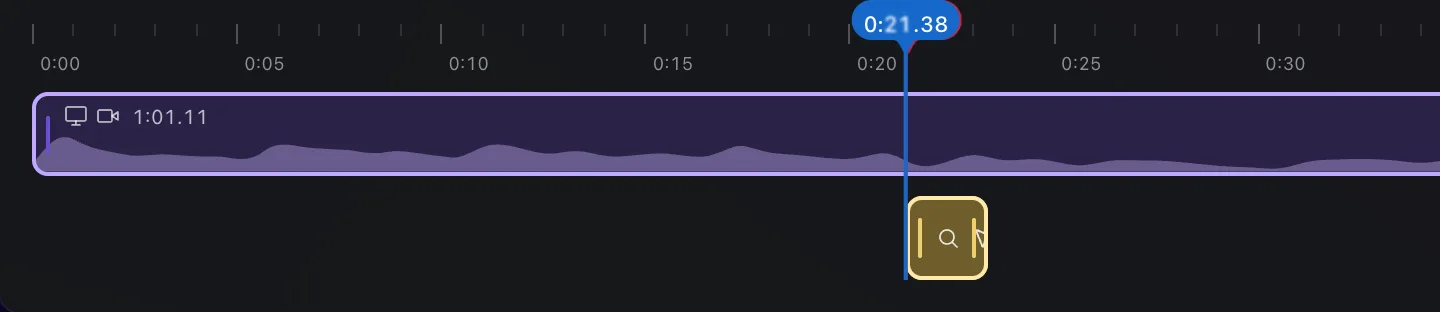
The zoom and pan entry has the reasoning, and the mouse zoom post compares the tools that do it automatically.
4. Record at 60 fps if anything moves
Text, clicks and typing look the same at 30 and 60 frames a second. Scrolling, dragging, animation and a camera do not: at 30 they stutter next to the rest of the screen. The cost is file size, and it is not double.
| 1080p, H.264, x264 | MB per minute |
|---|---|
| 30 fps, CRF 23 | 1.2 |
| 60 fps, CRF 23 | 2.0 |
| 60 fps, CRF 18, higher quality | 2.7 |
| 60 fps, CRF 28, lower quality | 1.4 |
Measured on 60 seconds of a real take of an app being used, exported with ffmpeg 8 on 17 September 2026. Going from 30 to 60 fps added about 55 percent; a step of quality either way moved the size by about a third. For a demo that is going into a chat, 30 is fine. For anything with a camera or a scroll in it, 60 is worth the megabytes.
5. Give the screen a frame
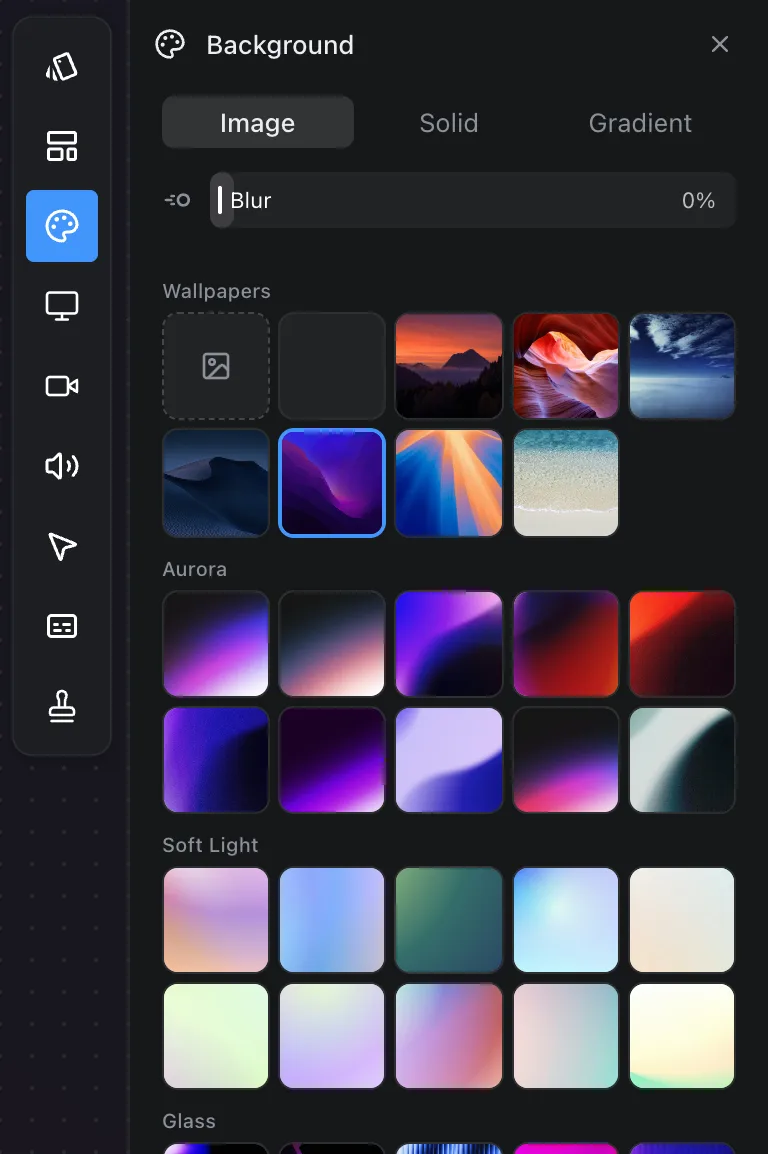
The "blur and chromatic aberration around the edges with a subtle vignette" the thread describes is the recording sitting inside a frame: padding around the window, rounded corners, a shadow, a background behind it. It hides the hard edge of the capture and makes the recording look like a picture of a screen rather than the screen itself.
In a video editor that is a background layer, a scale, a mask and a drop shadow. In Prequel the frame is applied when the recording opens, and the background and frame panels adjust it.
6. Export at the size you captured
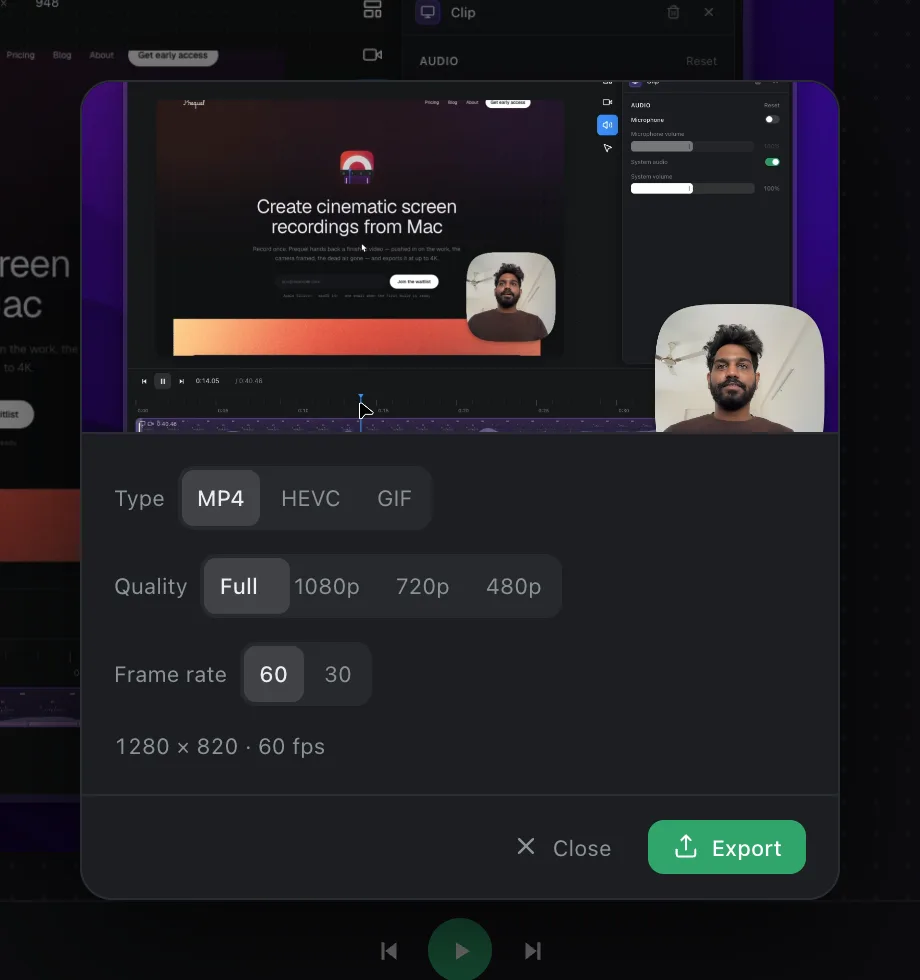
The last place quality goes is the export. Exporting a 2880 by 1800 recording at 720p throws away the pixels step one captured. Export at the frame's full size for YouTube, which re-encodes everything and serves a cleaner 1080p from a larger upload, and at 1080p for a file that is going straight to a person. Use H.264 for anything shared; HEVC is smaller but plays in fewer places. The codec and resolution entries have the detail.
The short version
Capture at the display's pixel size. Record the window on its own, at about 1400 wide. Zoom to what is being clicked. Use 60 fps if anything moves. Put the recording in a frame. Export at full size for a platform, 1080p for a person.
Prequel does the capture, the zooms, the frame and the export from one recording, on Apple Silicon Macs running macOS 14 or later. The first recording page walks through it.
Frequently asked questions
- Why does my 4K screen recording still look blurry?
- Usually because the whole display was recorded and then played in a small box, so every control is a few pixels tall, or because a Retina display was captured at its point size rather than its pixel size. Record the one window that matters at about 1400 pixels wide, capture at the display's full pixel size, and zoom to the part being used.
- How do YouTubers make screen recordings look so clean?
- Full-pixel capture, a window sized so text is large in the player, zooms on whatever is being clicked, 60 fps where anything moves, and the recording placed in a frame with padding, rounded corners and a shadow. Some animate a vector export of the page in After Effects instead of recording, which is why a few look sharper than any capture can.
- Does 60 fps make a screen recording look better?
- For scrolling, dragging, animation and a camera, yes; text and clicks look the same at 30. In a measured test at 1080p, 60 fps made the file about 55 percent larger than 30 fps.
- Should I export a screen recording at 4K or 1080p?
- At the frame's full size for YouTube and other platforms that re-encode uploads, because a larger upload is served at a higher bitrate. At 1080p for a file going straight to a person, where it is a quarter of the size and as readable.