Editing
Frame and presets
The size and shape of the finished video.
The frame bar
The bar above the composition sets the output size. Automatic matches the recording's own dimensions, which is what a fresh take opens on. The two fields beside the menu take an exact width and height; typing one marks the frame Custom.
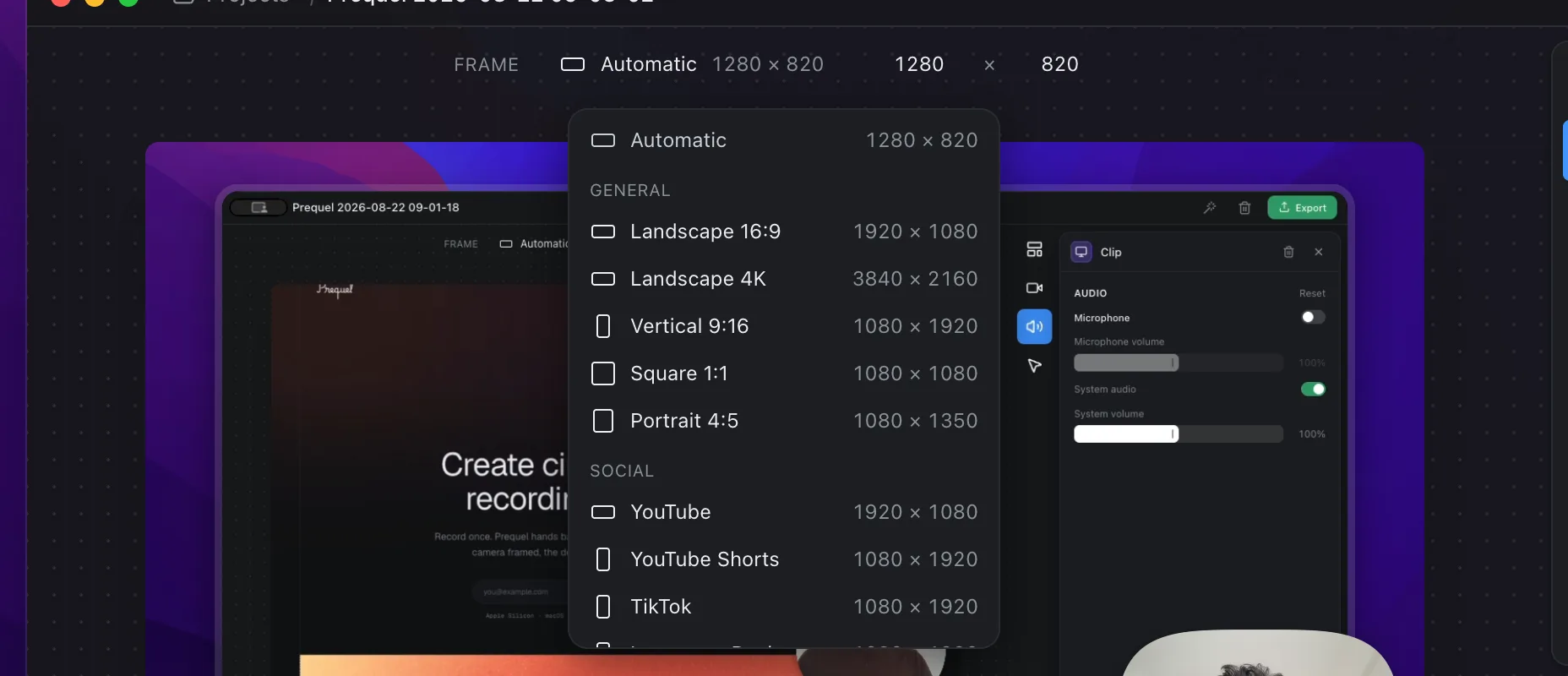
Presets
| Preset | Size |
|---|---|
| Landscape 16:9 | 1920 × 1080 |
| Landscape 4K | 3840 × 2160 |
| Vertical 9:16 | 1080 × 1920 |
| Square 1:1 | 1080 × 1080 |
| Portrait 4:5 | 1080 × 1350 |
| YouTube | 1920 × 1080 |
| YouTube Shorts | 1080 × 1920 |
| TikTok | 1080 × 1920 |
| Instagram Reels | 1080 × 1920 |
| Instagram Feed | 1080 × 1350 |
| X | 1920 × 1080 |
| 1920 × 1080 |
Changing shape after the fact
Everything about the look is stored as a fraction of the frame's shorter edge, not in pixels. A camera at a third of the height stays a third of the height when you switch from 16:9 to 9:16, and padding keeps the same proportion. Change the frame late and the layout follows.
Some layouts need a frame wider than it is tall; those are greyed out in a vertical frame.
Export size
The frame is the picture's size. Video quality in the export dialog can scale it down to 1080p, 720p or 480p without changing the frame itself. See Export.
Frequently asked questions
- Can I export a vertical video from a landscape recording?
- Yes. Choose Vertical 9:16, YouTube Shorts, TikTok or Instagram Reels in the frame bar. The layout follows because every size is stored as a share of the frame, not in pixels.
- What does Automatic mean?
- The frame matches the recording's own dimensions. It is what a fresh take opens on.
- Can I set an exact size?
- Yes. Type a width and height into the two fields beside the preset menu. The frame is then marked Custom.