Editing
Layout
Where the screen and the camera sit in the frame.
Choosing a layout
The Layout panel offers arrangements in three groups.
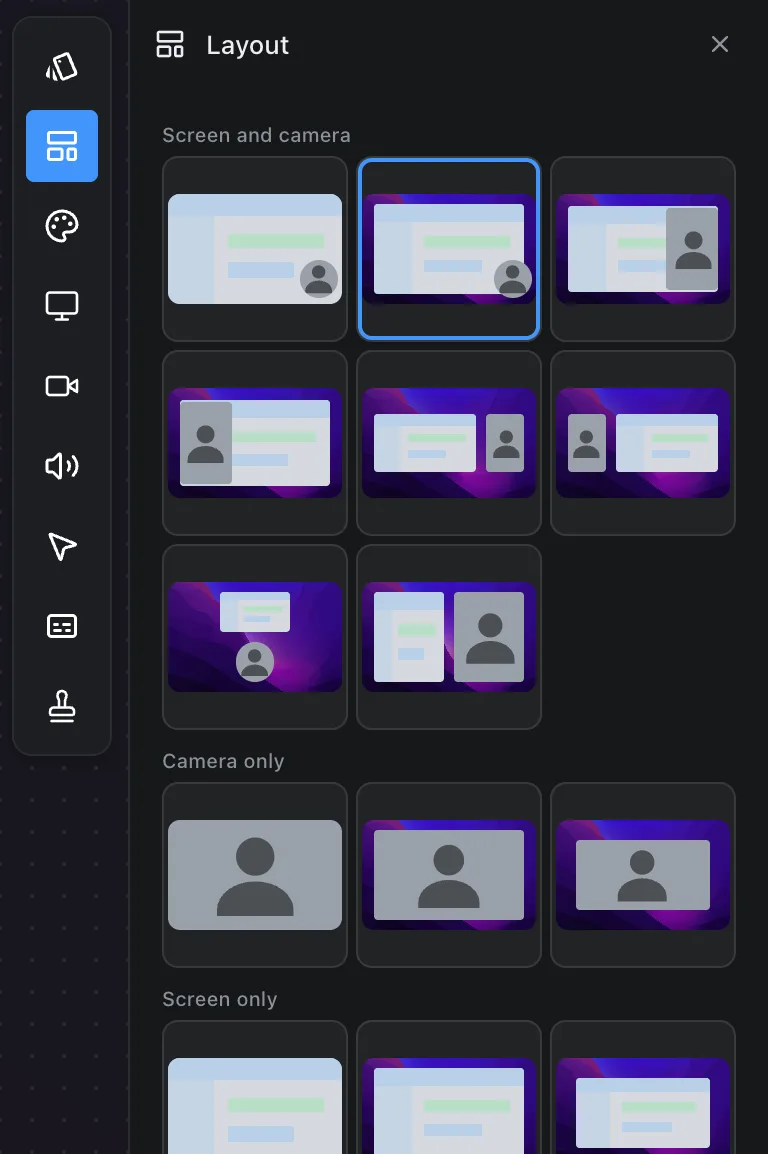
Screen and camera
- Full screen, camera over
- Padded screen, camera over
- Padded screen, camera standing over its right end
- Padded screen, camera standing over its left end
- Screen and camera side by side, camera at the right
- Screen and camera side by side, camera at the left
- Screen above the camera
- Split down the middle
Camera only: full frame, padded, or standing further back.
Screen only: full frame, padded, or standing further back.
A fresh recording opens on Padded screen, camera over. Layouts that need a landscape frame are unavailable in a vertical one.
Arranging by hand
Everything in the composition can be moved. Click the screen or the camera to select it, then drag to move it. Pull a corner to resize it in proportion, or the middle of a side to stretch it one way; hold Shift on a side to keep the shape. Guides snap it to the frame's centre and edges.
- Hold Option while dragging to pan the picture inside its own box rather than moving the box.
- Hold Shift while resizing to constrain the proportions.
- Esc clears the selection.
Once you have dragged something, the layout reads Custom, dragged by hand. Choosing a preset again snaps everything back.
Per clip
Select a clip on the timeline before choosing a layout and it applies to that clip alone, so a take can open on the camera and cut to the screen. See the note on overrides in The editor.
Frequently asked questions
- Can the camera be somewhere other than the corner?
- Yes. Pick a layout, or click the camera in the composition and drag it anywhere. Snap guides line it up with the frame's centre and edges.
- Can I show only the camera for part of the recording?
- Yes. Select a clip on the timeline first, then choose a Camera only layout. It applies to that clip alone.
- Why are some layouts greyed out?
- They need a frame wider than it is tall. Switch the frame to a landscape preset and they become available.