Editing
Captions
Transcribing on the Mac, styling captions, and editing the words.
Transcription
A recording with a microphone track is transcribed when it opens, on the Mac itself using Apple's speech recognition. Nothing is uploaded. The Captions panel shows the progress: Getting ready to transcribe… while a speech model is fetched the first time, then Transcribing…, then the captions appear. A take with nothing said in it ends on No speech to caption.
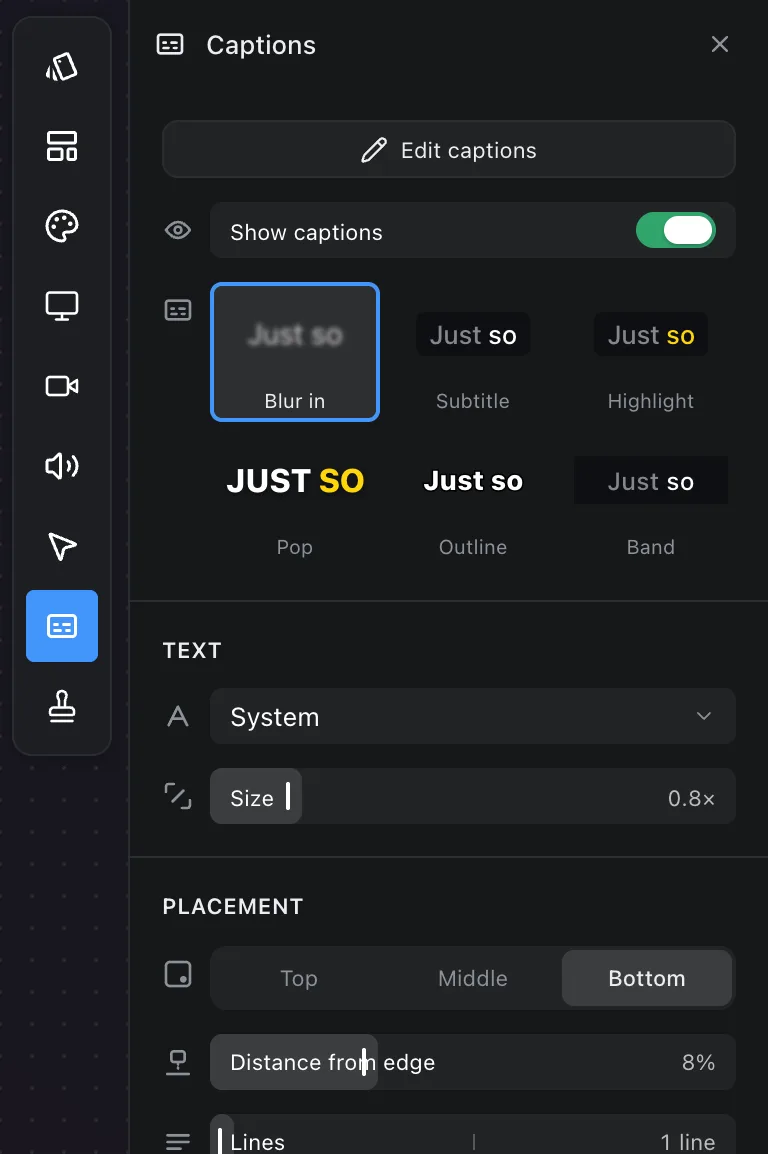
Show captions draws them in the composition and in the export. It is on by default once a transcript exists.
Style
Six looks: Subtitle, Blur in, Highlight, Pop, Outline and Band. Each animates the words as they are spoken in its own way.
Text sets the Font (System, Helvetica Neue, Avenir Next, Futura, Optima, Georgia, Times, Courier or Menlo) and the Size.
Placement puts the captions at the Top, Middle or Bottom, sets the Distance from edge and how many Lines show at once. Spoken word is the colour that marks the word being said.
Editing the words
Edit captions opens the transcript as text you can type into.
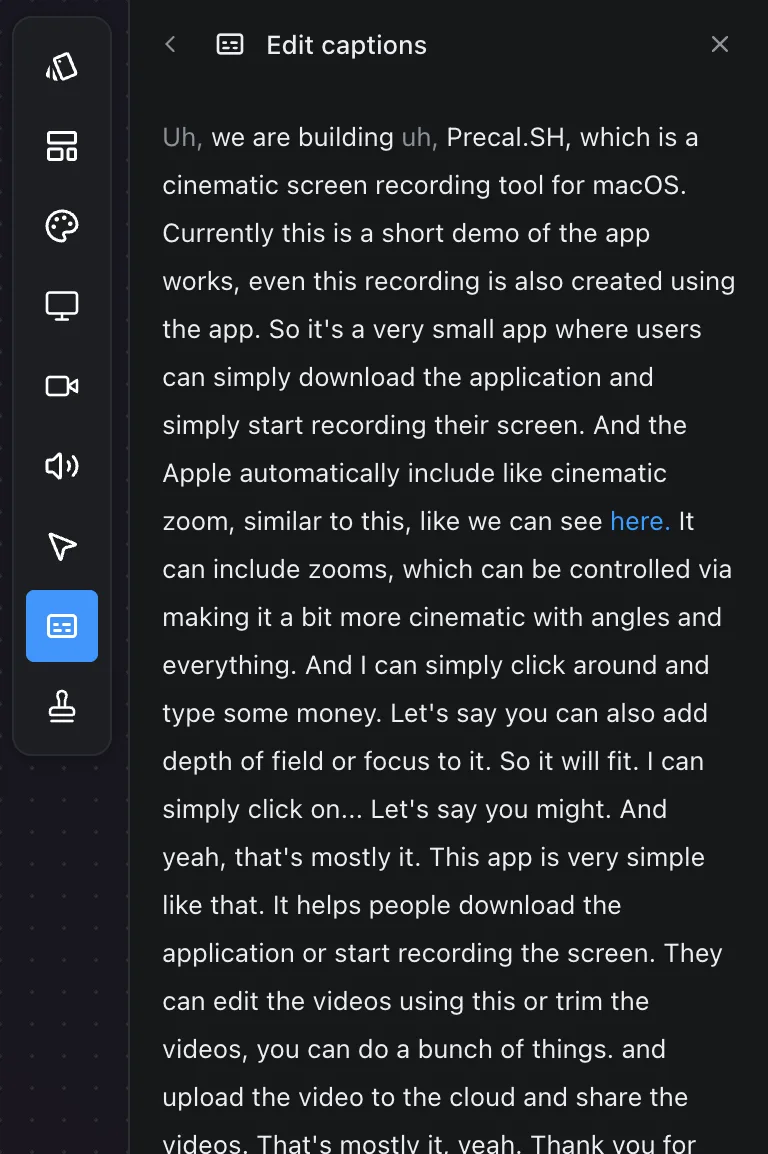
- Click a word and retype it to correct it. The timing is kept.
- Select a run of words and press Backspace to cut that footage from the recording. Deleting a sentence from the transcript means deleting it from the video, and the timeline shows the cut.
- Command + Z undoes either.
Captions on the share page
When you share a recording, the transcript travels with it. The share page on prequel.sh shows chapters drawn from what was said, and offers the captions as subtitles. See Share links.
Frequently asked questions
- Is my audio uploaded to be transcribed?
- No. Transcription runs on the Mac using Apple's speech recognition. The first run fetches a speech model from Apple; after that nothing leaves the machine.
- How do I fix a wrong word?
- Click Edit captions, click the word and retype it. The timing is kept.
- Can I cut the video by deleting words?
- Yes. In the caption editor, select a run of words and press Backspace. The footage they were spoken over is removed and the cut shows on the timeline.