Export and share
Export
Turning the edit into a file.
The dialog
Export in the editor's header opens the dialog.
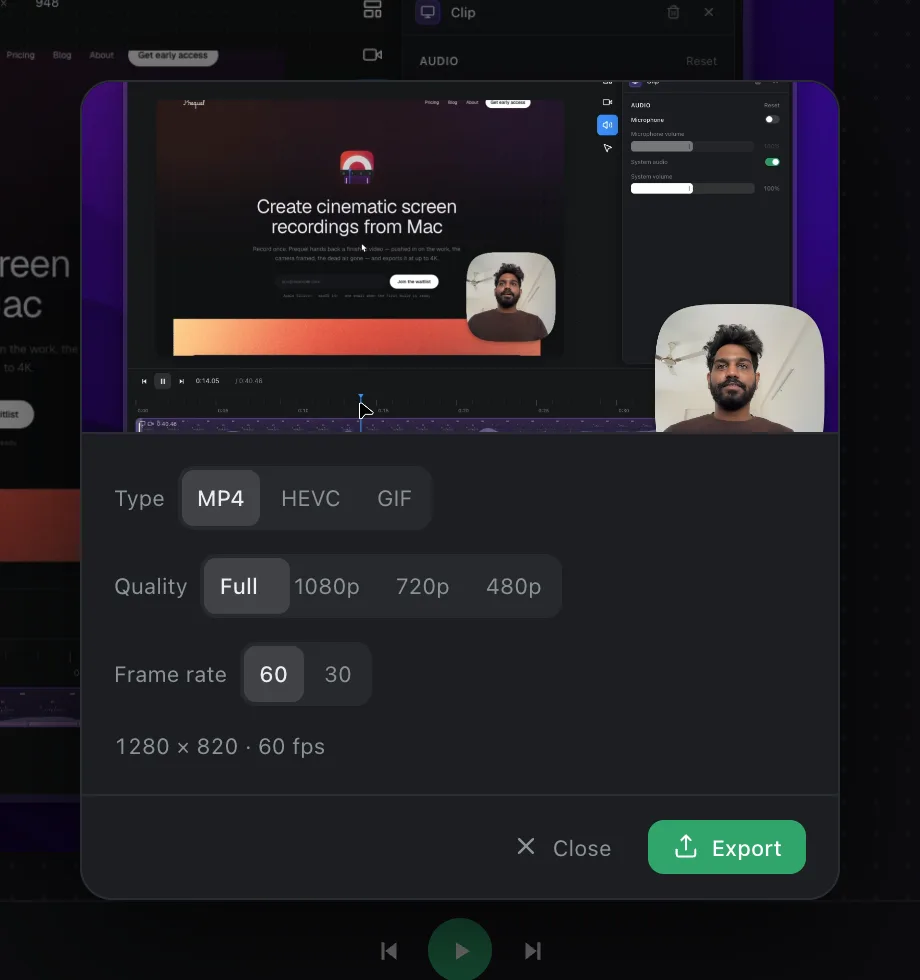
- Video format: MP4 (H.264, plays everywhere), HEVC (smaller at the same quality, less widely playable) or GIF (silent, looping, and much larger per second).
- Frame rate: 60 or 30 for MP4 and HEVC; 20 or 10 for GIF.
- Video quality: Full keeps the frame's own size. 1080p, 720p and 480p scale it so the shorter edge is that many pixels. A GIF is capped at 720.
The size beside Video quality is what the three add up to, for instance 1920 × 1080, with silent added for a GIF.
Rendering
Click Export and choose where to save; the dialog opens on Downloads the first time and remembers where you last saved. The export runs on the Mac's video hardware, and the button fills as it goes. You can keep editing meanwhile, and closing the dialog does not stop it; the Export button brings it back where it left off.
When it is done
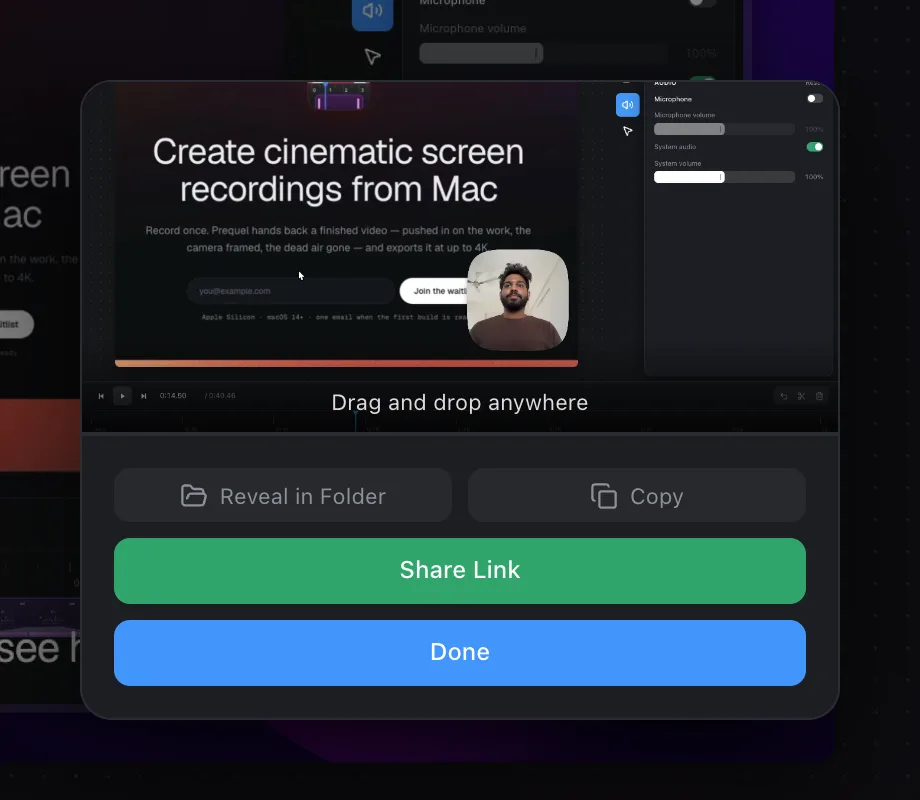
The finished video plays back in the dialog, with its name and size underneath.
- Drag and drop anywhere: drag the preview into Slack, Mail, a browser or a folder.
- Reveal in Finder shows the file in Finder.
- Copy to clipboard puts the file on the clipboard, ready to paste into a message or a folder.
- Share video uploads it and gives you a link. See Share links.
Exports need a trial or a paid licence; see Pricing and trial.
Frequently asked questions
- Which format should I choose?
- MP4 plays everywhere and is the usual choice. HEVC is smaller at the same quality but plays in fewer places. GIF is silent, loops, and is much larger per second.
- Can I export at a lower resolution?
- Yes. Video quality offers 1080p, 720p and 480p, which scale the frame so its shorter edge is that many pixels. Full keeps the frame's own size.
- Can I keep editing while an export runs?
- Yes. Closing the dialog does not stop the export, and the Export button brings it back where it left off.