Editing
Scene presets
Saving a look and applying it to the next recording.
What a preset holds
A scene preset is the whole look of a recording: the frame, the layout, the camera's shape and position, the background, the padding and shadow, the caption style, the logo and the zoom settings. It does not hold the cuts or the zooms themselves, which belong to one recording.
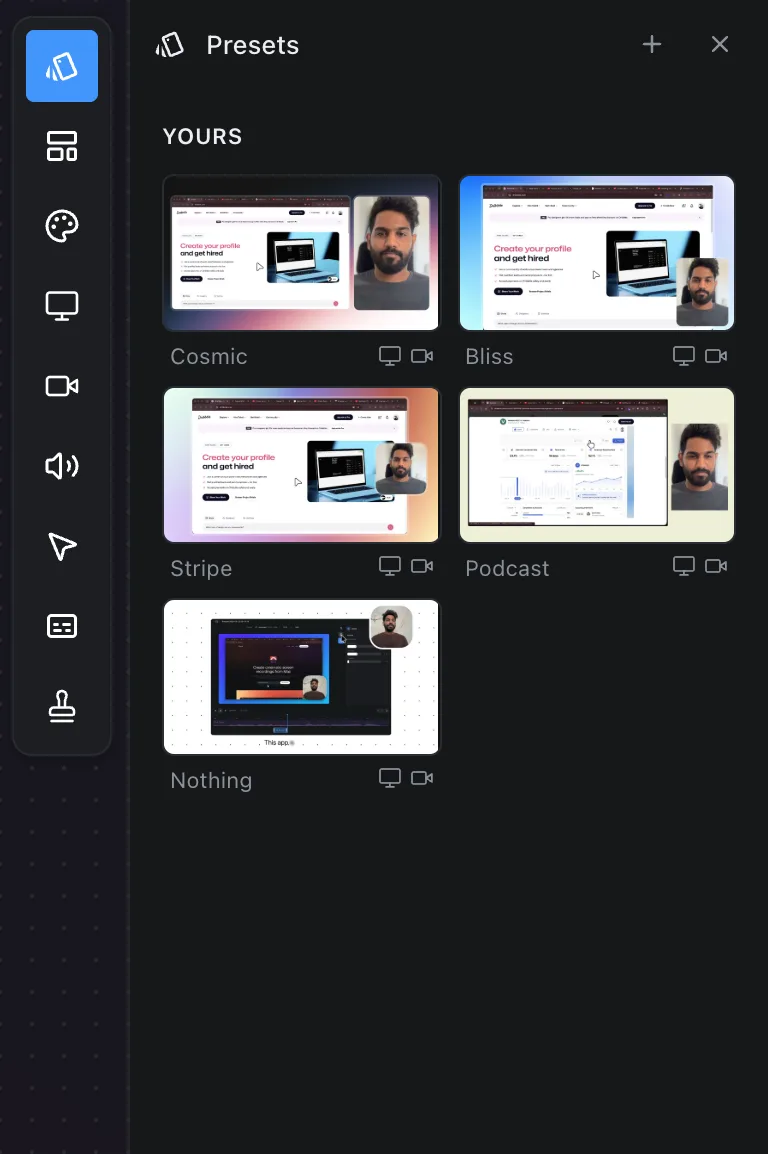
Saving
- Get a recording looking the way you want.
- Open the Presets panel, the first icon on the rail.
- Under Save this look, type a name and click Save.
The preset appears under Yours with a card drawn from the composition as it stood.
Applying
Click a card. Everything it holds is applied to the open recording's defaults. A background picture or a logo the preset carries is copied into the recording.
Renaming and deleting
More… on a card offers rename and delete. Presets live in the app, not in any recording, so deleting one leaves every recording that used it as it is.
Frequently asked questions
- What does a preset save?
- The whole look: frame, layout, camera shape and position, background, padding and shadow, caption style, logo and zoom settings. It does not save the cuts or the zooms themselves.
- Can I use a look on another recording?
- Yes. Open the Presets panel and click the card. Everything it holds is applied, and any picture or logo it carries is copied into the recording.
- What happens to recordings if I delete a preset?
- Nothing. Presets live in the app, not in recordings, so deleting one leaves every recording that used it as it is.