Editing
Cursor
Restyling, smoothing and hiding the pointer.
When the panel appears
Prequel records the pointer as its own layer rather than baking it into the frames, so it can be changed afterwards. The panel appears for every recording made with a current version. An older take made while Prequel could still bake the pointer has it in the picture already, and there is nothing to restyle.
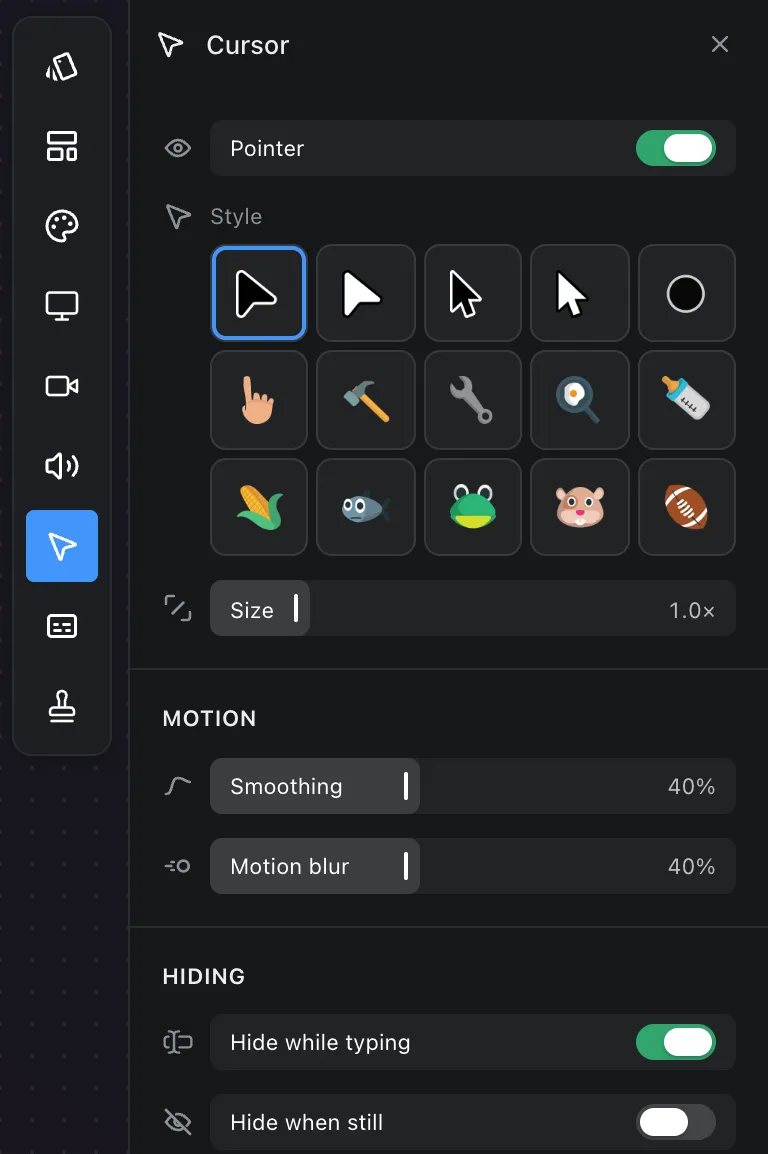
Style and size
- Pointer shows or hides it entirely.
- Style: Black, White, Classic Black, Classic White, Circle, Point, and a set of playful ones: Hammer, Wrench, Cooking, Baby bottle, Corn, Fish, Frog, Hamster and Football. A style sets the arrow; the hand and the text cursor that go with it are chosen to match.
- Name tags: five coloured pointers — blue, purple, pink, orange and green — with a name beside them, the way a collaborator's cursor is drawn in a shared canvas. Pick one and a Name on the tag field appears under the styles; what you type is drawn on the tag in the preview and the export. The name is kept if you switch to a plain pointer and back. Leave it empty and the pointer is drawn on its own.
- Size scales the pointer, as a share of the frame.
Motion
- Smoothing steadies the pointer's path, so a shaky hand reads as a deliberate move.
- Motion blur streaks the pointer during fast moves, as a camera would.
Hiding
- Hide while typing fades the pointer out while keys are being pressed. This needs the recording to know when you typed, which is what the Accessibility permission provides.
- Hide when still fades it after it has stopped moving; After sets how long to wait.
Frequently asked questions
- Why is there no Cursor panel on my recording?
- The pointer was baked into the frames when that take was made, so it is already part of the picture and there is nothing to restyle. Prequel no longer bakes the pointer: every recording carries it as a layer.
- Can I hide the pointer?
- Yes. Turn off Pointer to hide it entirely, or use Hide when still to fade it after it stops moving and Hide while typing to fade it while keys are pressed.
- Can I make the pointer bigger?
- Yes. Size in the Cursor panel scales it as a share of the frame, so it stays the same relative size at any export resolution.