Editing
The editor
What is on screen when a recording opens, and how edits are saved.
The parts
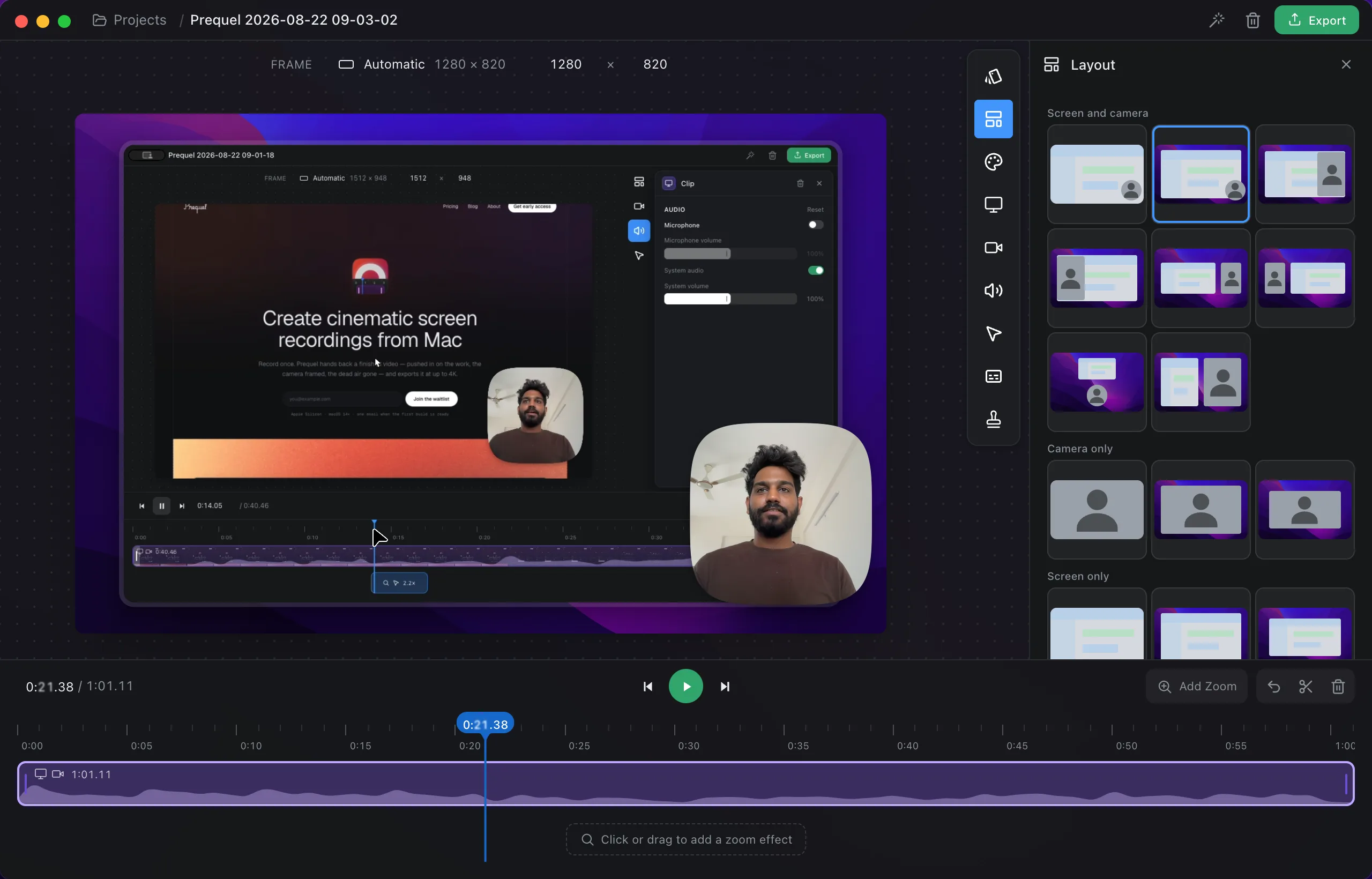
From top to bottom:
- Header. A breadcrumb back to Projects, the recording's name, a wand that adds zooms automatically, a bin, and the green Export button.
- Frame bar. The output size and aspect. See Frame and presets.
- Composition. A live preview of the finished video: the recording, the camera, the background, the pointer and the captions, drawn exactly as they will export. Click any of them to select it and open its panel. Drag to move, pull a corner to resize in proportion, or pull the middle of a side to stretch one way.
- Inspector. A rail of icons down the right. Each opens a panel: Presets, Layout, Background, Recording, Camera, Audio, Cursor, Captions and Logo. Panels that do not apply to this recording are not offered; a take with no microphone has no Captions panel.
- Transport. The time, play, and the verbs: Add Zoom, undo, split, delete.
- Timeline. The clip row with a filmstrip and waveform, and the zoom row beneath it. See Timeline and cuts and Zooms.
Saving
There is no save button. Every change is written to the recording's own project.json a moment after you make it, and reopening the recording puts you back where you were. The video files themselves are never modified; an edit is a description of what to do with them.
Command + Z undoes the last change.
The first pass
The first time a recording opens, Prequel looks at where you clicked and typed and adds a zoom for each. This needs the Accessibility permission to have been granted while recording. The wand in the header runs the pass again over the edit as it stands, adding zooms for any moment not already covered. It is disabled when the recording holds no clicks or typing to work from.
The first pass adds zooms only. It does not cut anything: trimming is yours to do on the timeline.
Project defaults and per-clip overrides
Every panel edits the project's defaults, which apply to the whole recording. Select a clip on the timeline first and the same controls edit that clip alone. A dot beside a control shows it is overridden on the selected clip.
Two buttons in a panel's header manage this: Reset to the project defaults clears the overrides on this clip, and Apply these settings to every clip copies this clip's look to the rest.
Frequently asked questions
- Do I need to save my edit?
- No. Every change is written to the recording's project.json a moment after you make it. Reopening the recording puts you back where you were.
- Does editing change the original video?
- No. The edit is a description of what to do with the recorded tracks. The video files are never rewritten, and deleting the edit puts the recording back as it was captured.
- Why did the editor add zooms on its own?
- The first time a recording opens, Prequel places a zoom on each place you clicked or typed. It needs the Accessibility permission to have been granted while recording. Every zoom it adds can be moved, retimed or deleted like one of your own.