How to record training videos for software that changes every release
One task per video, the window rather than the desktop, a zoom where a callout would go, captions on, one saved look for the whole library, and the takes kept so a release means re-recording one video. Built from three r/instructionaldesign threads.

Somebody in every company ends up as the person who explains the software. The r/instructionaldesign threads are full of them: one put in charge of training on a proprietary tool with no idea where to start, one maintaining a library of 150 how-to videos that go stale every release, one asking whether freeze-frames and callouts are worth the effort.
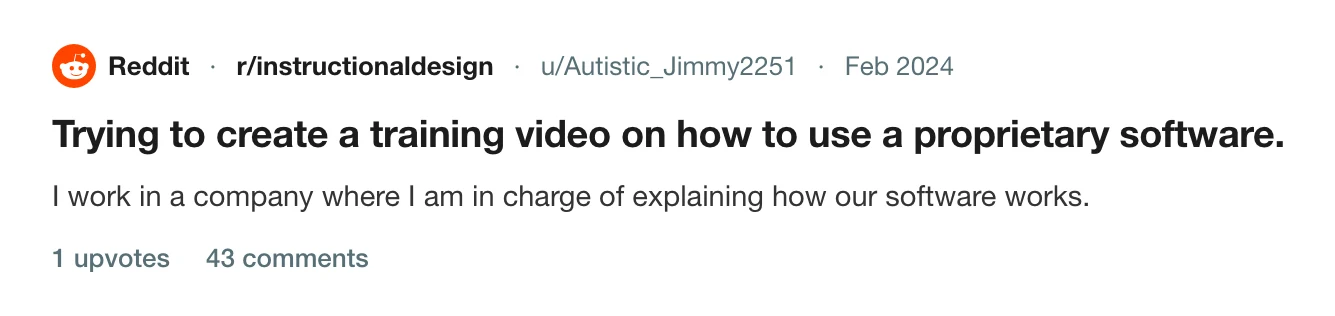
The thread on r/instructionaldesign →
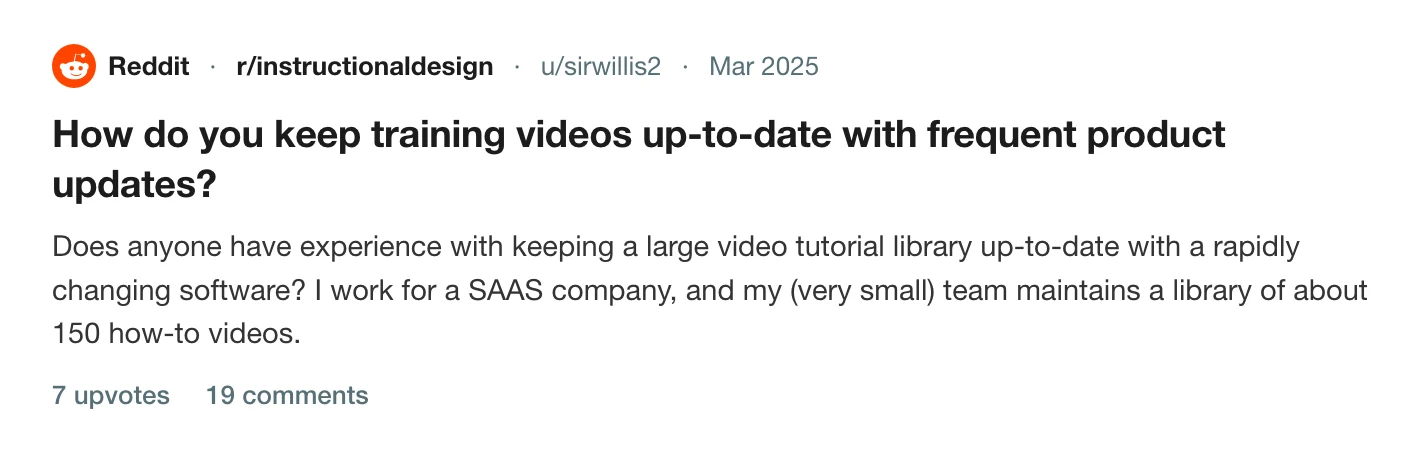
The thread on r/instructionaldesign →
This is how to make training videos that get watched, and how to make them so that the next release does not send you back to the start.
One task per video
The most upvoted answer in the 150-video thread is to switch most of the library to written documentation and keep video for onboarding and the key features. That is right, and the reason is length. A twelve-minute tour of a module is a video nobody finishes and everybody has to re-record when one screen in it changes. A ninety-second video called "Approve an expense claim" is watched to the end, found by its name, and replaced on its own when that screen changes.
Write the list of tasks before recording anything. Each becomes one video named for the task, in the words a user would search for. Aim for one to three minutes; if a task needs longer, it is two tasks.
Record the window, at the size the viewer will watch it
Training videos are watched in a help centre, a Slack message or a learning system, in a player about 700 pixels wide. A recording of the whole desktop shrinks the interface to a quarter of the size and the labels become unreadable.
Record the application's window on its own, sized to around 1400 pixels wide, with nothing behind it. Clear the test data of anything that looks like a real customer, and use the demo account. Capture at the display's pixel size so the text stays sharp when the player scales it; the high quality article has the check.
Show where to look
The freelancer in the third thread moves the cursor to highlight areas while talking, and asks whether callouts are worth adding on top. The most upvoted reply uses a shape, a red outline with no fill, and no text when there is a voiceover.
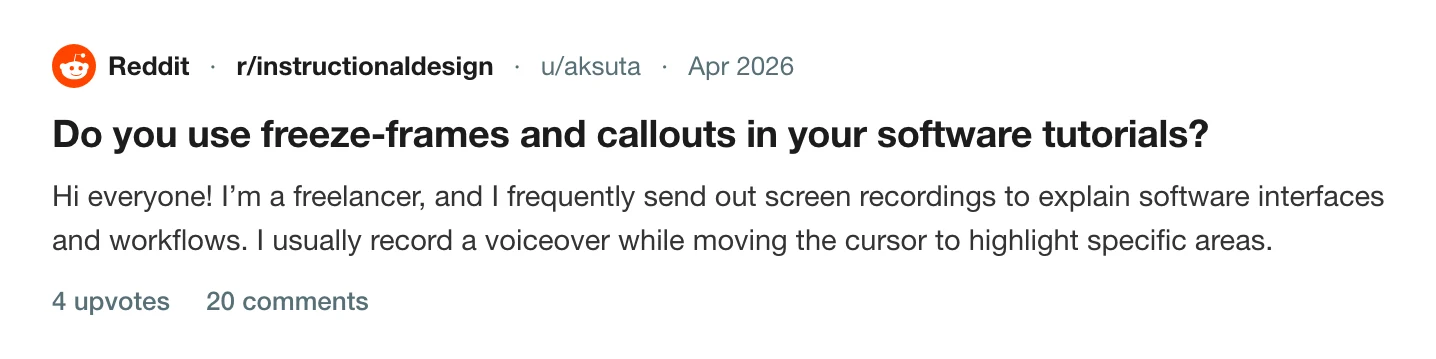
The thread on r/instructionaldesign →
Two things do the same job with less work. A zoom on the control being used shows the viewer where to look without a drawn shape, and the eye follows the movement. Prequel places one on each click as the recording opens.
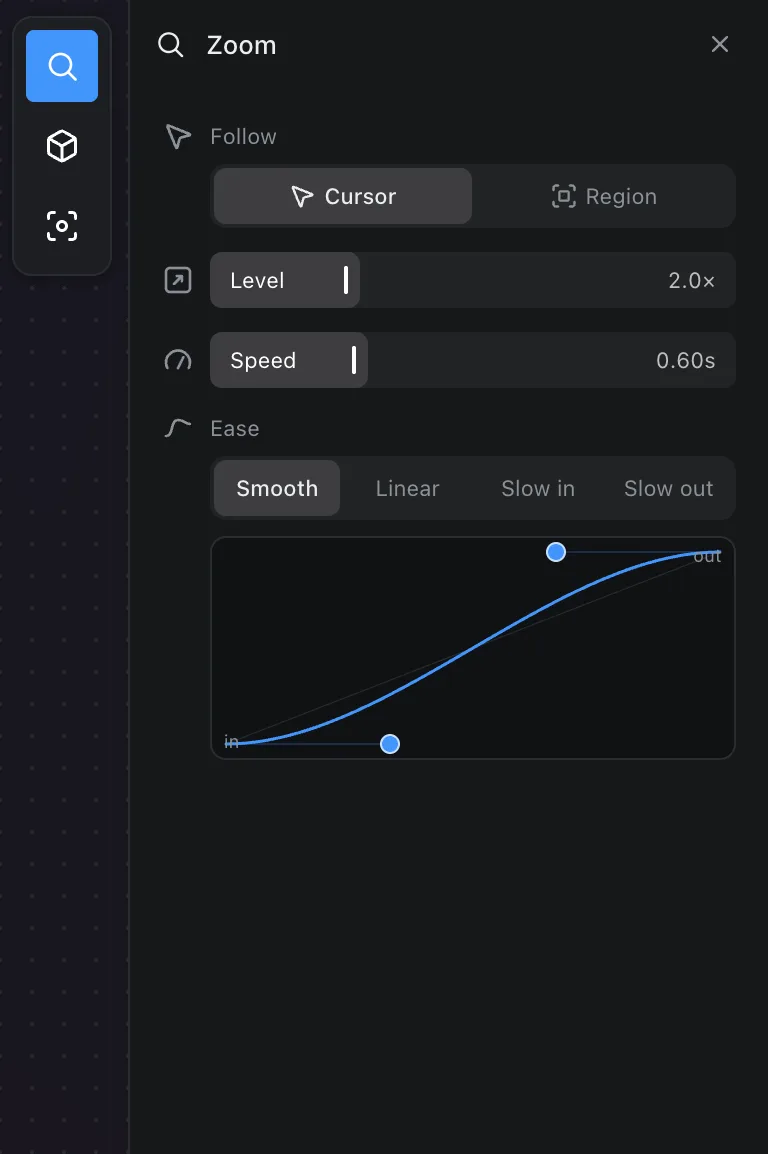
For a step where the viewer should look at one region while you talk about it, the zoom's Focus tab blurs everything outside a sharp area and can darken the edges, which is the red outline without the outline. The zooms page has the controls.
The cursor itself matters more in a training video than anywhere else, because the viewer is following it to learn where things are. Prequel records it as its own layer, so it can be made larger, smoothed, and hidden while you type; see cursor.
Say it as if to one person
Read from a list of steps. A full script read aloud sounds read, and a training video that sounds read is skipped. Say what the viewer is about to do, do it, and say what they should see. Pause between steps; the pauses are where a viewer following along catches up, and they can be cut on the timeline if they run long.
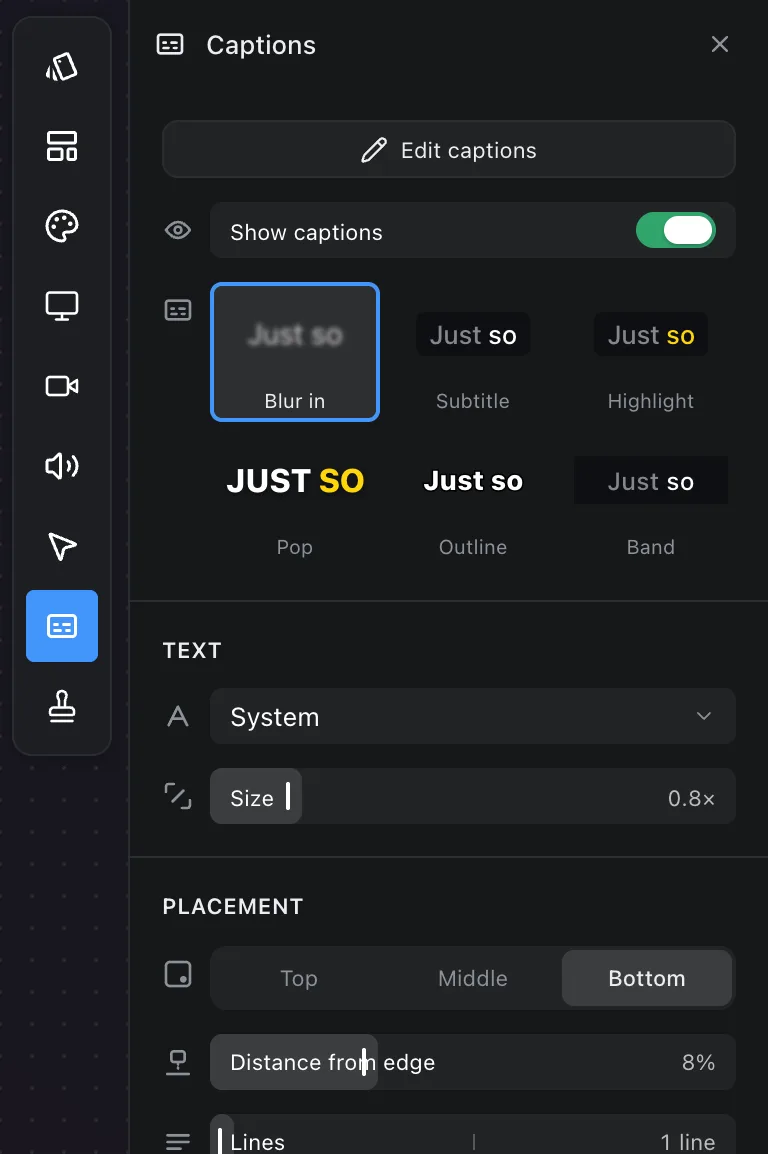
Turn captions on. Many training videos are opened at a desk in an office, where the sound stays off, and captions also make the video searchable in systems that index them. Prequel transcribes the microphone track on the Mac when the recording opens, and the transcript can be typed into where a product name came out wrong.
Make every video look the same
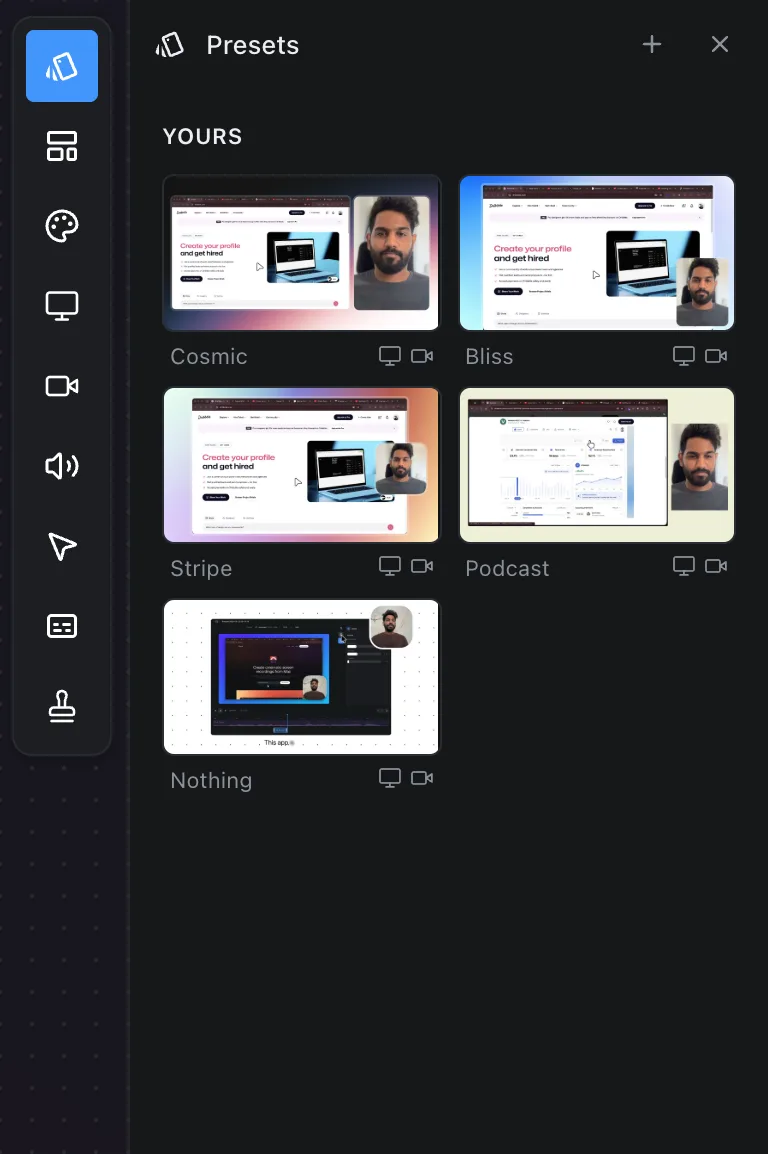
A library reads as one thing when every video shares a frame: the same background, the same padding, the same corner where the camera sits if there is one, the same caption style, the logo in the same place. Set that up once and save it as a scene preset, and every recording after that opens with it applied.
Plan for the next release
This is the 150-video problem, and the way out is in the recording rather than the editing.
Keep the takes. A Prequel recording is a folder that holds the screen capture, the camera, the audio and the project, so a video can be reopened, re-cut and re-exported without being re-recorded. When a release moves a button, the video that shows it is one folder, and it is the only one that needs a new take.
Keep videos short and single-task, so the blast radius of a UI change is one video and not a chapter.
Name files for the task and the version. "Approve an expense claim, v3.2" is a file you can find and retire; "Expenses module walkthrough final FINAL" is not.
Put the version in the first frame, or in the description, so a viewer on an older release knows which video is theirs.
The short version
One task per video, one to three minutes. Record the window on its own, at the display's full pixel size. Show where to look with a zoom. Talk from a list of steps, and turn captions on. Save the look as a preset so the library matches. Keep the takes so a release means re-recording one video, not the library.
Prequel does the zooms, the cursor, the captions, the frame and the export from one recording, on Apple Silicon Macs running macOS 14 or later, and the training use case page shows the setup.
Frequently asked questions
- How long should a software training video be?
- One to three minutes, covering one task, named for that task in the words a user would search for. A video that needs longer is two videos. Short single-task videos are watched to the end and can be replaced one at a time when the product changes.
- How do you keep training videos up to date when the software changes?
- Keep each video to one task so a UI change affects one video, keep the recording takes so a video can be re-cut and re-exported without re-recording, name files for the task and the version, and put the version on the first frame. Move reference material to written documentation and keep video for onboarding and the key features.
- Should I use callouts and freeze-frames in a software tutorial?
- A zoom on the control being used does the same job with less work, and a focus effect that blurs everything outside a region replaces the red outline box when you need the viewer to look at one area while you talk. Text callouts are rarely needed when there is a voiceover.