How to record a Zoom or Google Meet call on a Mac with both sides' audio
QuickTime records your microphone and none of what the other person said. Three routes to a recording with both sides: the meeting's own recorder, a screen recorder that captures system audio, and local recording for a podcast. Say you are recording first.

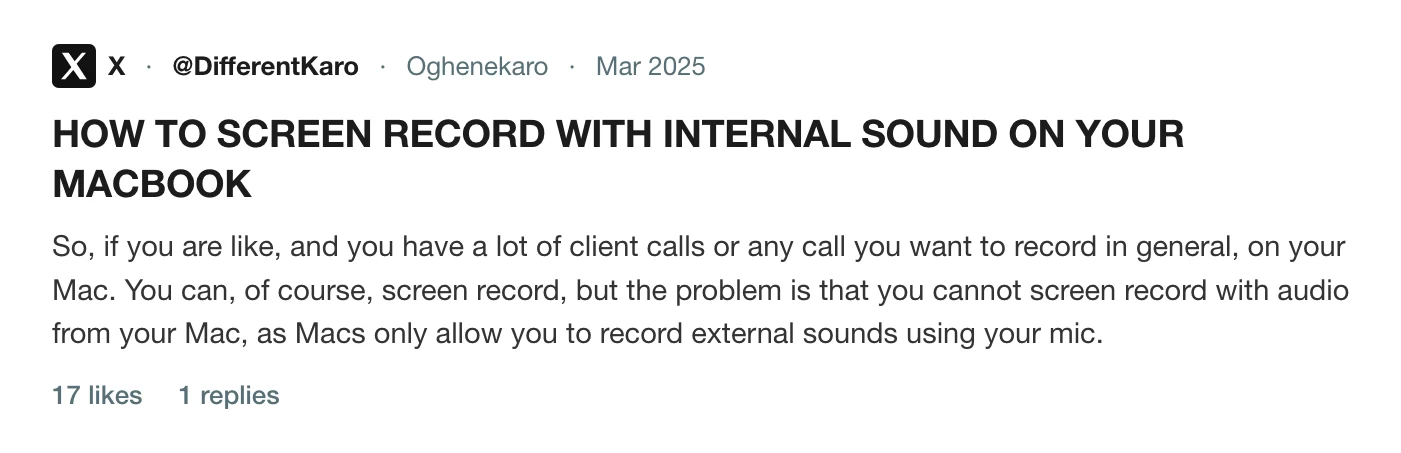
The reason people go looking for this is always the same: a call worth keeping, and a Mac that recorded the screen and their own voice and none of what the other person said. QuickTime and the Cmd+Shift+5 toolbar record a microphone. The other side of a call comes out of the speakers, and macOS does not hand that to either of them.
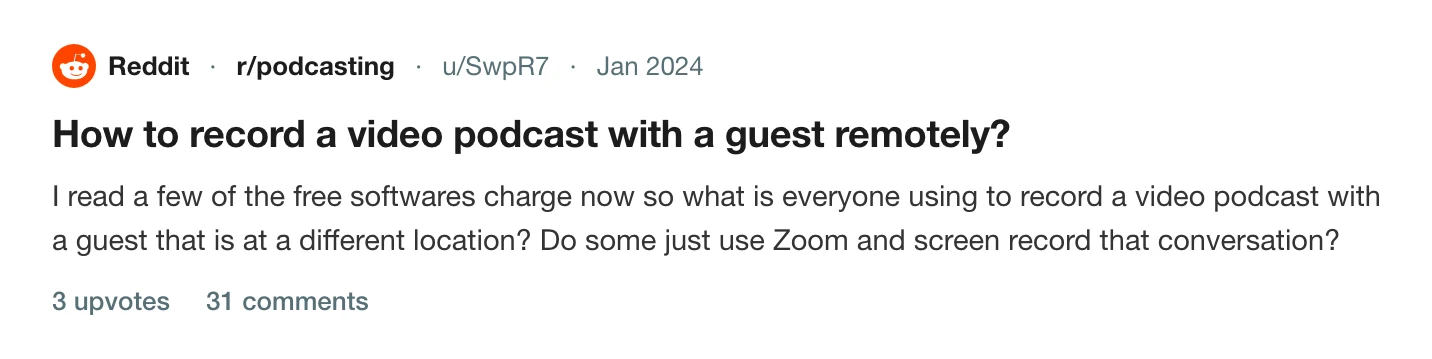
There are three ways to get both sides, and which one to use depends on whether you control the meeting. Then there is the part nobody in those threads mentions until the comments: say you are recording.
Tell the call you are recording
Do this first, whichever route you take. Zoom and Meet both announce their own recording to everyone on the call, which is one reason people prefer them. A screen recorder announces nothing. Say it out loud at the start and, for a client, put it in the invite. In some places consent from every party is the law; everywhere, it is the difference between a recording you can use and one you cannot.
1. Use the meeting's own recorder if you are the host
Zoom records to your Mac with Record in the toolbar, on the free plan as well as the paid ones, as long as you are the host or the host has allowed you to. The file lands in your Documents folder under Zoom as an MP4 when the meeting ends, with everyone's audio mixed together.
Google Meet has a Record meeting option too, but only on paid Workspace plans, only if the administrator has turned it on, and only for the host or someone the host permits. A personal Google account cannot record a Meet.
Both give you the gallery or the shared screen as the meeting showed it, one mixed audio track, and no control over the layout afterwards. For a call you want to keep, that is fine. For a call you want to edit into something, the next route gives you more.
2. Record the screen with system audio
This is the route the X thread is about. The Mac's own sound, everything coming out of the speakers, is called system audio, and a recorder either captures it or does not.
The old way, which that thread teaches, is a virtual audio device: install Background Music or BlackHole, route the Mac's output through it, and point the recorder at the virtual device as if it were a microphone. It works. It also means a kernel extension or a driver, an Audio MIDI Setup session, and a Mac that goes silent when the routing is wrong.
The current way is a recorder built on the screen capture API macOS has had since version 13, which can hand an app the system's audio alongside the frames with nothing installed. Prequel is one: Record system audio in Settings is on by default, and the take carries the call's audio as its own track.
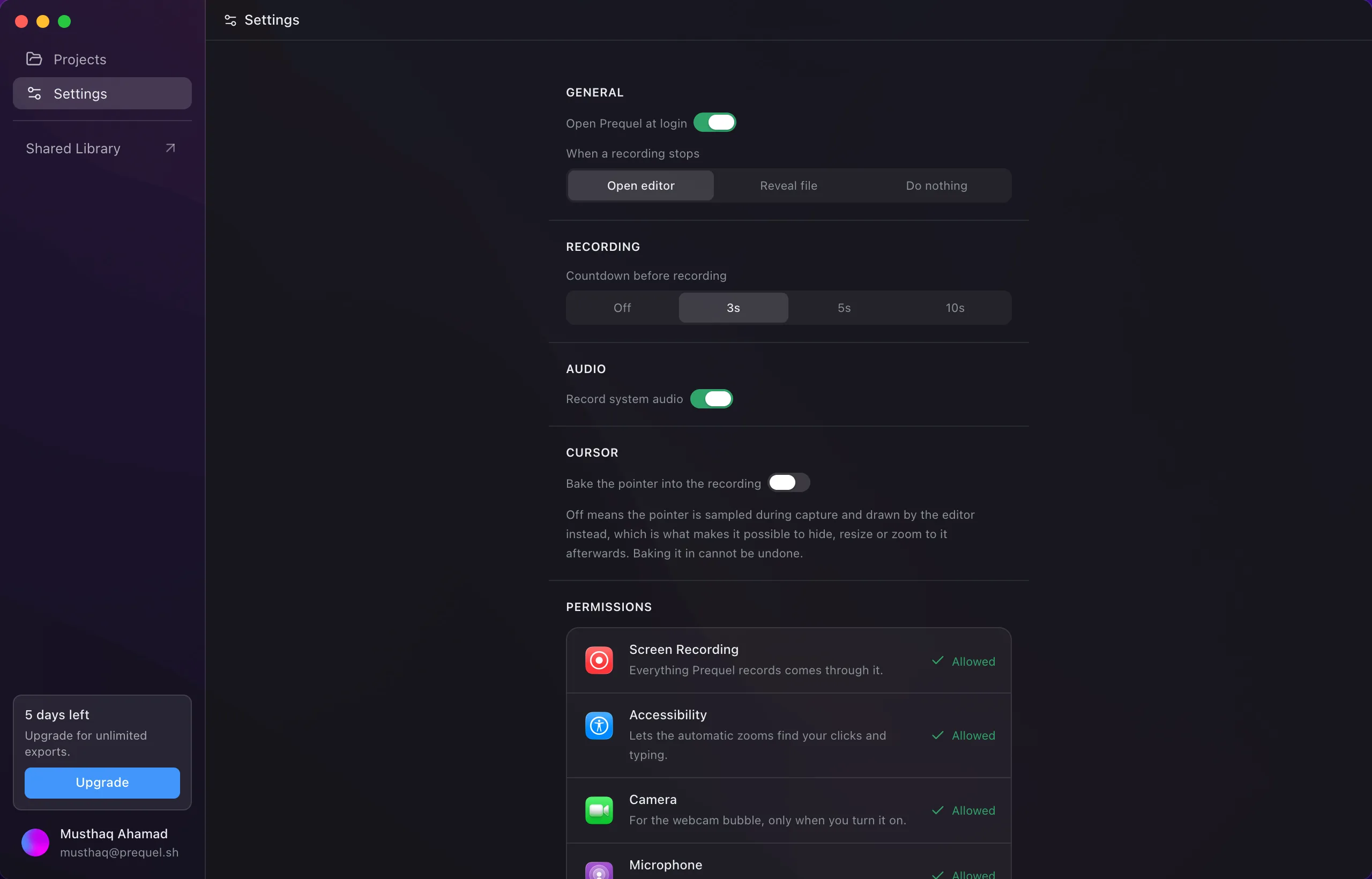
Turn the microphone on too, so your side is recorded, and leave the camera off unless you want your own face in the recording. Then choose the meeting window as the source, so the recording is the call and not your desktop.
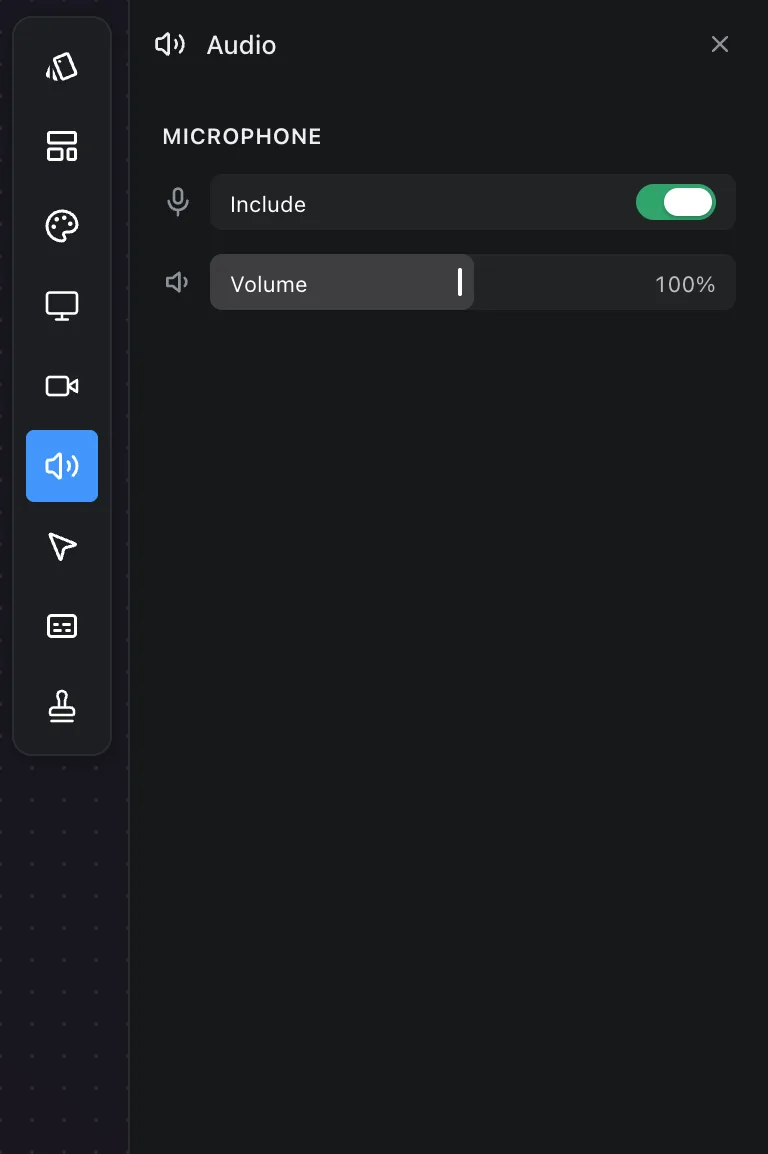
Two tracks is the point. In the editor the other side's audio and yours have their own Include switch and their own level, so a call where you were too loud or they were too quiet can be balanced afterwards. A meeting recorder's single mixed track cannot be.
The internal audio post goes through which recorders capture system audio and which still need the driver.
3. Record each side locally for a podcast
The r/podcasting thread's most upvoted answer is a service that records every participant's audio on their own machine and uploads it, so a bad connection does not end up in the recording. That is the right answer for a weekly show with guests, and it is a subscription and a link the guest has to open.
For a one-off conversation, route two is the same idea at your end: your microphone is recorded locally at full quality, and the guest's side is whatever the call delivered. The difference shows when the guest's connection drops, and for most calls it does not.
What to do with the recording
If it was a call worth recording, it is usually a call worth sending part of. The take opens in Prequel's editor with the zooms placed on anything you clicked, which for a call is usually nothing, so delete any it found. Cut the recording down to the part that matters on the timeline, and export at 1080p in MP4 for a file that plays anywhere, or use Share video to send a URL instead of a file. The file size article has what to expect from each.
Captions are drawn from the microphone track, so your side of the call is transcribed on the Mac and can be typed into; see captions.
The short version
Say you are recording. If you host the meeting, Zoom's own Record button is enough and Meet's is if your plan has it. If you do not, or you want to edit the result, record the screen with a recorder that captures system audio as a separate track: Prequel does on any Apple Silicon Mac running macOS 14 or later, with nothing to install and nothing to route.
Frequently asked questions
- Why does my screen recording of a Zoom call have no audio from the other person?
- QuickTime and the Cmd+Shift+5 toolbar record a microphone, and the other side of a call comes out of the speakers as system audio, which they do not capture. Use Zoom's own Record button if you are the host, or a screen recorder that captures system audio, such as Prequel, which records it as a separate track.
- Can I record a Google Meet call on a free account?
- Meet's own Record meeting option is only on paid Workspace plans, only when the administrator has enabled it, and only for the host or someone the host permits. A screen recorder that captures system audio records the call from any account. Tell the other participants first.
- Do I have to tell people I am recording a call?
- Yes. Zoom and Meet announce their own recordings; a screen recorder does not, so say it at the start and put it in the invite for a client. In some places consent from every party is required by law.