The best Cap alternatives for Mac
Cap is free for personal use, and a recording made for work needs a paid licence. We tried the six tools people move to, with the prices checked and the complaints linked, and here is where each one fits.

TL;DR
| # | Tool | Price | Why you would switch |
|---|---|---|---|
| 1 | Prequel | $29 once, or $9/mo | Nothing is held back for personal use, and nothing is timed |
| 2 | Screen Studio | $29/mo, or $9/mo billed yearly | The most polished automatic zoom on a Mac |
| 3 | Loom | Free, capped at 5 minutes; $18 per user/mo | The link, the comments and the view counts |
| 4 | CleanShot X | $35 once, with a year of updates | Screenshots and video in the same app |
| 5 | OBS Studio | Free | GPL-2.0, and it records anything on anything |
| 6 | QuickTime Player | Free with macOS | Already installed |
Prices checked on 28 September 2026.
Cap is the open-source screen recorder people reach for when Loom gets expensive. Richie McIlroy started it in November 2023, it has it passed 22,000 stars on GitHub, it was #2 Product of the Day on Product Hunt in November 2024 and has 1,043 upvotes there, and the Show HN that launched it took 351 points and 177 comments.
It has earned that. The code is AGPLv3, you can self-host the whole thing with Docker Compose, a share can point at your own S3 bucket, and version 0.6 in September 2026 added 3D scenes, colour correction and camera cutouts. It runs on macOS, Windows and Linux, which almost nothing else in this category does.
What sends people looking is the shape of the free tier and how much of the editing is still yours. The short answer is Prequel, on a Mac. Here is the evidence and the rest of the list.
What is Cap?
Cap is an open-source screen recorder for macOS, Windows and Linux. It has two modes. Instant mode uploads while you record and gives you a shareable link the moment you stop. Studio mode records to your disk at full quality, opens a timeline editor with zooms, backgrounds, layouts and masks, and exports an MP4 at up to 4K and 60 fps.
The desktop app is free for personal use. A Desktop Licence at $29 a year, or $58 once, adds commercial rights and 20 shareable links a month. Cap Pro at $12 per user a month adds unlimited cloud sharing, transcriptions, a custom domain, viewer analytics and your own storage. The code is on GitHub under AGPLv3, with the camera and capture crates under MIT.
Why do people look for a Cap alternative?
The editor is yours to drive
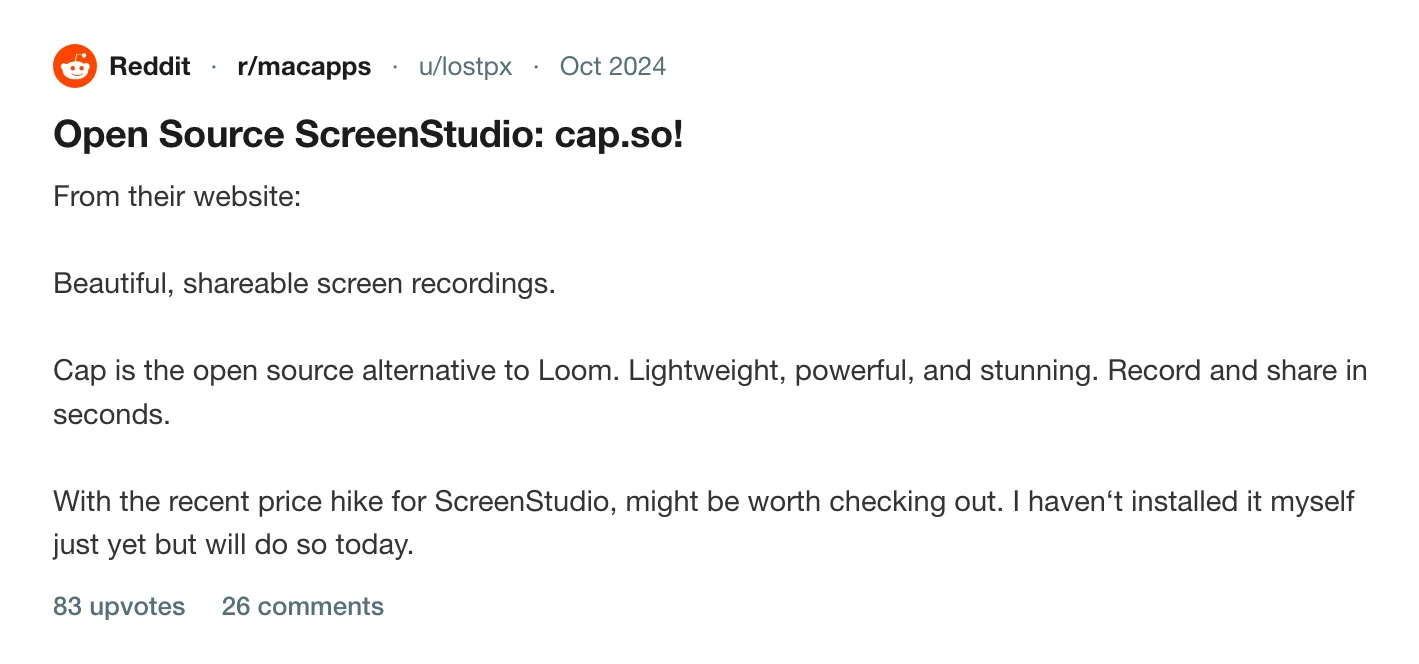
Cap has had automatic zoom from click data since version 0.6, and it is good. What it still is, though, is an editor: the zooms are a starting point you open and adjust, and the polish comes from the passes you make. The r/macapps thread that introduced a lot of people to Cap has the objection in the comments, and the top reply names exactly the thing people compare it against.
Free means personal, and work means a licence
Cap's free plan covers personal use only. The moment a recording is for a client, a launch or a standup, you need the $29-a-year Desktop Licence or Cap Pro at $12 a user a month. That is a fair way to fund an open-source app, and it is also the sentence people miss until they read the pricing table twice. The question was put to the founder in the Show HN thread the week Cap launched.
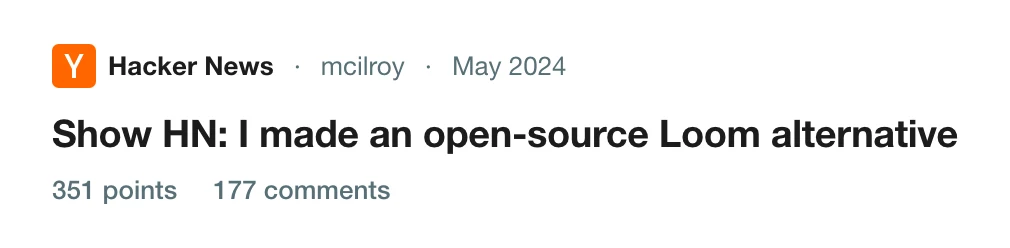
Read the thread on Hacker News
The shareable link stops at five minutes
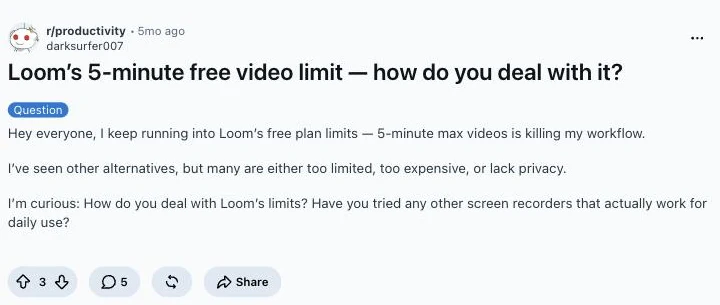
On the free plan and on the $29-a-year Desktop Licence, a link plays five minutes and no more. Only Cap Pro at $12 a user a month lifts it. Five minutes is the same wall people hit on Loom's free plan, and it is the same complaint when they do.
The best Cap alternatives
How we picked
- We recorded the same two-minute take in each, with clicks, typing, a camera and system audio, then exported it and compared the files.
- Prices come from each vendor's own page on the date under the table, with both billing periods wherever there are two.
- We read what each free tier permits, not only what it does, because that is the first reason above.
- We left out tools that watermark a paid export, and anything with no camera track.
- We ranked on the three reasons above: how much of the edit is done for you, what using it at work costs, and where the caps fall.
1. Prequel
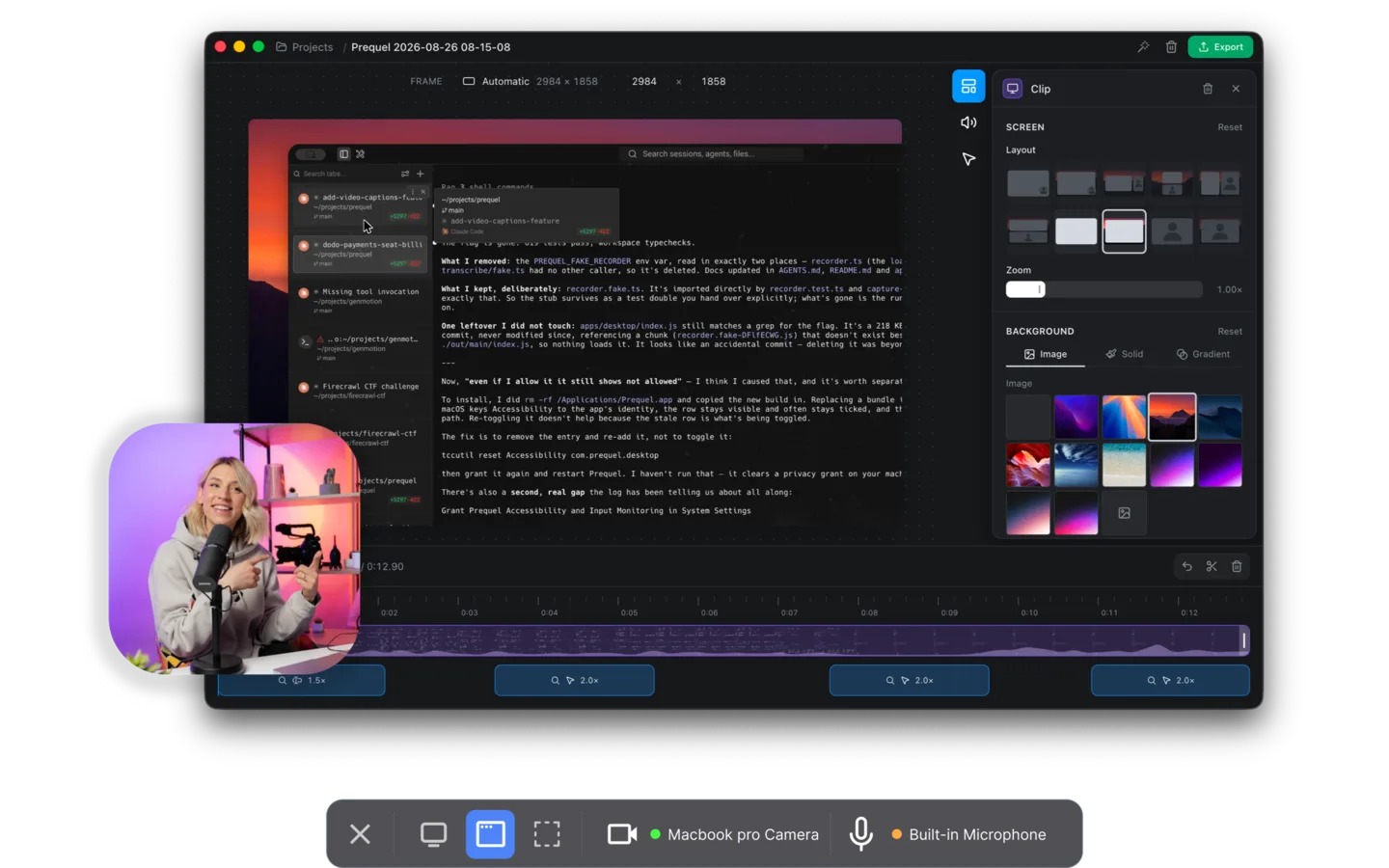
Prequel is a Mac screen recorder built around the finished video. You record, you stop, and the editor opens with the first pass made: zooms placed on every click and every burst of typing, the camera framed and shaped in a corner, a background applied with padding and a shadow, the two audio tracks balanced, and the cursor smoothed, resized and hidden when it idles.
The zooms carry a perspective tilt, and focus falls away from whatever they aim at. The camera is recorded separately, so you move it and reshape it afterwards. Captions are transcribed on your Mac. Export is one MP4 at up to 4K and 120 fps, encoded by your Mac's own media engine.
Pros
- Both plans are the whole app, with no personal-use clause and nothing withheld
- No cap on the length of a take, and no watermark on any plan or in the trial
- 4K at up to 120 fps, against Cap's 4K 60
- Zooms follow your typing as well as your clicks
- The code is on GitHub under the Functional Source License, which becomes Apache 2.0 two years after each release
Requires
- An Apple Silicon Mac on macOS 14 or later
- The Screen Recording permission, granted once
Our take. If you are on a Mac and you record for work, this is the switch. There is no separate commercial licence to remember, the export runs at 4K 120 where Cap stops at 60, and the zooms are placed, not offered. Cap's $29 buys twelve months; Prequel's $29 buys the app.
Price. $29 once, or $9 a month. Seven days free with the whole app in it.
2. Screen Studio
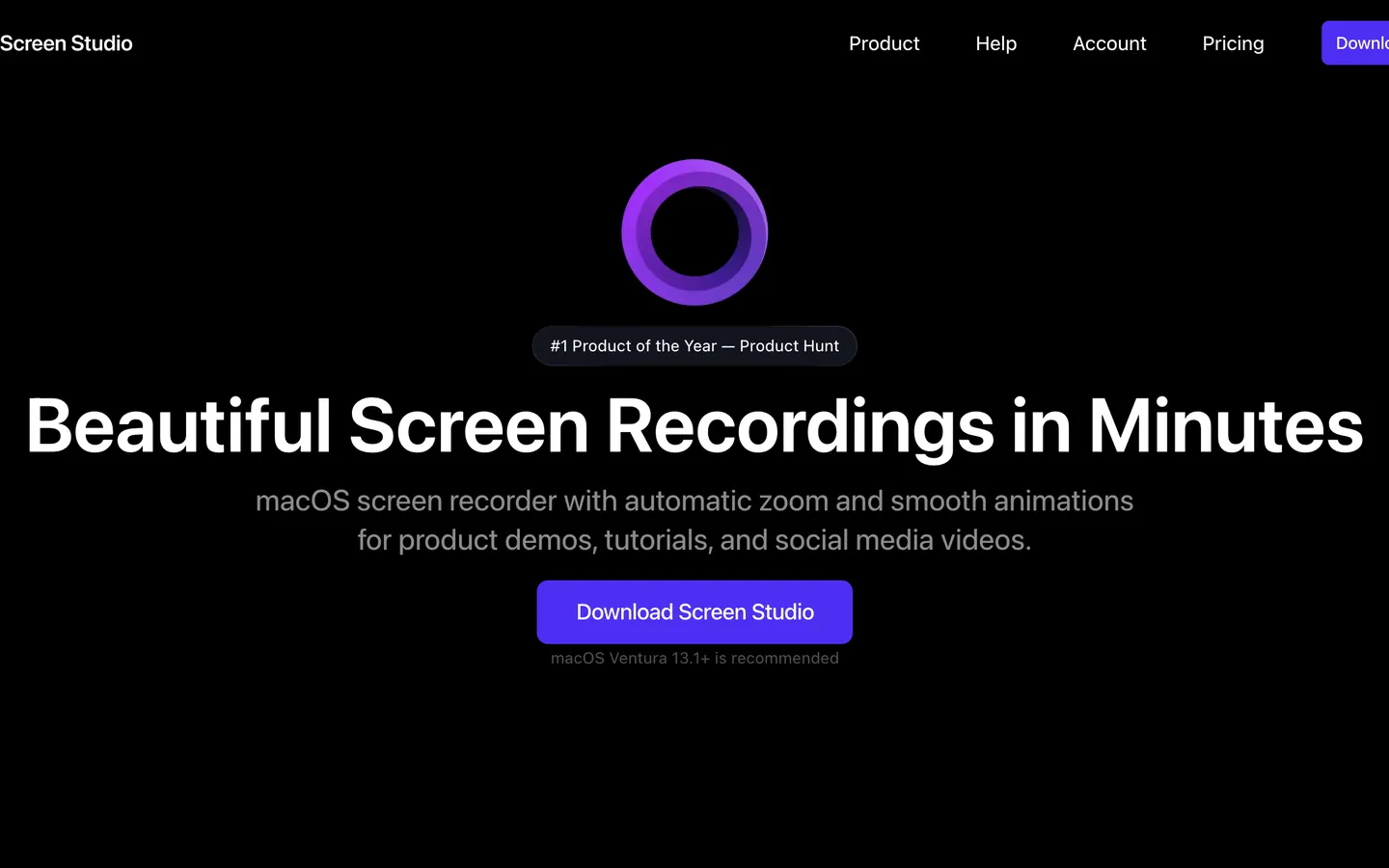
Screen Studio is the app Cap gets compared to in every thread. It launched in November 2022, and the automatic zoom, the smoothed cursor and the background behind the window are what the rest of this category copied. It also records an iPhone or iPad over USB.
Pros
- Automatic zoom on clicks and on typing, with years of polish on it
- Records an iPhone or iPad over USB, with the matching device frame
- Captions transcribed on the Mac, and separate microphone and system tracks
- Reframes a 16:9 take to vertical without cropping it
Cons
- Subscription only since October 2025; the one-time licence is gone
- No free tier at all, and export is behind the paid month
- Export stops at 4K 60
- macOS only, and a shared link is capped at 30 minutes with Screen Studio's branding
Our take. If Cap's editor was the problem and open source was not the point, this is the obvious move, and it is a mature app. It is also the most expensive way to leave: a year is $108 up front or $348 month by month, where Prequel is $29 once for the same kind of finished video, with a perspective tilt and focus falloff that Screen Studio does not have.
Price. $29 a month billed monthly, or $9 a month billed yearly. No free plan.
3. Loom
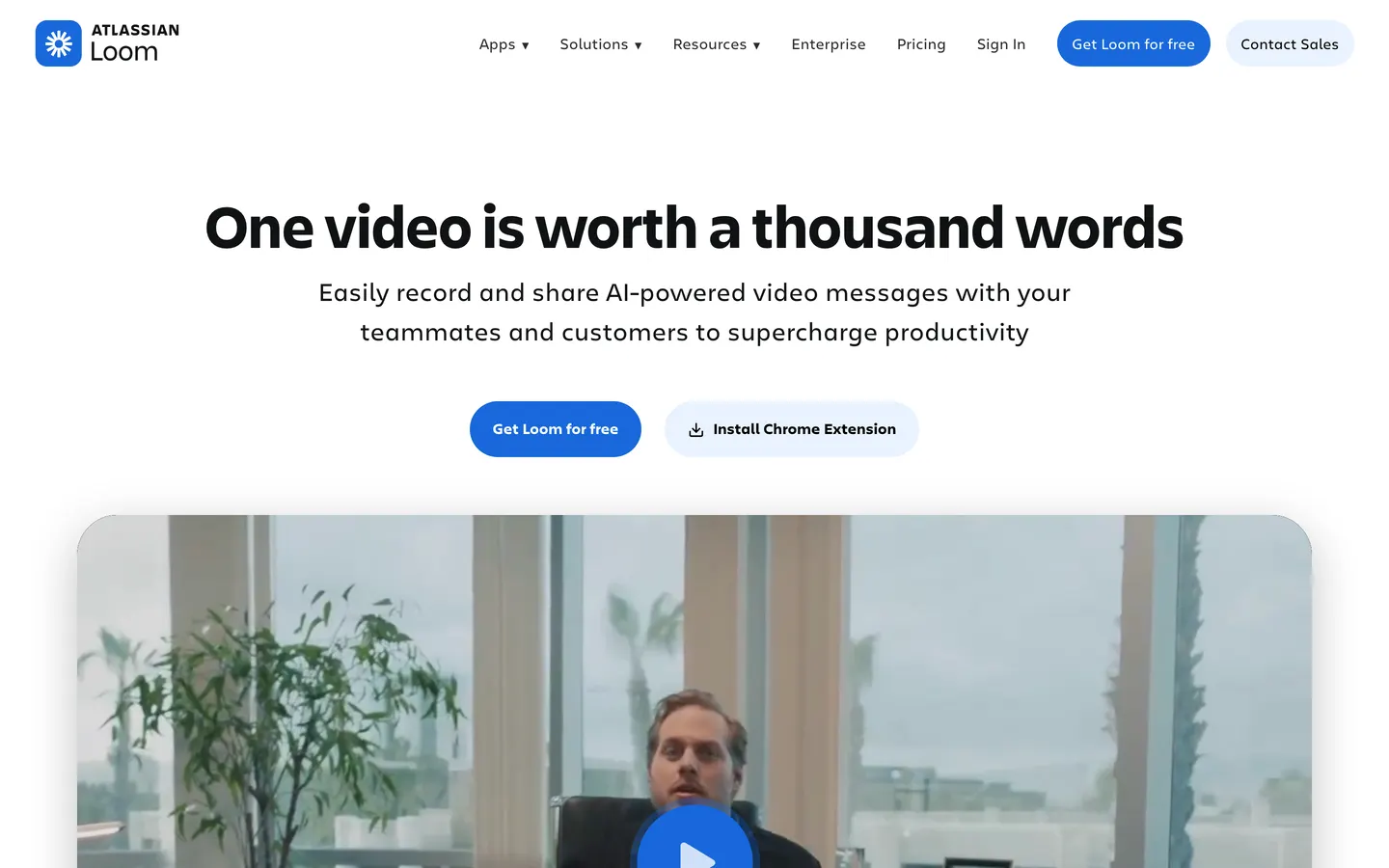
Loom is the tool Cap was written to replace, and it is still the best at the half Cap borrowed. Record, stop, and the link is on your clipboard. The person watching gets comments on the timeline, a transcript and double speed, and you see that they watched. Atlassian bought it in 2023, so it is wired into Jira and Confluence.
Pros
- The link is the product: view counts, comments, reactions and transcripts
- Runs on macOS, Windows, iOS, Android, the web and Chrome
- Embeds in Jira, Confluence, Notion, Slack and the rest
- Meeting recordings have no length cap, even on the free plan
Cons
- Every screen recording on the free plan stops at five minutes, at up to 720p
- 25 videos a person on the free plan, then the library is full
- $18 per user a month for Business, $24 with AI
- No automatic zoom, no cursor smoothing, and the camera bubble is baked in where it was
- Every recording uploads; there is no local-only mode
Our take. If what you actually wanted from Cap was the link and not the editor, and your team already lives in Jira, go to Loom and stop reading. For anything that gets judged on how it looks, Loom records the take as you performed it, and Prequel hands back the edit at $9 a month against Loom's $18.
Price. Free Starter, capped at 25 videos of five minutes each at 720p. Business is $18 per user a month, Business with AI is $24.
4. CleanShot X
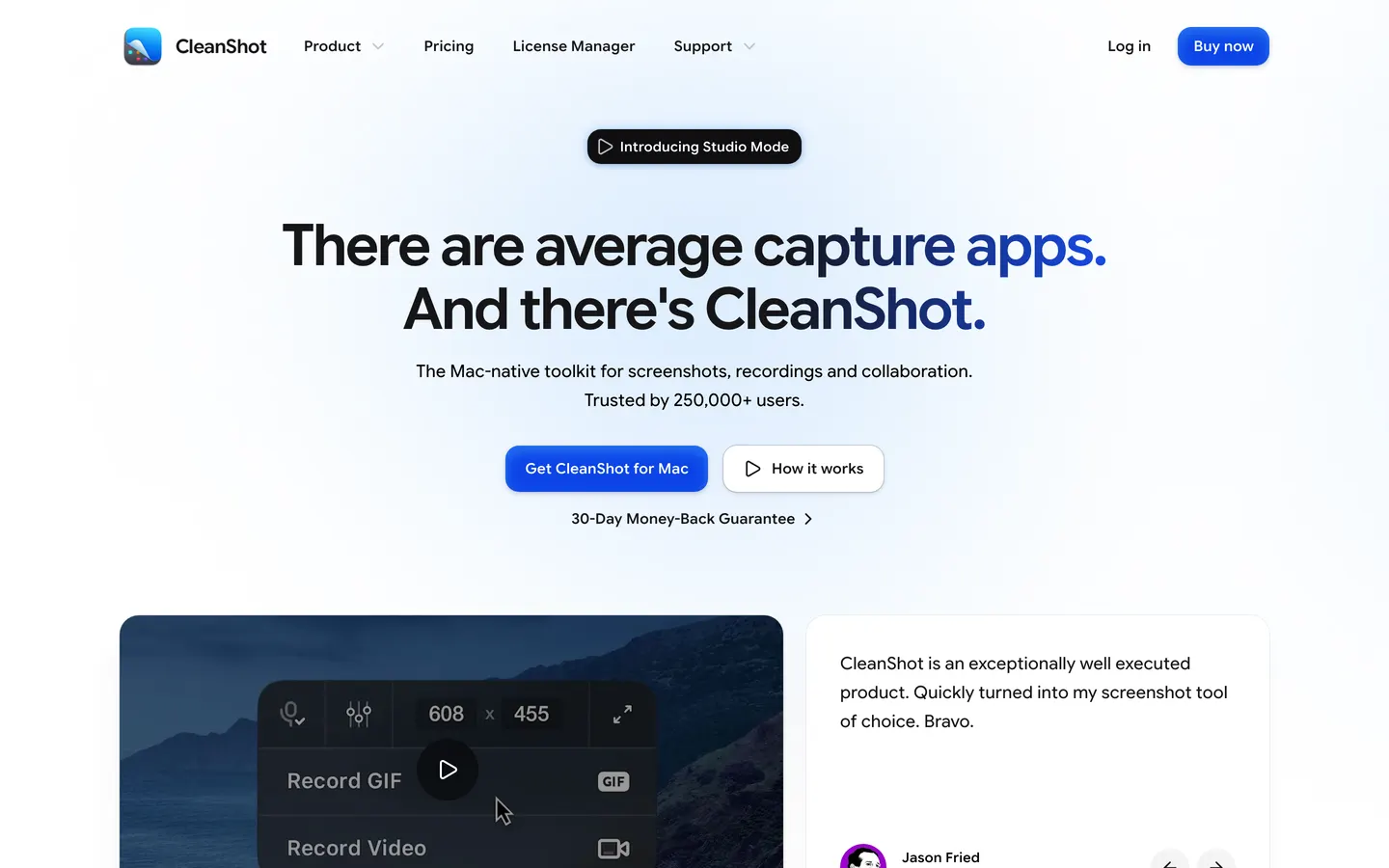
CleanShot X is the Mac's screenshot tool, and since version 5 in September 2026 it also has a Studio Mode that edits a recording with automatic zooms, cursor smoothing and backgrounds. One app for the screenshot and the clip.
Pros
- The best screenshot, annotation and scrolling capture on the Mac
- $35 once, with no personal-use clause
- Cloud links and an overlay annotator in the same app
Cons
- The $35 covers one year of updates; after that it is $19 a year
- The video editor is a month old
- macOS 13 or later, and there is no free tier
Our take. If most of what you capture is stills and the odd clip, this is a better fit than either Cap or Prequel. If it is demos, the video half of CleanShot is new, and Prequel has been built for nothing else since version one.
Price. $35 once, including a year of updates, with optional renewal at $19 a year. CleanShot Pro is $10 per user a month, billed annually.
5. OBS Studio
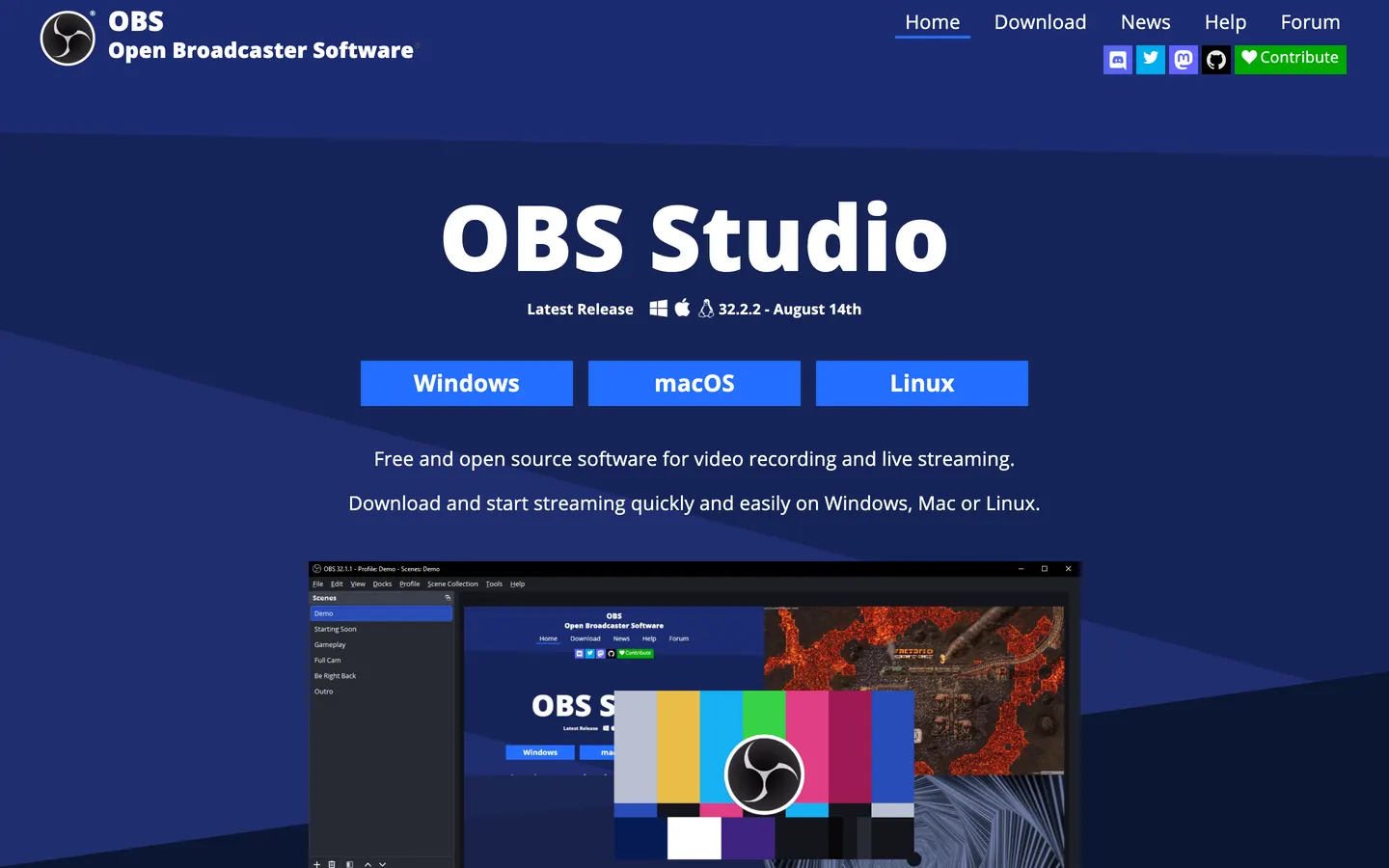
OBS is the other open-source answer, and it is the older one. GPL-2.0, free, no account, no cap, and no licence clause about what you may use it for. It records several displays, windows, cameras and capture cards at once, and it streams.
Pros
- Free and open source under GPL-2.0, with no commercial-use restriction
- Runs on macOS 12 or newer, on Intel and Apple Silicon, plus Windows and Linux
- Records multiple sources at once, at whatever your encoder will do
Cons
- No editing; the export is the recording
- No automatic zoom, cursor smoothing or camera framing
- Setting up scenes and sources takes an afternoon
Our take. If the AGPL and the personal-use clause were the thing that sent you looking, OBS is the cleanest answer on this page and it costs nothing. It also hands you raw footage, where Prequel hands you the video with the zooms, the camera and the background already on it.
Price. Free.
6. QuickTime Player
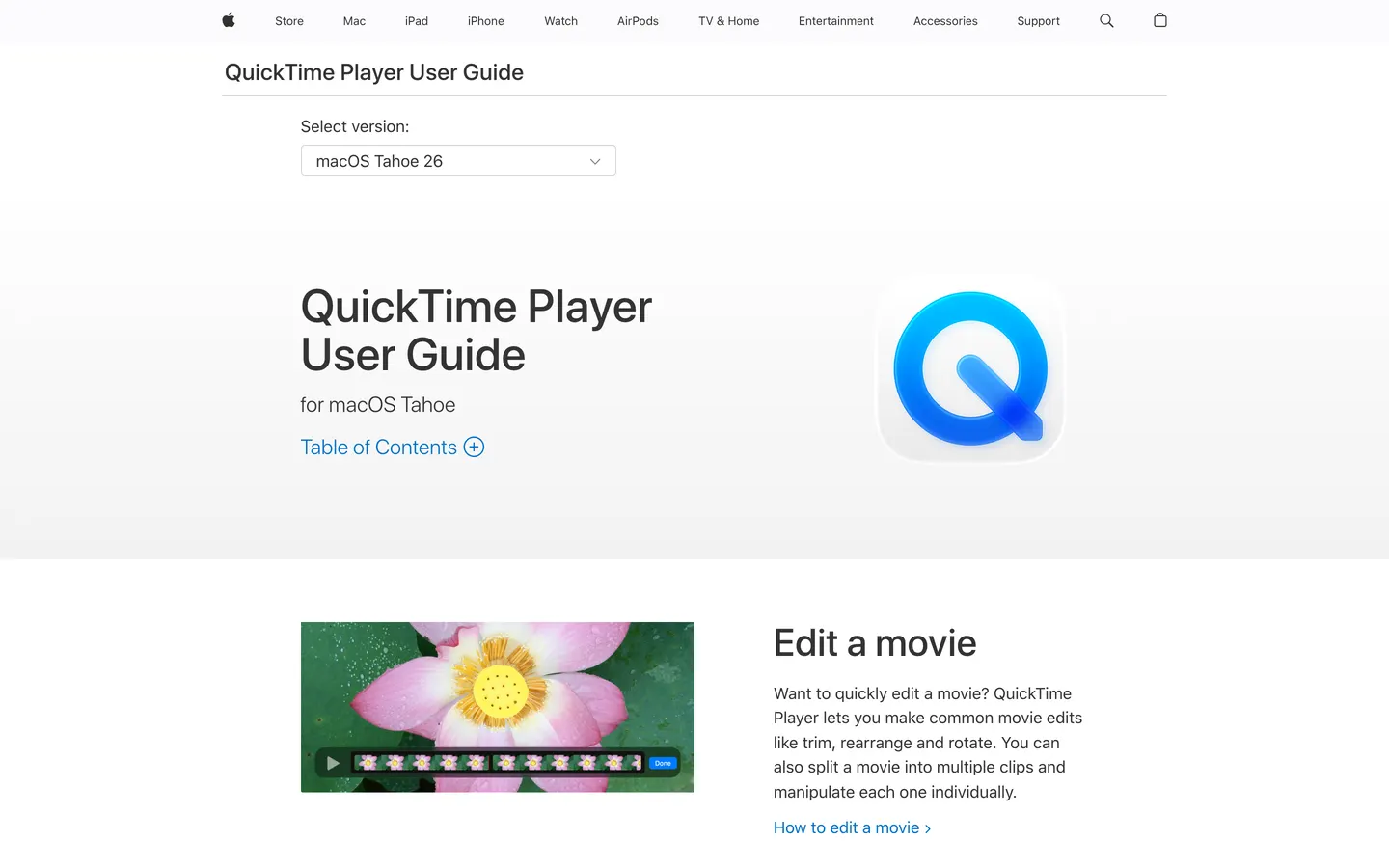
QuickTime is on every Mac. File, New Screen Recording, and you have the screen and the microphone in one file. No account, no licence, no install.
Pros
- Already installed, free and reliable
- Records the screen or the camera at full resolution
- Nothing uploads anywhere
Cons
- No system audio on macOS 26 or earlier without a virtual driver
- Screen or camera, never both in one file
- No editing beyond a trim
Our take. Use it for a ten-second capture nobody outside the room will see. For anything else, Prequel records the screen, the camera, the microphone and the Mac's own sound as four separate sources in one take, and opens the editor with the pass already made.
Price. Free with macOS.
Which one should you switch to?
If you record for work on a Mac, Prequel. No separate commercial licence, no cap on a take, and the edit is done when the editor opens.
If you want the most mature automatic zoom, Screen Studio or Prequel. Screen Studio if the monthly bill is fine, Prequel if you would rather pay once and export at up to 4K 120 against Screen Studio's 4K 60.
If what you wanted was the link, Loom. It is still the best at that.
If the licence was the issue, OBS, under GPL-2.0 with nothing withheld. If you mostly take screenshots, CleanShot X. If it is a ten-second capture, QuickTime.
What Prequel does, since it is the recommendation: it records a display, a window or an area you drag out, with the camera, the microphone and system audio each on their own track. When you stop, the editor opens with the first pass made. Zooms are placed on every click and every burst of typing. The camera is framed, shaped and sized in a corner. A background is applied with padding, a radius, a border and a shadow. The two audio tracks are balanced on separate gains. The cursor is smoothed, resized and hidden when it idles.
The timeline is where you cut, with waveforms under the clips so you can see where. Nothing is cut for you. Captions are transcribed on your Mac when you stop, with nothing uploaded, and you correct a word by typing over it.
Export is one MP4 at up to 4K and 120 frames a second, in H.264 or HEVC, encoded on your own machine. No upload, no queue, no watermark on any plan or during the trial, and no cap on the length of a take. Share Link uploads a finished export when you ask it to and gives you a URL that plays in a browser.
It is $29 once, or $9 a month, with seven days free and the whole app in the trial. Both plans are the same app; the only difference is how much may be kept on the sharing side. The source is on GitHub under the Functional Source License, which turns into Apache 2.0 two years after each release. It needs an Apple Silicon Mac on macOS 14 or later and the Screen Recording permission.
More of the field:
The 12 best screen recorders for Mac → · Open source screen recorders for Mac → · Screen Studio vs Cap → · The best Loom alternatives for Mac → · The best Screen Charm alternatives → · The complete guide to screen recording on Mac →
Frequently asked questions
- What is the best Cap alternative?
- On a Mac, Prequel. The editor opens with the pass already made, the zooms follow your typing as well as your clicks, and export runs at up to 4K and 120 fps where Cap stops at 4K 60. Both plans are the whole app with no personal-use clause, so a recording made for work needs nothing extra. It is $29 once or $9 a month, where Cap's $29 buys twelve months.
- Is Cap free?
- Free for personal use. The desktop app records locally with no time limit and exports at 4K 60 on the free plan. Using it commercially needs the Desktop Licence at $29 a year or $58 once, or Cap Pro at $12 per user a month. Shareable links stop at five minutes on the free plan and on the $29 licence; only Cap Pro lifts that. Checked on 28 September 2026.
- Is Cap really open source?
- Yes. The repository is under AGPLv3, with the camera and capture crates under MIT, and the whole service can be self-hosted with Docker Compose. What the licence does not give you is free commercial use of the desktop app, which is a separate paid licence. Prequel publishes its source on GitHub too, under FSL-1.1-ALv2, which becomes Apache 2.0 two years after each release.
- Does Cap have automatic zoom?
- Yes, since version 0.6 in September 2026. Cap generates zooms from recorded click data and also offers manual keyframes from 1x to 4.5x. It does not zoom on what you type, which Screen Studio and Prequel both do. Cap's zooms are a starting point you open and adjust in the editor.
- Why does Cap limit shareable links to five minutes?
- The five-minute cap is on cloud share links, and it applies to the free plan and to the $29-a-year Desktop Licence, which also allows 20 links a month. Local recording has no time limit on any tier. Cap Pro at $12 per user a month makes shares unlimited. Prequel has no cap on the length of a take or on a shared recording.
- How much does Cap cost compared to the alternatives?
- Cap is free for personal use, $29 a year or $58 once for the Desktop Licence, and $12 per user a month for Cap Pro. Screen Studio is $29 a month or $9 a month billed yearly. Loom is free up to five-minute videos, then $18 per user a month. Prequel is $29 once or $9 a month. Read off each vendor's page on 28 September 2026.
- Can I move my Cap recordings somewhere else?
- Anything you exported from Studio mode is a plain MP4 and moves anywhere. Caps you uploaded for a link live with whichever storage provider you had set, which may be Cap's cloud, your own S3 bucket or Google Drive, and you download them from there. Cap project files are its own format and do not open in another editor.
- Should I stay on Cap?
- Stay if your team is on Windows or Linux as well as Macs, if you want to read and self-host the code, or if shares have to sit in your own S3 bucket. Nothing else in this category does all three. Move if you are on a Mac, want the edit done for you, and would rather not track a separate commercial licence.