Your iPhone demo records as a black rectangle: how to fix it
Tella's own tip page says AirPlay mirroring records as a black rectangle. The cable-and-QuickTime route that works, step by step, and how to record that window with Prequel in Window mode.

You mirrored your iPhone to the Mac to record a demo, started the recording, and got a black rectangle where the phone should be. Tella documents it. The fix works in any recorder.
What Tella says
On its tip page for iPhone demos, Tella's help centre says "AirPlay mirroring records as a black rectangle". The route it gives is to connect the device by cable and record a QuickTime Player window instead.
Show the phone through a cable
This is how the Mac's own QuickTime Player does it.
- Connect the iPhone to the Mac with a cable and unlock it. Tap Trust if it asks.
- Open QuickTime Player and choose File, then New Movie Recording.
- Click the small arrow beside the record button.
- Under Camera, choose your iPhone. The phone's screen appears in the window. You now have a normal Mac window showing the phone. A normal window is the thing screen recorders can record.
Record that window
Do not use QuickTime's own record button for the demo unless you want a plain file. Record the window with a recorder that can zoom and frame it.
In Prequel, choose Window on the dock. The screen dims and the window under your pointer is highlighted with its app icon and name. Click the QuickTime window, then press Start recording. See sources.
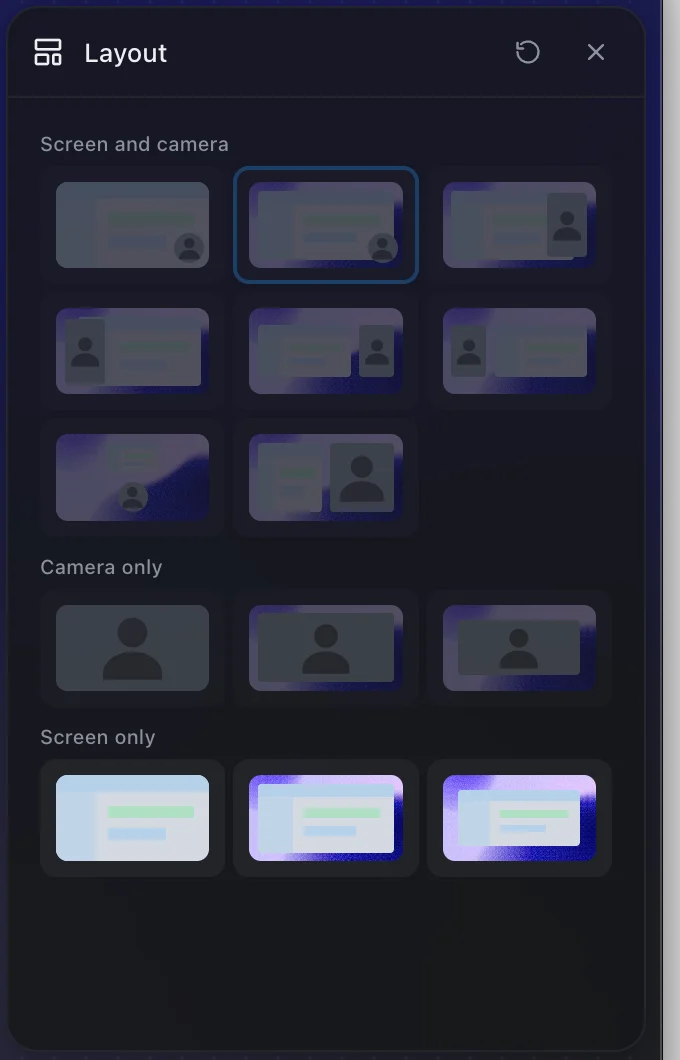
In the editor you can place the phone on a background, add zooms, and add your own camera in a corner with one of the layouts: see layout and zooms.
Making the phone look right
- Turn on Do Not Disturb on the phone first, so no banner crosses the demo.
- Resize the QuickTime window to the phone's proportions before you record, so the frame is not mostly empty.
- Check the sound with a 10-second test. The iPhone's microphone and the Mac's are different devices, and why screen recording audio drifts out of sync explains what happens when two devices disagree.
A related tool-specific limit is Tella is not recording computer audio. For the limits on what Tella lets you change afterwards, see what Tella's editor can't do after you record, and for audio sync, Tella audio out of sync.
The general guide to recording on a Mac is the complete guide to screen recording on Mac, and before you press record has the checklist.
Record the QuickTime window in Prequel and place the phone on a background.
Prequel needs an Apple Silicon Mac on macOS 14 or later. Download Prequel for Mac and try it free for 7 days, with no watermark on anything you export. After that it is $9 a month or $29 once. See what it costs.
Frequently asked questions
- Why does my iPhone screen record as a black rectangle?
- Tella's help centre says AirPlay mirroring records as a black rectangle. The route it gives instead is to connect the iPhone by cable and record a QuickTime Player window.
- How do I show my iPhone on my Mac with a cable?
- Connect the iPhone with a cable and open QuickTime Player. Choose File, then New Movie Recording, click the arrow beside the record button and choose the iPhone as the camera. The phone's screen appears in the window.
- Can I record the QuickTime window with a screen recorder?
- Yes. It is an ordinary window. In Prequel, choose Window on the dock, click the QuickTime window and press Start recording.
- How is sound recorded in the iPhone demo?
- Prequel records the microphone you choose on its dock and, when Record system audio is on in Settings, the Mac's own sound as a separate track. Check a 10-second test with sound before the real take.
Keep reading
- Tella audio out of sync: what its own help centre saysTella's help centre says it cannot resync audio in the editor and the fix is to re-record. What it documents about microphone delay, a user's report of lag on both apps, and a clap test that tells drift from fixed delay.
- Tella is not recording computer audio: why, and what to useIn Tella's browser recorder and Chrome extension, desktop sound is only captured when you share a browser tab. What Tella's help centre says about each app, and how Prequel records the Mac's own sound without a driver.
- What Tella's editor can't do after you recordTella's help centre says you cannot add your screen or camera to a clip afterwards, record a voice-over onto it, or blur the camera background in the editor. Plus a G2 reviewer's note on the exported background, and what Prequel's editor does with tracks.